Antivirus Software for Chromebook: Do You Need It?
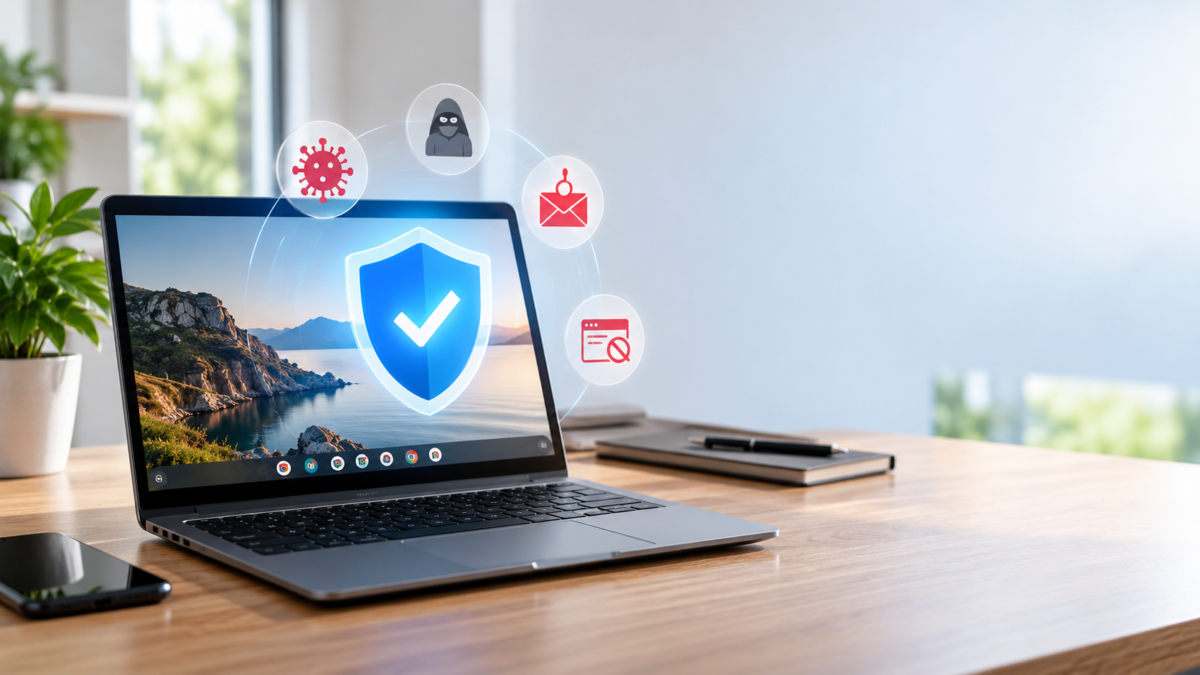
You usually do not need separate antivirus software for Chromebook devices that still receive security updates and run with their default protections. ChromeOS already includes strong malware defenses. Phishing, unsafe extensions, and stolen passwords still require attention, though, because a secure laptop cannot prevent every bad decision on a website.
Before installing a security app, work out what you want it to protect. Checking Android apps, spotting a fake login page, and warning about an exposed password are different jobs. Here is how Chromebook protection works, what extra tools can realistically do, and which habits deserve your time.
Do Chromebooks Need Antivirus Software?
For browsing, schoolwork, video calls, and documents, an updated Chromebook generally does not need a traditional desktop antivirus suite. ChromeOS restricts access to the operating system and limits what websites and apps can do. Those restrictions make it harder for malicious code to gain control of the device.
Your accounts are another matter. A fake banking page can collect a password without altering ChromeOS. An extension can misuse the website access you gave it. When deciding whether to add protection, think about the information and permissions at risk, as well as the computer itself.
If a pop-up has prompted you to search “does Chromebook need antivirus software?”, close the page before doing anything else. Do not call its support number or pay for its recommended scanner. A warning inside a webpage is not evidence that the site has inspected your Chromebook and found an infection.
How ChromeOS Protects You by Default
ChromeOS is the operating system; Google Chrome is the browser. Much of what people do on a Chromebook happens through websites, although supported devices can also run Android apps and, when enabled, Linux software.
Several built-in defenses work together. Security updates fix weaknesses, encryption protects stored user data, and access restrictions limit what untrusted code can reach. Google explains these layers in its ChromeOS security documentation. Read about ChromeOS security
Chrome also uses Safe Browsing to warn about dangerous sites, downloads, and extensions it identifies. Pay attention to those warnings. A page that has not triggered one still needs scrutiny, especially if it asks for a password or payment unexpectedly.
Traditional Windows .exe malware does not run natively on ChromeOS. Saving a Windows installer in Downloads does not make it a Chromebook application. The website offering it could still attempt another scam, such as collecting your card details or persuading you to install an extension.
Built-In Security: Sandboxing and Verified Boot
Sandboxing restricts browser processes so that a webpage has limited access to the rest of the Chromebook. A page can display content and respond to your clicks without receiving unrestricted access to your files or other programs. If an attacker compromises a browser process, the sandbox helps contain the damage.
Verified Boot checks system software for unauthorized changes during startup. It helps detect tampering and supports recovery to a trusted state. This check concerns the operating system; it does not inspect every email, cloud document, or account you open.
These defenses are a good reason to keep the Chromebook updated and restart when needed. Their limits are just as practical: a fake login page can load on a perfectly healthy device. Rebooting afterward will not take back the password you entered.
Real Security Risks for Chromebook Users
The risks below can affect your information even when ChromeOS is working as intended. Start here if you are trying to decide what additional protection would actually help.
Malicious Browser Extensions and Web Scams
Extensions can translate pages, find coupons, or help with writing. Depending on their permissions, they can also read or change content on the sites you visit. Malicious extensions abuse that access, so a useful-sounding description is not enough to justify installing one.
Check who publishes an extension and whether the permission request matches its job. Google allows you to review and adjust its access to sites. Give it only the access needed for the task.
For example, an extension you use on a single scheduling website should not automatically get access to every site you open. If it requests broader access, look for an explanation from the developer. Remove it if you cannot justify keeping it.
Fake security warnings often start with a request to allow website notifications. Once allowed, the site can send alarming messages that look more official than the original page. Look at which website sent the notification before treating it as an alert from the operating system.
- Ignore payment demands in infection alerts. Close the page. Do not call its number or install the advertised fix.
- Remove unfamiliar or unused extensions. If you cannot explain why an extension is installed, investigate its publisher and permissions before keeping it.
- Review notification permissions. Block websites sending misleading alerts instead of clicking their unsubscribe or repair prompts.
Phishing Attacks and Credential Theft
Phishing uses a false identity to get you to reveal information or authorize an action. It can appear in email, text messages, search ads, social media, or a shared document. The request may look routine: review a file, confirm a delivery, or sign back into an account.
A message might claim that a school account will be suspended unless you sign in. The linked page copies a familiar login screen and collects the password you type. Before responding, open the school’s usual portal directly and check whether the same notice appears there.
Phishing protection can flag suspicious destinations, but verify unexpected requests yourself. Use a saved bookmark or type the address you know. If someone requests a payment, call them using an established number, rather than the number supplied in the message.
Use a different password for every account. A password exposed by one breached service can otherwise be tried against your email and shopping accounts. Data breach alerts help you respond to known exposure; they do not establish that your Chromebook was infected. Change the affected password and any other account passwords you reused.
Use passkeys where available. They are tied to the legitimate service, which helps prevent you from handing a reusable login secret to a lookalike website. Keep your recovery email and other recovery methods secure, too.
Risky Android Apps from the Play Store
Supported Chromebooks can install Android apps through the Google Play Store. Some models or individual apps are incompatible, and school or workplace administrators may restrict installation. Check what your particular device supports before choosing an app.
Google Play Protect checks apps for harmful behavior and can warn about, disable, or remove apps it identifies as harmful. Keep it enabled. Its checks reduce risk, but an app still needs to earn the access it asks you to grant. How Google Play Protect helps
Read permissions in the context of the app’s purpose. A calculator asking for your contacts deserves a closer look. A document app may need access to files, but that does not mean every file on the Chromebook should be shared with it. Decline unnecessary permissions and see whether the function you need still works.
Install apps you need, update them, and remove those you have stopped using. Avoid third-party APK downloads offered as a workaround when an app is unavailable. Check the developer’s compatibility guidance or use a suitable web version instead.
How Antivirus Software Works on ChromeOS
Antivirus software for Chromebooks does not work like a Windows antivirus suite. You cannot simply install the Windows version on ChromeOS. An Android security app, even when compatible, operates with the access allowed to Android apps.
ChromeOS keeps Android apps in a separate environment. Google’s ARCVM architecture uses a virtual machine to strengthen that separation. A compatible scanner may check Android apps or accessible files; it cannot be assumed to inspect ChromeOS system files, Chrome extensions, and other apps’ private data.
A browser security extension works closer to the webpages you visit. Depending on its design and permissions, it may assess sites or links. Read what it covers: a browser warning tool is useful for web risks, but its presence does not mean the whole operating system has been scanned.
Breach monitoring works differently again. It looks for information found in known exposures, such as an email address associated with a breached service. That can be useful whichever laptop you use. An alert tells you to investigate the account and its credentials, rather than assume the device needs cleaning.
Before paying, ask the provider a concrete question: does this feature protect Google Chrome on my Chromebook, or only an Android app? Also check what “scan” means. Scanning accessible downloads, checking installed Android apps, and reviewing browser extensions are separate capabilities.
| Protection layer | What it helps with | What to keep in mind |
|---|---|---|
| ChromeOS built-in defenses | Restricting code, checking system integrity, and receiving security fixes. | Does not verify every website, extension, or online account. |
| Chrome Safe Browsing | Warnings about dangerous sites, downloads, and extensions. | An unflagged page still needs scrutiny. |
| Google Play Protect | Checking supported Android apps for harmful behavior. | Checks Android apps, not the whole ChromeOS system. |
| Compatible Android security app | Additional checks within its supported Android features and permissions. | Coverage depends on compatibility and permissions. |
| Data breach monitoring | Alerts about information found in known breaches. | An alert is not proof of device infection; account action is still needed. |
Match the tool to the problem. If you mostly use Chrome and rarely install Android apps, an Android app scanner may offer little value for your main concern. Installing several overlapping security tools also gives you more permissions, notifications, and settings to manage.
Key Security Features to Look For in Antivirus Software for Chromebook
Start with the features you will use. For a Chromebook used mainly for email and school websites, browser protection and account alerts may matter more than Android scanning. For a family plan, check each operating system individually; the feature list can differ between devices.
- Confirmed Chromebook compatibility. Check the provider’s support page for ChromeOS requirements and feature limitations. A general Android badge is not enough.
- Phishing protection where you browse. Find out whether it covers Google Chrome on ChromeOS, an Android browser, or links you submit manually. Choose coverage that matches your usual browsing.
- Actionable data breach alerts. An alert should identify the affected service and explain the response. You need enough detail to change the right credentials, not just a warning that your information may be exposed.
- Permissions you can justify. Ask why a security extension needs access to every site, or why an app requests particular information. The provider should explain what that access does for the feature you want.
- Warnings people can understand. Family members should know what happened and what to do next. Check that help is available when a warning is unclear or a legitimate page is blocked.
- Coverage for each family device. Check the actual features on iPhone, Android, Mac, and Windows. A shared subscription does not mean identical scanning and controls on every platform.
AVO Security provides multi-device antivirus, breach alerts, and phishing protection for iPhone, Android, Mac, and Windows under one family plan. In a household with a Chromebook, an Android phone, and a Windows PC, that plan can cover supported devices while you maintain the Chromebook’s own browser and account protections.
When comparing Chromebook antivirus software, check for explicit ChromeOS support. A provider’s Android app listing alone does not confirm that its features work on a Chromebook. The same applies to AVO Security: check confirmed device support before treating it as a Chromebook antivirus option.
Best Practices to Keep Your Chromebook Secure
Start with the settings that affect daily use: updates, account access, and browser permissions. A brief review of these areas can uncover a forgotten extension or an outdated recovery address that another scanner would not fix.
Keep ChromeOS Updated and Check Its Support Date
Open Settings, select About ChromeOS, and check for updates. If a restart is required, finish your work and restart the device. An update downloaded in the background may still need that restart to finish installing.
In About ChromeOS, open Additional details and review the update schedule. This is especially useful before buying a used Chromebook or passing an older one to a child. Once security updates end, plan to move sensitive activity to a supported device; an antivirus app cannot patch ChromeOS itself.
Keep Safe Browsing Enabled
In Google Chrome, open Settings, then Privacy and security, then Security. Keep Safe Browsing enabled. Consider Enhanced protection for additional checks on potentially dangerous sites, downloads, and extensions, and review the information-sharing explanation before selecting it. Choose a Safe Browsing level
Treat a browser warning as a reason to pause. If it appears when following a delivery or billing link, open the company’s known website separately and check your account there. Do not turn protection off just because the linked page asks you to.
Protect the Google Account You Sign In With
Protect your Google Account with a unique password and two-step verification, or a passkey where available. Check that your recovery phone number still belongs to you and that you can access the recovery email. Outdated recovery details can make it harder to regain access when something goes wrong.
Give family members separate accounts. Sharing a login mixes messages, saved credentials, and account activity, making suspicious changes harder to trace. Children should not need a parent’s account password to complete ordinary schoolwork.
Lock the Chromebook before leaving it unattended, even at home. Stored-data encryption does not stop someone from opening email or cloud files in an unlocked, signed-in session. Be particularly careful when lending the device to someone else.
Review Extensions, Apps, and Permissions
Review the extension and app lists periodically. Remove an old shopping helper, a game nobody uses, or a document tool installed for a single assignment. Then check the permissions of what remains, especially any item that has recently requested broader access.
On a school-managed Chromebook, ask the school’s IT team about suspicious behavior or blocked installations. Give them the website or app name and describe what appeared on screen. Follow their installation rules rather than trying to bypass restrictions to add a security product.
Keep the Chromebook in its normal, verified configuration. Developer Mode changes security protections and is unnecessary for routine use. The Linux development environment is a different feature: if you enable it, install software carefully and review which files you share with it. Do not assume an Android scanner covers Linux software.
Handle Downloads and Sensitive Information Carefully
Be cautious with unexpected attachments, even when the sender’s name is familiar. If a message claims to contain an invoice you were not expecting, confirm it through an established contact. Get needed software or documents from the organization’s known website whenever possible.
Check where your important files are actually saved. A document in Downloads may not have a separate copy simply because you use Google Drive for other work. Copy important local files to a backup location and confirm that you can open the copies before resetting or replacing the Chromebook.
On public Wi-Fi, confirm the network name with the venue and stop if the browser reports a connection-security problem. A secure connection protects data in transit, but a fraudulent website can also use one. Check the destination before entering a password or payment details.
Respond to Warning Signs Without Panic
A slow Chromebook is not, by itself, evidence of malware. Unexpected redirects or a search engine you did not choose point you toward browser settings and extensions. An unfamiliar account sign-in requires a different response: review the account, not just the laptop.
- For unwanted pop-ups or redirects: Close the page, review recently installed extensions, and remove unwanted notification permissions. If the problem started after an installation, examine that item first.
- For a password entered on a suspicious page: Change it through the legitimate service using a trusted device. Change reused passwords elsewhere, review signed-in devices and connected apps, and check recovery details.
- For persistent device problems: Contact the manufacturer or your administrator. Before an advised Powerwash, back up important local files; the reset erases local user data.
Deal with account exposure before considering a factory reset. Powerwash can remove local user data and settings, but it will not change a stolen password or remove an attacker’s access to a cloud account. Google has separate recovery guidance for each of these problems.
FAQ
Can a Chromebook get a virus?
A Chromebook can encounter malware and software vulnerabilities, including harmful Android apps and malicious extensions. Traditional Windows .exe viruses do not run natively on ChromeOS. Phishing can also compromise your accounts without infecting the Chromebook.
Does ChromeOS come with built-in antivirus?
ChromeOS comes with built-in security protections rather than a conventional desktop antivirus suite. Sandboxing, Verified Boot, and automatic security updates protect the system, while Chrome’s Safe Browsing warns about identified web threats. On supported devices, Google Play Protect also checks Android apps for harmful behavior.
How do I protect my Chromebook from phishing and malware?
Keep ChromeOS updated, leave Safe Browsing enabled, and review the apps and extensions you install. Open unexpected login or payment requests through the service’s known website instead of the message link. Use unique passwords and two-step verification or passkeys, and act on suspicious sign-ins or breach alerts.
Do Android antivirus apps work on Chromebooks?
Some Android security apps work on Chromebooks with Google Play Store support, but compatibility and features vary. Their access is limited by the Android environment and ChromeOS permissions, so they cannot be assumed to scan the entire operating system. Confirm Chromebook support and the features you need before paying.
Most updated Chromebooks do not need a traditional antivirus suite. Keep the built-in defenses working, check what you install, and protect your accounts. For the iPhone, Android, Mac, and Windows devices in your household, explore AVO Security’s cross-platform security to manage protection for supported family devices under one plan.