Best Antivirus for Android and iPhone Guide

Your partner uses Android. You use an iPhone. Your child has a tablet that seems to receive more strange links than homework. Buying protection for all of them sounds simple until you discover that the same antivirus subscription behaves very differently on each phone. The best antivirus for android and iphone should protect both platforms against their real risks, cover the laptops and tablets your family actually uses, and make suspicious messages easier to handle. Compare Android app scanning, iPhone web protection, breach alerts, device limits and parental features before choosing a plan.
This guide compares four subscription options and the protections already built into Android and iOS. The comparison is based on published features and the questions parents should ask, not claimed test scores or rankings from tests we have not run. Check your chosen plan against your devices before paying, especially if you have older phones or want a specific feature on iPhone.
Why Mobile Devices Need Dedicated Antivirus Protection
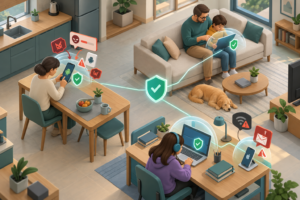
A phone is often the key to everything else: email, saved payment methods, family photographs, school accounts and password resets. A convincing fake delivery text does not have to install malware to cause trouble. Someone can simply be persuaded to type a password into the wrong website. That is why comparing Android and iPhone security by virus-scanning claims alone misses much of the problem.
Android security software can inspect supported apps and warn about malicious installations. Apple’s iOS isolates apps from one another, so a third-party security app cannot perform the same system-wide malware scan on an iPhone. On iPhone, the most useful security additions often concern dangerous websites, scam messages, risky networks, exposed credentials and account settings.
No paid app replaces an updated phone, a passcode that a stranger cannot guess or a parent taking a moment to check an unusual request. The extra software earns its place when it catches a risky link, identifies an unsafe app on Android or gives a useful alert about an exposed account.
Android Threats: Malware, Sideloading, and Permissions
Start with Google Play Protect. It checks apps for harmful behavior, including apps installed from outside Google Play, and should stay enabled even if you buy another security app. On most Android phones, open the Play Store, tap the profile picture, choose Play Protect, then open Settings and check that scanning is on. Menu wording can vary by device.
Sideloading means installing an app from outside the normal app store. A workplace may have a legitimate reason to ask for it. A link in a parcel text usually does not. If a message asks a child to download a tracking app or a video player before they can view something, treat the source as the first question, not the app’s reassuring-looking icon.
Before approving an Android app, look closely at these requests:
- Accessibility access: A legitimate accessibility tool may need it, but an unrelated app asking to read or control the screen deserves scrutiny.
- Notification access: This can expose security codes and account alerts shown in notifications.
- SMS or phone permissions: Consider whether a calculator, game or photo editor has any real need for them.
- Device administrator or unrestricted background access: Check the purpose before enabling elevated controls.
- Install unknown apps: Leave this permission off for browsers and chat apps unless there is a specific, trusted reason to use it.
For Android antivirus, check the warning screen before you commit to a subscription. Does it name the flagged app? Can the user tell whether to uninstall it, remove a permission or update it? A vague red warning that sends everyone hunting through settings creates work without helping the family make a decision.
iPhone Threats: Phishing, Malicious Profiles, and Unsecured Wi-Fi
The trouble on an iPhone often arrives as an ordinary-looking message. A school-fee reminder links to a copied payment page. A parcel alert asks for a small redelivery charge. A social media message offers a prize but leads to a sign-in form. None of these requires a third-party app to scan the iPhone’s system files; the mistake happens when someone trusts the link.
iPhone security apps help by assessing links or blocking known harmful destinations, checking privacy and network settings, and reporting exposed email addresses. They do not scan the files of other apps or remove traditional Windows-style viruses from iOS.
Be especially cautious about configuration profiles. Profiles can legitimately configure a workplace or school device, but one installed from a random webpage can change network or account behavior. On iPhone, open Settings, then General, then VPN & Device Management to review installed profiles. Do not delete a school or employer profile without checking with its administrator.
For public Wi-Fi, do not assume that the network with the strongest signal is the right one. Ask the hotel or café for its exact network name. Modern HTTPS connections already encrypt web traffic, but a lookalike hotspot or an unexpected sign-in page can still mislead you. A reputable VPN is an added privacy measure on open networks, not a way to make a suspicious page safe.
Key Features to Look for in Cross-Platform Mobile Security
The best cross platform antivirus is clear about its limits. Android and iPhone do not allow the same scanning methods, so look for a separate feature list for each system. Then check what a parent can manage from one account and which advertised features disappear unless you move up a plan.
Keep the product page open while you compare. Mark what is included on Android, what is included on iPhone and what is only available on Windows or Mac. Feature names sound similar across vendors; the actual settings screens tell you what the subscription will do at home.
Real-Time Phishing and Scam Link Detection
A suspicious link might arrive through a school group chat, a game invitation or a delivery text. Prefer protection that blocks known harmful websites and, just as usefully, lets a family member paste or share a link into a checker before opening it. That is often easier to explain to a child than a long list of threat categories.
Ask where the warning appears. Does it work in Safari and Chrome, or only inside the provider’s browser? Can it check a link sent in a messaging app? Network-based filtering may block known dangerous destinations across apps, but it cannot read the intent behind every message. Text and call filtering also varies with iOS, Android and the country in which the phone is used.
Imagine a teenager asks, “Is this concert-ticket page real?” The useful feature is one that lets you inspect the link without opening it or typing in account details. Look for that workflow in the product description or trial, not just a claim that phishing protection is included.
Data Breach and Identity Exposure Monitoring
Breach monitoring answers a narrower question than many ads suggest: has a monitored email address or other detail appeared in known exposed-data sets? It does not retrieve leaked data or guarantee that every breach has been discovered. What matters is whether the family knows what to do next.
An alert should identify the affected address, explain what information may be exposed and point to a sensible next step. If that account used a shared password, change it there and anywhere else it was reused. Turn on a passkey or multifactor authentication when available. Parents should not need to decode a technical report to work out which password to change.
Count monitored email addresses separately from device licenses. A five-device plan might monitor only one account or require another tier for broader identity services. Confirm that detail before paying, especially if both adults have separate shopping and banking addresses. Breach alerts, identity restoration help and identity insurance are different benefits.
Centralized Family Management Across Different OS Platforms
Put every device on one list before choosing a license count. Four family members can easily mean more than four installations once you include an old iPad, a shared Windows computer and the phone used for work. A subscription that runs out during setup is not a good fit, however attractive the initial price looks.
Compare the practical management details:
- Can you see which devices are activated and which are no longer used?
- Can each family member have their own sign-in or profile without sharing a parent’s primary password?
- Are content filters or child profiles included, and do they work the same on iPhone and Android?
- Can you change settings from a parent’s device or must you handle each phone individually?
- Can older children keep appropriate privacy while parents still manage basic protection?
On iOS, a family app may rely partly on Apple’s Screen Time controls instead of offering the same monitoring or blocking options it has on Android. Check this before promising a child that the settings will work in exactly the same way on both phones.
Good mobile antivirus for family use means covering the devices you own and following up on the alerts that matter. That is a workable definition of family mobile security, not reading every private message.
VPN, Wi-Fi Checks, and Honest Battery Expectations
A VPN encrypts traffic between a phone and its VPN server. That is useful when you connect to a network you do not control, particularly open public Wi-Fi. It does not stop someone from entering a password on a fake shopping page or undo an exposed account password.
Check whether the VPN is truly included, whether data is capped, whether it works on both phone platforms and whether automatic connection is available. A daily allowance may be fine for occasional browsing but insufficient for regular video calls or a tablet using mobile data all afternoon.
If the plan includes mobile VPN protection, check whether the phone can connect automatically when it joins an unfamiliar network. Also look for Wi-Fi security tools that tell you whether a connection is open or protected. An explanation someone can understand is better than an unexplained danger badge.
Battery drain is best judged on your own phone after setup. A VPN used all day, background link filtering and app scanning do not behave identically. Check battery usage in iOS or Android settings after several normal days. If one feature causes trouble, adjust that setting rather than turning off every safeguard.
Top Antivirus Solutions for Android and iPhone Compared

This comparison is not a winner-by-score list. It asks which product makes sense for a particular home, based on published plan features. Android can support app malware checks. On iPhone, security providers mainly work through safer browsing, network features, account monitoring and device settings because iOS blocks access to other apps’ private data.
| Option | Good fit for | Android approach | iPhone approach | Important limitation |
|---|---|---|---|---|
| AVO Security | A mixed-device household wanting simple scam, Wi-Fi and breach tools | Full Smart Scan plus web, link and network features | Settings and network Smart Scan plus web, link and network features | iOS parental controls rely on settings; confirm plan device limits |
| Bitdefender Total Security Family | Larger households wanting device security and parental management | App malware protection and scam or web tools | Web, privacy and account-security features | Standard VPN allowance is limited; premium features vary by tier |
| Malwarebytes Plus Family | Families especially concerned about links, scams and browsing privacy | Malware protection and safe browsing | Scam, web and privacy tools | Identity products and some protections depend on subscription tier |
| Norton 360 Deluxe | Families wanting a broad bundle for a modest number of devices | Malware and scam protection | Scam, web and privacy protection | Standard Deluxe device allowance may not cover larger households |
| Built-in Google and Apple tools | Families needing a no-cost baseline | Play Protect, updates and Android settings | iOS security, Safari protections and Screen Time | No single third-party family dashboard or unified breach alerts |
AVO Security: For a Simple Mixed-Device Household
Who it suits: A household with a mix of Android, iPhone, Windows and Mac devices where the main concerns are suspicious links, unfamiliar Wi-Fi and exposed email accounts, rather than elaborate activity reports.
Strengths: Its mobile feature list includes Smart Scan, Web Shield, Link Checker, QR Scanner, Email Breach Scan, VPN and Wi-Fi Security. On Android, the scanning options differ from the settings and network checks possible on iPhone.
For a parent comparing an iPhone and Android security app, the useful test is simple: can each person check a questionable link, recognize a Wi-Fi warning and see which email addresses are being monitored?
The family security features page is a useful place to compare the platform differences before installing anything. Check the relevant rows for every phone on your list; do not assume the Android feature and its iOS counterpart have identical permissions or results.
Limits: Device allowances and monitored-address limits depend on the plan. Parental settings on iPhone are not identical to Android controls, and link checking cannot catch every newly created scam. If screen-time reports or restrictions are your main reason for buying, check those features separately before choosing AVO.
Bitdefender Total Security Family: For More Devices and Parental Tools
Who it suits: Larger households with several children’s phones and tablets that need parental tools as well as antivirus and web protection.
Strengths: Bitdefender’s family offerings support Windows, macOS, Android and iOS, with Android app scanning and iPhone web and privacy tools. Some family tiers add parental controls and password-management features. If the home includes several shared computers, checking one family-oriented product can be simpler than mixing unrelated phone-only plans.
Limits: The VPN allowance and extra monitoring tools depend on the purchased tier; do not assume unlimited VPN use comes with the base family offer. Check child controls on iPhone specifically. A feature that works on an Android tablet may have a different setup or smaller scope on iOS.
Malwarebytes Plus Family: For Scam-Focused Protection
Who it suits: Families that repeatedly face questionable messages, imitation shopping pages or fake customer-support links and want scam-focused checks alongside mobile protection.
Strengths: Malwarebytes offers Android and iOS security features focused in part on safer browsing and scams, with family subscriptions that can extend to computers. The Plus Family offering includes VPN functionality. It is worth comparing if a parent wants to keep an eye on dangerous links rather than manage a complicated control panel.
Limits: Identity-related services can belong to different subscriptions. Check the exact plan for message and call features, which may depend on device and region. The iPhone app does not perform the same malware scans available to Android, so compare what your family will actually use.
Norton 360 Deluxe: For a Broad Household Security Bundle
Who it suits: Homes that want antivirus, a VPN, scam protection and account monitoring in one subscription, provided the device limit is high enough.
Strengths: Norton 360 Deluxe covers several operating systems and combines device protection with VPN, scam-related tools and monitoring of selected exposed information. Parental features are available in the product family, though the controls differ by phone type and country.
Limits: The US Deluxe offer commonly specifies five devices. Before buying, count the children’s tablets and any shared PCs as well as the parents’ phones. Confirm the included monitoring and parental tools in your country, and compare the renewal amount with the first-year offer.
Built-In Android and Apple Protection: For the No-Cost Starting Point
Who it suits: Families that cannot justify another subscription yet and want to make sure their phones’ free safeguards are actually switched on.
Strengths: Play Protect checks Android apps, while both mobile platforms provide security updates and browser protections. On iPhone, app isolation and Screen Time are part of the built-in security and family-management setup. These protections are not decorative; make use of them before comparing paid plans.
Limits: Built-in tools do not give you one combined view of Apple and Android devices. A family that wants shared breach monitoring, a bundled VPN or the same link-checking workflow on both systems may prefer an additional service. That is a convenience and coverage decision, not proof that everyone needs paid antivirus.
How to Choose the Best Antivirus for Android and iPhone
Choose based on the problem that keeps coming up in your household. Extra features are not worth much if the children ignore warnings or the adults cannot tell which device is protected.
If the Household Has Both iPhone and Android
List the phones first, then every tablet and computer still used at home. Add the operating system version and check it against each candidate app’s minimum requirements. An older iPad used only for games still needs an update plan, even if you never put banking apps on it.
Look for web and scam checks on both phones, malware scanning where Android permits it and device slots for the rest of the household. If the children often use airport or hotel Wi-Fi, verify that the VPN is available on both platforms. Do not pay extra for Windows-only tools if your main concern is the two mobile phones.
If Teenagers Get a Lot of Links and Messages
Teach one repeatable action: if a message asks for a code, payment or fresh sign-in, open the official app instead of the supplied link. Then choose a security product whose link checker is easy enough for a teenager to use before asking for help.
With younger children, test the parental setup before relying on it. Can a child switch browsers to avoid a web restriction? What happens if the security app is removed? Does the iPhone version need Screen Time configured separately? A feature label will not answer these practical questions.
If Parents Use Phones for Banking and Travel
If parents handle banking or travel bookings on phones, put scam-site warnings and account-breach alerts ahead of extras that will never be used. Keep bank transaction alerts switched on, review account recovery details and enable multifactor authentication separately from the security subscription.
If the family travels, compare VPN data limits and whether the app reconnects after a network change. Joining the hotel’s Wi-Fi and enabling a VPN is reasonable; typing card details into an unfamiliar login page because a VPN icon is on is not.
If You Have a Large Family or Several Shared Devices
Leave room in the license count for shared laptops and replacement phones. The parent account should make it easy to remove a retired device and activate a new one. Otherwise a routine phone upgrade can turn into an unnecessary support conversation.
Check the renewal price for the actual number of devices, not just the introductory cost on the landing page. Also confirm how many people and addresses receive breach monitoring. A cheaper plan that forces the household into two separate accounts may be harder to keep current.
How to Set Up Unified Protection for Household Mobile Devices
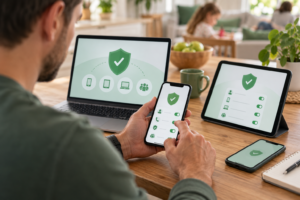
One installed app icon does not mean the family is protected. A subscription can be inactive, a web filter can lack permission, and the old tablet can be missing from the dashboard entirely. Use the steps below to catch those ordinary setup gaps.
Step 1: Count and Update Every Device
For each device, note its owner, model, operating system and whether updates are still offered. On iPhone, use Settings, General, Software Update. Android menus differ by brand; look for System, Software Update or a similar setting. Install available updates before configuring the security subscription.
Pay attention to a phone that no longer receives security patches. Another app cannot repair every weakness in unsupported system software. Decide whether that device should be replaced, limited to less sensitive tasks or removed from family use.
Step 2: Turn On Built-In Protections First
On Android, open Google Play, tap the account icon and find Play Protect. Confirm scanning is enabled. Then check Settings for apps allowed to install unknown software, use accessibility services or read notifications. Remove access that an app no longer needs.
On iPhone, turn on automatic updates and use a strong passcode with Face ID or Touch ID. Look in Settings, General, VPN & Device Management for profiles you do not recognize. Set up Screen Time or Family Sharing if those fit your child’s age, and review the recovery phone number and email on each Apple or Google account.
Step 3: Install the Chosen Apps Through Official Stores
Install from Google Play, the App Store or a verified provider link. Ignore alarming pop-ups that claim a virus is already on your phone and push a download. Those messages are not a reliable security diagnosis.
Use the invitation or account associated with the family plan, and check that each device shows an active license. Do not give children the parent account password just to activate their phones. Check how child profiles and permission approvals are handled before finishing setup.
Step 4: Enable Useful Features on Each Platform
On Android, switch on supported malware checks and safe browsing, then approve only the permissions those features need. On iPhone, review the app’s web, network and content-filter setup screens. Do not look for an Android-style full-device malware scan that iOS does not permit.
Add the email addresses you actually want monitored and decide when the VPN should connect. Some web filters use a local VPN or network extension. Read the setup explanation, because a phone may not allow two filtering or VPN configurations to operate together in the way you expect.
Step 5: Check That Protection Is Actually Active
Check every phone separately. The account should show the device, its active subscription and the protections enabled on that platform. If the dashboard asks for a permission, find out which feature requires it before tapping Allow.
Do not visit a suspicious site to see whether blocking works. Use the provider’s built-in status screen, note the Android scan or update date, and open ordinary websites to check that browsing still functions. On an iPhone, verify that Safari and the family’s messaging apps work after you enable network protection.
Step 6: Decide Who Handles Alerts
Pick one adult to review breach notices and renewal emails. Give children a short rule for warnings: close the page, do not reply to the message, and ask before trying again. A warning is only useful if everyone knows the next action.
Once a month, remove phones the family no longer owns, confirm that updates ran and review protection status. When a new phone arrives, activate its protection before handing it over. Retired devices should also be signed out of accounts and wiped when appropriate.
Common Buying Mistakes Families Can Avoid
- Assuming iPhone antivirus means full malware scanning. On iOS, judge scam, network, privacy and settings features instead.
- Paying only for the number of people. Count tablets and computers as well as phones.
- Comparing different product tiers as though they were identical. VPN data limits, identity monitoring and parental controls often depend on the edition.
- Confusing breach alerts with identity restoration. Knowing an email address leaked is different from having recovery specialists or insurance.
- Treating a VPN as anti-phishing protection. Encryption cannot determine whether a payment request is genuine.
- Disabling built-in safeguards after installing a paid app. Keep operating-system updates and Play Protect active.
- Ignoring usability. If no one can find the scan results, check a link or interpret an alert, the advertised feature list will not help much.
Frequently Asked Questions About Mobile Antivirus
Do iPhones really need antivirus software?
An iPhone does not need the same kind of system-wide malware scanner as Android or Windows, because iOS restricts access to other apps and system files. A reputable mobile security app can still help with phishing links, account breaches, network privacy and unsafe settings. Keep iOS updated and avoid suspicious profiles regardless of whether you subscribe.
Can one antivirus subscription cover both Android and iPhone?
Yes. Several cross-platform subscriptions cover Android and iOS along with Windows and Mac, but the protection differs by platform. Check the number of devices included, the availability of web and scam features on iPhone, and whether Android app scanning is part of the tier you choose.
How does mobile antivirus protect against phishing text messages?
Depending on the app and operating system, it may flag suspicious messages, inspect shared links or block a known phishing website when a link is opened. It cannot guarantee that every scam text will be intercepted, particularly when the sender uses a new site or persuades someone to call a phone number. When a text requests a login or payment, open the service independently rather than following the message.
Does mobile security software drain device battery?
Security apps use some power for scanning, network checks and background alerts, but the impact depends on the device and enabled features. Review battery usage in the phone’s settings after installation and compare it with your normal pattern. If one feature causes a problem, check the app settings or contact support before disabling all protection.
When you make the final choice, picture a normal Tuesday rather than a product brochure: a parcel text on the iPhone, an Android game asking for unusual permissions and a child using a café hotspot. Choose the subscription that helps with those decisions on the phones your family owns. Make sure it also covers the computers and tablets on your list.
Leave Play Protect and automatic updates switched on. On iPhone, keep the built-in privacy and account settings current. Let the paid app fill the gaps you actually have, especially scams, unfamiliar networks and exposed passwords. Before subscribing, verify the mobile feature table, number of devices and renewal terms, then install it on every device you mean to protect.