Best antivirus family plan: how to choose one for your household

The best antivirus for family use in 2026 is one that protects the phones and computers your household actually owns, catches common scams, and is easy enough that everyone keeps using it. For a mix of iPhones, Android phones, Macs, and Windows PCs, look for a single subscription with enough device seats, reliable malware protection where the operating system allows it, and strong phishing defense across platforms.
A long feature list is not enough. A useful family plan should help someone check a suspicious delivery text, spot a dangerous download on a laptop, and respond when an email address appears in a data breach. AVO Security is one option to consider for this kind of household. Its Household plan covers up to six supported devices under one subscription.
Why a family antivirus plan matters

Take a quick look around your home. There may be a Windows laptop used for bills, a Mac used for work, two phones, a child’s tablet, and an older computer that comes out at tax time. Each device has different software and habits attached to it. All of them may connect to email, photos, payment services, or family accounts.
A problem on one device does not always stay there. If someone enters a reused password on a fake shopping website, the same password might also work for their email. If a shared computer has an unsafe browser extension, more than one person may be affected. That is why family protection needs to cover both devices and accounts.
The risks change by operating system. A Windows PC or Mac can encounter harmful installers, malicious files, and unwanted browser extensions. An Android phone may be exposed to a risky app or download, particularly outside the usual app store. On iPhone and iPad, phishing links, account theft, and misleading websites are more relevant concerns for most families than the traditional desktop virus.
Do not assume antivirus works identically on every device. Apple’s iOS restrictions do not let a third-party security app inspect other installed apps the way desktop antivirus software can. An iPhone security app can still offer valuable website, network, and account-related protection. It simply does a different job.
A shared family plan also solves an ordinary maintenance problem. Without one system, a parent might renew antivirus on a laptop while forgetting that the children’s phones have no scam-link protection. Another device may still show an expired subscription from two years ago. The family is paying for security, yet the coverage is uneven.
Good multi device security gives someone a clear way to check what is protected. It should also make it easier to replace a lost phone, remove a retired laptop, and review an alert without calling the most technical person in the household every time.
Protection should not require constant surveillance of children or sharing everyone’s passwords. Set reasonable safeguards for each age group, give people their own accounts, and agree on what to do when something looks suspicious. That combination is more useful than a dashboard full of alerts nobody reads.
Key Features to Look for in a Family Antivirus Plan: Finding the Best Antivirus for Family Use
Before comparing brands, count the devices you want to protect. Include phones, tablets, desktops, laptops, and any spare machine still used for banking or schoolwork. Write down their operating systems as well. A plan that sounds generous can fall short if it supports the wrong devices or counts family members separately from devices.
Cross-Platform Support Across iOS, Android, Mac, and Windows
Cross-platform security means a product supports more than one operating system. What matters to a family is whether it supports your exact mix, which tools work on each device, and how easily you can manage the subscription when that mix changes.
Check the following before paying:
- Device compatibility: Check the operating system versions, not just the Windows, Mac, Android, and iOS logos. An older family computer may no longer meet the requirements.
- Number of seats: See whether the limit applies to devices, people, or both. A parent using a phone and a laptop may occupy two device seats.
- Phone protection: Look for phishing and unsafe-link checks, not promises of identical antivirus scanning on every phone.
- Computer protection: Confirm what the software examines and what happens if it detects a suspicious file or setting.
- Replacement rules: Find out how to remove a broken phone or old laptop and free its seat for a new device.
- Family settings: Check which child safety tools work on the phones your children actually use.
For example, consider a household with two adult phones, two laptops, a school tablet, and a shared desktop. That is six devices, even if only four people live there. An antivirus family pack with four seats will not cover the whole list. On the other hand, there is little reason to pay for a large plan if you only need three devices.
Smart TVs, printers, speakers, and game consoles need attention too, but they usually cannot install ordinary phone or computer antivirus software. Keep their firmware updated and use good router settings. Do not count them as protected antivirus devices unless the provider specifically says they are supported.
Real-Time Phishing and Malware Defense
Malware is harmful software that might steal data, damage files, or interfere with a device. Phishing is different. It relies on a convincing message or website to trick someone into disclosing information or taking an unsafe action. A solid family antivirus plan addresses both problems rather than treating every threat as a virus.
Look for tools that can:
- Check suspicious files and downloads on supported computers and phones.
- Warn before a known malicious or fake login website opens.
- Let family members inspect a link received by email, text, or a messaging app.
- Review risky settings or app-related issues where the operating system allows it.
- Alert an account owner if a monitored email address appears in known breach data.
- Explain what needs fixing in ordinary language.
Picture a text that says a parcel is being held until a small delivery fee is paid. The message includes a link to a page that looks like the delivery company’s site. Someone may be only a few taps away from entering a card number. A link checker or web protection tool can provide another chance to spot the deception before the payment details are entered.
Now consider a Windows laptop downloading what looks like a PDF converter. If the installer is malicious, file and software checks matter more than a VPN. Different threats require different defenses. It helps to know which tool is intended to address each one.
No security product can guarantee it will catch every new scam. Teach family members to open the delivery service, bank, school portal, or shopping app directly instead of following an unexpected message. This simple habit catches problems that automated warnings may miss.
Centralized Dashboard for Non-Technical Users
Device management is easy to overlook during a product comparison. It becomes important when a child gets a new phone, a laptop is replaced, or someone asks whether an alert requires action.
The account should make it reasonably clear which devices have been added, whether a seat is available, when the subscription renews, and how to reach support. Ideally, family members can recognize devices from useful names such as “Study laptop” or “Dad’s Android” rather than a list of unfamiliar model codes.
A central subscription does not mean everyone should use the same email login, Apple account, or computer password. Give each person a separate account where the service allows it. Use unique passwords for important accounts and enable multifactor authentication, which adds a second check when someone signs in.
Check how alerts are delivered as well. A warning that only appears when someone opens an app may be missed for weeks. A helpful notice should say what was found, which device or account is affected, and what to do next. It should not require a parent to understand security jargon before making a decision.
Read the purchase terms, not just the headline price. Compare renewal costs, cancellation rules, included VPN access, parental settings, breach monitoring allowances, and the support offered with that exact plan. These details can matter more over a year than a short introductory discount.
Comparing family antivirus plans
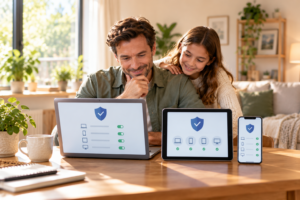
The best antivirus for multiple devices depends on what is in your home. Some households need a modest number of seats with simple web and scam checks. Others have several PCs, multiple child profiles, and a long list of devices that need management. Use the comparison below to narrow the options, then check the provider’s current compatibility and subscription terms.
| Option | Supported device mix | Notable family-oriented capabilities | What to check before choosing |
|---|---|---|---|
| AVO Security Household | iPhone, iPad, Android, Mac, and Windows; up to six devices | Smart Scan, Web Shield, link and QR checks, Wi-Fi Security, VPN, breach monitoring, and child profiles | Six-device allowance and feature differences between iOS and other systems |
| Norton 360 Deluxe | Windows, Mac, Android, and iOS; five devices | Malware and scam protection, VPN, dark web monitoring, and parental controls on supported platforms | Whether parental tools and cloud backup apply to your specific devices |
| Bitdefender Total Security Family | Windows, Mac, Android, and iOS; up to 25 devices for five family members | Device protection and family-focused management and parental tools | Features included in this tier rather than other Bitdefender family tiers |
| McAfee Total Protection | Windows, Mac, Android, and iOS; allowance depends on the package | Antivirus and online scam protection, with additional privacy or identity tools in some packages | Exact seat count, eligible users, and which extras are included |
The table reflects advertised product features, not a claim that one provider has a better independent laboratory score than another. Device limits and included extras may differ by region or plan. Confirm them on the checkout page before subscribing.
AVO Security Household is worth examining if you have a mixed set of everyday devices and want link checking, safer browsing, Wi-Fi checks, and breach awareness together. The six-device limit makes the purchase decision fairly straightforward: list your devices and see whether all of them fit. Its features do differ by operating system, so review that distinction before installing.
Norton 360 Deluxe may suit a household looking for a broader conventional security suite with scam protection, a VPN, and supported parental features. Its five-device limit is a useful starting point for counting seats. Check its platform notes if you are relying on parental controls or cloud backup, because not all functions are offered on every system.
Bitdefender Total Security Family is an option to investigate if you have many supported devices spread across several family members. Its higher device allowance may appeal to homes with multiple laptops and tablets. Check the exact family tier because privacy, identity, and other add-ons differ across the product range.
McAfee Total Protection belongs on the shortlist for households comparing antivirus with scam and identity-related protection. McAfee sells packages with different terms, so focus on the specific listing rather than assuming every version covers the same number of people and devices.
A sensible buying test is to imagine setting up the product on your least technical family member’s device. Can you explain what it protects? Can that person understand a warning without panicking? Can you add or replace a device later? The answers tell you more about day-to-day value than a long list of feature names.
If two plans look similar, examine their renewal terms and their support pages for the operating systems you own. In particular, check whether the VPN is included, how parental filtering behaves on iPhone, and whether a breach alert provides enough detail to act. Those are practical differences you will notice after purchase.
How AVO Security Protects Whole Households
AVO Security is designed around the mix of phones, tablets, and computers people use at home. Its Household plan supports up to six devices in any combination of supported iPhones, iPads, Android devices, Macs, and Windows computers. The account counts signed-in devices as seats, so removing an old device makes space for a replacement.
That could mean two phones, two laptops, one tablet, and one shared desktop. The exact mix is up to the household. Families with more than six eligible devices should consider the seat limit before choosing this family antivirus plan.
Checks That Match Everyday Family Risks
AVO groups eight tools under one subscription. Each has a specific purpose, which makes it easier to decide what to turn on and when to use it.
Smart Scan checks supported software, downloaded files, and device settings, then highlights items to review. On iPhones and iPads, the scan focuses on settings and network-related information because iOS does not let third-party apps inspect other apps. Android, Mac, and Windows support broader scans as described in AVO’s platform information.
Web Shield checks website destinations through the device’s network connection and aims to block known phishing and malicious destinations. Link Checker is useful when a message contains a URL you do not recognize. You can inspect the link and its redirects before choosing whether to visit it. QR Scanner performs a similar check for the hidden destination in a QR code.
Those last two tools are especially useful when someone receives a printed QR code for a payment, an unfamiliar school form, or a text supposedly sent by a courier. The correct response is not always to scan and hope. Check who provided the code or link, inspect the destination, and use a known official website when in doubt.
Email Breach Scan checks monitored addresses against known breach records. An alert means information associated with that address has appeared in breach data, not necessarily that someone has just signed in to the account. Look at the affected service and exposed information. Change any compromised or reused password and review account activity.
Wi-Fi Security checks the protection of a network when a device joins it, including whether it is open or uses an older security method. That is useful at a coffee shop, in a hotel, and at home when someone is unsure how the router was configured. AVO’s home Wi-Fi security page describes the checks available.
The integrated family VPN adds an encrypted connection and can be set to start when a device joins an open network. It can limit what other people on that network can observe about the connection. It does not verify that a website is genuine, undo a phishing mistake, or remove malware already installed on a device.
Parental Controls can apply child safety profiles and website filtering, with platform-specific limits. On iPhone and iPad, AVO lists settings-level support rather than the fuller controls available on Android, Mac, and Windows. Discuss online habits with children alongside using filters. A setting alone cannot explain why a strange message should not be trusted.
You can review the tools and operating system differences on AVO’s complete security features page. This is worth doing before you sign in across the whole household, particularly if some devices use iOS and others use Windows or Android.
A Practical Household Setup
Start with an inventory instead of installing the app randomly. Write down every eligible device, who uses it, and its operating system. Give each one a recognizable name. Then decide which six devices, if you are choosing the Household tier, need a seat most.
Set up the main family computer and adult phones first if they are used for payments, email, or important documents. Follow the prompts needed to activate the available protections. On a Windows or Mac computer, run the supported checks and review any items flagged. On a phone, check web and network protection settings and understand what its scan can actually see.
For a child who uses both a phone and a tablet, review age-appropriate filtering on each device. Show them how to check a questionable gaming link or QR code without opening it first. For a shared desktop, create separate operating system accounts so one person’s downloads and browser sessions do not mix with everyone else’s.
The Household plan currently lists six device seats, ten monitored email addresses, and five child profiles. These are separate allowances. A parent might want to monitor both a personal and a work email, while one child might use two devices. Count the things that matter to your setup rather than treating every limit as interchangeable.
After setup, check whether the service is running and whether any actions remain unfinished. Installing an app is not always the same as enabling all permitted protections. Spend a few minutes showing each person what a legitimate warning looks like and whom to ask for help.
AVO can support a sensible household security routine, but it cannot replace software updates, reliable backups, and good password habits. These are still essential, even with a paid antivirus family pack.
Practical Tips to Secure Shared Family Networks

Your home network may connect devices that cannot run antivirus software at all. The printer, television, security camera, and smart speaker still use the router. So a family security plan should include a few checks beyond the phones and laptops.
Secure the Router and Home Wi-Fi
You do not need specialist equipment to improve the security of a typical home router. Begin by signing in through the manufacturer’s app or the address printed in its documentation. If you are unsure about a setting, consult that model’s instructions before changing it.
- Replace the router administrator password. This protects the router settings. It is different from the Wi-Fi password family members use to connect.
- Choose WPA3 or WPA2-AES encryption. These options protect wireless traffic between compatible devices and the router. Avoid WEP or a completely open home network.
- Update router firmware. Firmware is the router’s operating software. Check for updates or enable automatic installation if the manufacturer offers it.
- Set up a guest network where useful. Visitors can use it without joining the same local network as household computers. Some routers also let you isolate smart home devices.
- Review unused remote access features. If you do not need remote administration or WPS quick pairing, consider switching them off according to the router’s documentation.
Make sure the main Wi-Fi password is unique and not printed where visitors can easily photograph it. If you share it widely, consider changing it and using a guest connection next time. Keep a secure record of the administrator details so they are not lost when you need to update the router.
Away from home, confirm the wireless network name with the hotel, library, or cafe rather than choosing the first similar name on the screen. An open public network deserves extra care. A VPN adds a layer of connection privacy, but you should still use secure websites and avoid entering sensitive details on pages that look wrong.
Protect Accounts as Carefully as Devices
A stolen password can cause just as much trouble as malicious software. Email accounts deserve particular attention because they are often used to reset passwords for shopping, banking, gaming, and cloud storage.
Use a unique password for every important account. A password manager can create and store strong passwords so the family does not need to remember them all. Turn on multifactor authentication where possible. That means an extra sign-in check, such as an authenticator app or a passkey, in addition to or instead of a password.
Avoid passing one email account around the family so everyone can sign in to a subscription. Keep personal accounts separate wherever the product allows. On shared computers, make separate user profiles and do not leave payment or email accounts open in a browser someone else will use.
When data breach alerts appear, read the details instead of immediately changing every password you own. Identify the affected service and the information involved. If a password was exposed or reused, replace it on that site and anywhere else you used it. Check recent sign-ins and sign out unknown sessions when the service offers that option.
If a message claims a password is expiring, do not use its embedded link. Open the official app or type the familiar website address yourself. This is a useful household rule for banking alerts, school notices, and unexpected package updates alike.
Make a Simple Monthly Device Routine
A short routine is more likely to happen than an elaborate security checklist taped to the fridge. Choose one day each month and handle the devices that are available. Review the rest the next time they are used.
- Install updates: Check the operating system, browsers, security software, and frequently used apps.
- Check device seats: Remove retired or lost devices from subscriptions and add replacements.
- Resolve alerts: Look at unfinished scans, breach warnings, and app permissions that need attention.
- Verify backups: Confirm that important photos, documents, and schoolwork can be restored. A backup is only useful if recovery works.
- Clear unwanted software: Remove apps, downloads, and browser extensions nobody uses.
- Review children’s settings: Update website filters and account rules as their needs and maturity change.
Give each person a standard user account on a shared Windows or Mac computer where practical. Administrator accounts can change important system settings and install software for everyone, so reserve those permissions for the person managing the machine.
If a laptop is rarely used, turn it on specifically for updates rather than assuming it will stay secure in a drawer. Old devices often miss browser, operating system, and security fixes. If a system no longer receives security updates, consider replacing it or limiting how it is used for sensitive accounts.
Teach a Family Response to Suspicious Messages
Agree on a rule that is easy to remember: when a message unexpectedly asks for a login, payment, download, or one-time verification code, verify it through another route first. A child can ask an adult. An adult can use the company’s known phone number or official app.
The response to a mistaken tap depends on what happened. If someone only opened a strange page, close it and check whether a file was downloaded. If they installed software, run the appropriate security checks and remove anything suspicious using trusted guidance. If they entered a password, change it through the genuine service and review recent account activity.
If card details were submitted, contact the bank or card issuer using the number on the card or its official app. If a one-time sign-in code was shared, secure the related account immediately. Treat these as separate problems rather than relying on one antivirus scan to solve all of them.
Make it safe for family members to report mistakes promptly. A teenager who fears an automatic device ban may hide a suspicious message. A parent who feels embarrassed may delay admitting that they entered details on a fake website. Early reporting gives everyone more options to limit damage.
Decide What to Buy Based on Your Actual Household
Before choosing a family antivirus plan, return to your device inventory. Check the seat count, supported operating systems, and whether the tools you want operate on those specific devices. Decide who will manage renewal notices, device replacements, and any warnings that need follow-up.
Then look at what your household actually encounters. Frequent public Wi-Fi use makes network checks and a VPN more relevant. Children who are learning to use messaging apps may benefit from link checking and suitable parental settings. A shared Windows desktop needs malware protection, standard user accounts, and dependable backups.
Do not choose entirely on a discount or an impressive-looking feature chart. Choose the combination people will understand and keep using. Set a reminder before the next renewal to review device counts and the current terms. A family may have different phones, school computers, and security needs by then.
Frequently Asked Questions About Family Antivirus (FAQ)
What is the best antivirus for multiple family devices?
Choose a plan that supports every operating system in your household and includes appropriate malware protection, phishing defense, and manageable device limits. AVO Security Household is one option for up to six supported devices in a mixed household. If you have more devices, compare plans with higher seat allowances and check which tools work on each platform.
Can one antivirus subscription cover both iPhone and Windows PC?
Yes. Cross-platform subscriptions, including AVO Security Household, can cover an iPhone and a Windows PC under the same plan. The protection differs: Windows can support broader malware checks, while iPhone security tools focus more on web, network, and account risks because of iOS restrictions.
How many devices can a family antivirus plan protect?
The allowance depends on the provider and tier, and some plans also limit the number of users. AVO Security Household covers up to six supported devices; other plans may cover more or fewer. Count secondary laptops and tablets as well as the phones everyone carries daily.
Does a family antivirus include Wi-Fi security and VPN tools?
Some do, but you should check the exact plan before buying. AVO Security lists Wi-Fi Security and VPN among the features included in its plans. Wi-Fi checks can flag network risks, while a VPN adds connection privacy; neither replaces software updates, safe browsing, or strong passwords.
The right family protection is the plan that matches your devices and makes sensible security habits easier to maintain. Count the seats, check the platform differences, and set up the features people will use. If your household has a mix of iPhone, Android, Mac, and Windows devices, AVO Security offers a way to bring several practical safeguards under one subscription.