Best Antivirus Software for Gaming PC

Best Antivirus Software for Gaming PC
The best antivirus software for gaming PC users protects against malware, phishing, and account theft without taking up too much CPU power or interrupting games. Microsoft Defender is a sensible free choice, while Bitdefender, ESET, and Norton 360 for Gamers offer additional gaming features that may be worth paying for.
The right choice depends on your computer, the games you play, and how the PC is used at home. A teenager downloading Minecraft mods faces different risks from someone playing competitive Valorant matches. A family sharing one gaming computer also needs protection for personal files, passwords, and everyday browsing.
This guide compares gaming antivirus options based on malware protection, gaming features, resource management, and ease of use. It also explains how to check whether security software is affecting your frame rate and which settings are worth changing before buying another product.
Why Gamers Need Specialized Antivirus Protection
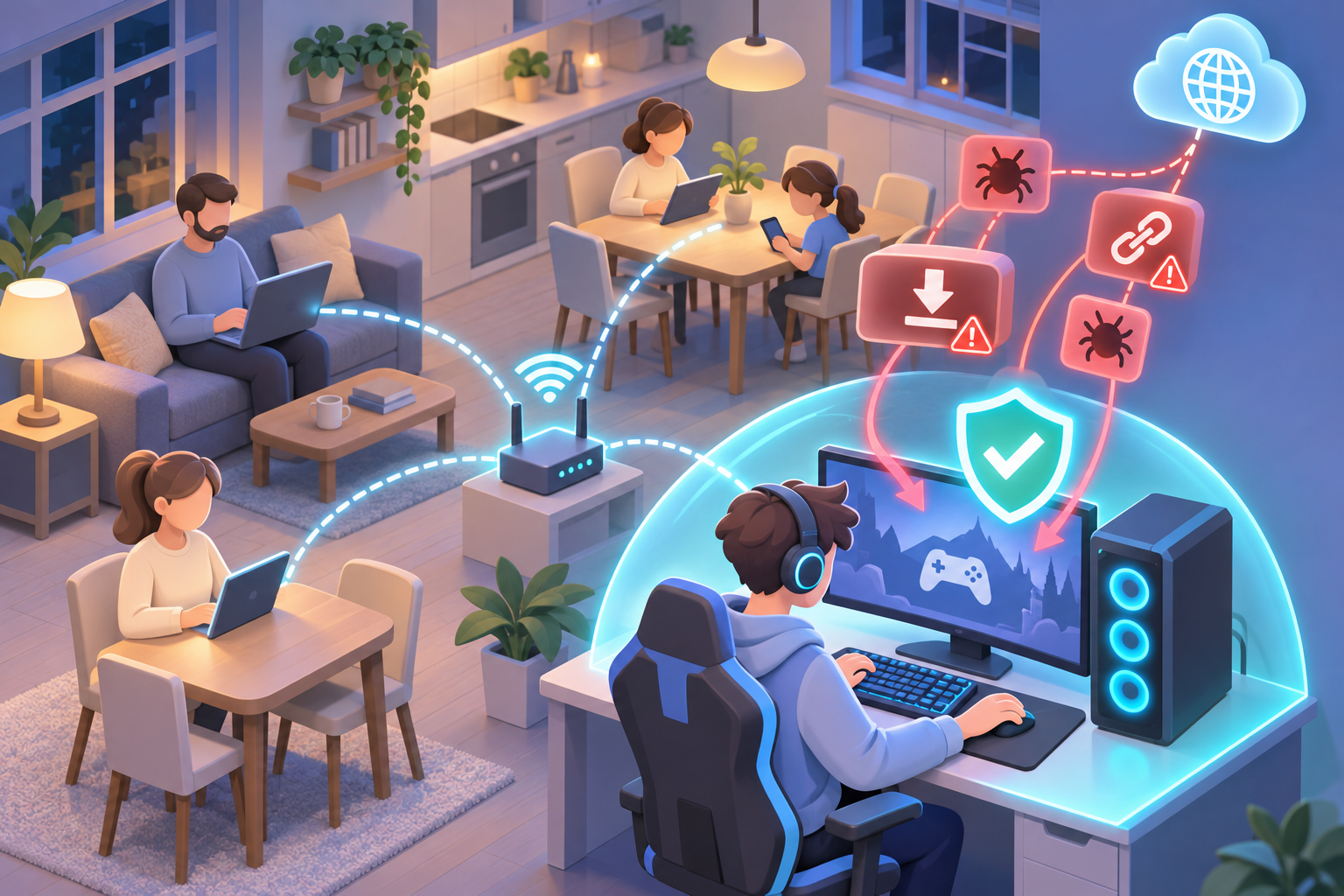
A gaming PC is not automatically at greater risk than an ordinary Windows computer. The difference often comes from what people install and where they get it.
Gamers regularly download updates, modifications, custom launchers, graphics tools, and community-created files. Many downloads come from legitimate sources, but some arrive through unfamiliar websites, Discord messages, or links shared by other players.
That creates opportunities for malware.
A fake game installer might include a password stealer. A modified game file could contain a hidden executable. A message promising free in-game currency might lead to a convincing copy of a legitimate login page.
Antivirus software helps identify these threats before they compromise the computer.
However, gamers have another concern: performance.
A security program that starts an intensive scan during a match can compete with the game for processing power or storage access. Even a harmless notification appearing at the wrong moment can interrupt gameplay.
Good gaming PC antivirus software needs to handle both problems.
Common Security Threats Facing PC Gamers
Malware hidden in game downloads
Unofficial installers, modified games, and suspicious performance utilities are common places to encounter malicious software.
A download may appear harmless because it has a familiar game icon or filename. That tells you nothing about what the program will do after installation.
Be particularly cautious when an installer asks you to turn off antivirus protection or add its folder to your security exclusions.
Gaming account theft
Steam, Epic Games, Roblox, and other gaming accounts can contain purchased content, saved progress, and payment information.
Attackers may use fake login pages, fraudulent giveaways, or messages claiming that an account needs immediate verification.
An antivirus with phishing protection can help identify known malicious websites. It cannot guarantee that every fraudulent login page will be blocked.
Password-stealing malware
Some malicious programs target passwords and session information stored on a computer.
If someone uses the same gaming PC for email, shopping, and online banking, a compromise may affect much more than their games.
This makes reliable malware protection particularly valuable on shared family computers.
Malicious game modifications
Not every mod is dangerous. Many gaming communities maintain trustworthy projects with established download sources.
The problem is that modifications sometimes require users to run unfamiliar files or replace existing game components.
Before installing a mod, check its source, publisher information, and community reputation. Avoid files distributed through unexpected direct messages.
Why Ordinary Antivirus Settings May Disrupt Gaming
Antivirus software monitors downloaded files, running applications, and suspicious system behavior.
Most of this happens quietly.
Problems are more likely during intensive operations such as a full system scan, large file inspection, or software update.
For example, a PC with limited memory may already be running a game, Discord, a browser, and a recording application.
If antivirus software begins an intensive scan at the same time, the computer may struggle to keep up.
A dedicated gaming mode can reduce unnecessary background activity and notifications.
The useful distinction is that game mode should manage interruptions, not turn off essential protection.
A gaming antivirus still needs to inspect malicious downloads and respond to serious threats while a game is running.
Key Features to Look for in a Gaming Antivirus
A long feature list does not automatically make an antivirus better for gaming.
Some products bundle VPNs, password managers, cleanup utilities, and other tools. Those features may be useful, but they do not necessarily improve frame rates or reduce interruptions.
Focus first on protection quality, background resource usage, and the controls that affect gameplay.
Dedicated Game Mode and Silent Operation
A dedicated game mode is useful for anyone who regularly plays full-screen games.
Depending on the antivirus, it may suppress noncritical notifications, postpone scheduled scans, or adjust background activities when a game launches.
Some products detect gaming automatically. Others require you to enable a setting or create an application profile.
Before choosing a product, check whether it can:
- Recognize full-screen games automatically.
- Reduce unnecessary notifications.
- Postpone scheduled scans until gaming finishes.
- Allow manual configuration for games it does not detect.
- Continue real-time malware protection during gameplay.
- Return to normal operation after the gaming session ends.
Automatic detection is convenient, but reliability matters more than the label.
If a game mode regularly fails to recognize your preferred game, a simple manual toggle may be more useful.
Also check what happens when the game closes. You do not want nonessential scans postponed indefinitely because a background launcher remains open.
Minimal CPU and RAM Overhead
CPU overhead describes the processing resources used by antivirus software.
RAM usage measures how much system memory its processes occupy.
Both deserve attention, especially on gaming computers with older hardware.
A modern desktop with ample RAM and a capable processor may handle ordinary security activity without noticeable performance problems.
An older PC running a demanding open-world game, Discord, and several browser tabs has less available capacity.
When comparing lightweight antivirus software, look at how the product behaves during normal use rather than relying on one memory figure.
Check these areas:
- Background CPU activity while the computer is idle.
- Resource usage while installing or updating games.
- Memory consumption during regular browsing and gameplay.
- CPU and disk activity during full scans.
- Options for changing scan schedules.
- Whether unnecessary components can be left inactive.
A low RAM reading is not proof of better antivirus performance.
Some programs retain information in memory to avoid repeatedly reading files from storage. The more useful question is whether the software causes sustained resource pressure or noticeable game stuttering.
You can inspect activity using Windows Task Manager.
Press Ctrl + Shift + Esc, open Processes, and sort by CPU or Memory.
Check the values while the computer is idle, then again when a game is running.
Brief spikes are not automatically a problem. Sustained high activity that overlaps with visible stuttering deserves further investigation.
Reliable Real-Time Malware Protection
A lightweight antivirus is only useful if it protects the computer adequately.
Real-time protection should inspect potentially dangerous files and respond when suspicious software attempts to run.
Look for:
- Detection of known malicious files.
- Monitoring for suspicious application behavior.
- Protection against credential-stealing malware.
- Ransomware-related protection features.
- Automatic security intelligence updates.
- Quarantine and threat removal tools.
- Clear explanations when a file is blocked.
Recent independent antivirus evaluations can help compare detection and performance, although results vary by product version and testing conditions.
Do not assume that a product is safer simply because it has more settings.
Phishing Defense and Browser Protection
A gaming account can be stolen without malware ever reaching the computer.
Someone might receive a message claiming they have won a rare item and must sign in to collect it.
The link may lead to a fake version of a familiar gaming website.
A security product with phishing defense can help block known fraudulent destinations.
For families, this is especially useful because children and teenagers may regularly receive links through multiplayer chats and gaming communities.
Still, no browser filter can recognize every new phishing website.
Teach family members to open gaming services directly through their official apps or saved bookmarks instead of signing in through unexpected messages.
Compatibility With Games and Anti-Cheat Software
Some multiplayer games use anti-cheat systems that monitor software running on the computer.
Antivirus software also monitors program activity.
These tools generally work together, but conflicts can occasionally happen after updates or configuration changes.
Before purchasing, check whether the antivirus supports your Windows version and whether its publisher documents compatibility issues with the games you use most often.
If a game suddenly stops launching, do not immediately disable your antivirus.
First update Windows, the game, the anti-cheat component, and the security software. Then check the antivirus protection history for blocked files.
Best Antivirus Software for Gaming PC: Options Compared
Different gaming setups call for different security features.
A casual player may need nothing beyond Windows’ built-in protection. Someone who plays competitive games every evening may appreciate automatic gaming profiles. A family sharing several devices may care more about phishing protection and simple security management.
The following options are evaluated using their documented protection and gaming-related capabilities, not invented benchmark results.
Microsoft Defender Antivirus: Best Free Starting Point
Microsoft Defender Antivirus comes with Windows and provides real-time malware protection through Windows Security.
For many everyday gamers, it is a practical place to start.
Best for: Casual gamers, families avoiding additional subscription costs, and users who prefer Windows’ built-in security tools.
Strengths
- Included with Windows without a separate antivirus subscription.
- Provides real-time malware scanning.
- Receives regular security intelligence updates.
- Integrates with Windows Security and Windows Firewall.
- Includes protection history and quarantine controls.
- Does not require installing another antivirus suite.
Limitations
- Does not provide the same dedicated antivirus gaming profiles as some paid products.
- Full scans can still consume system resources.
- Some security settings require navigating different Windows menus.
- Additional cross-device security features may require other services.
Windows also has its own Game Mode.
To find it, open Settings > Gaming > Game Mode in Windows 11.
This feature helps Windows prioritize gaming activity. It is separate from Microsoft Defender and does not replace antivirus protection.
If your current PC runs games smoothly and Windows Security reports that protection is active, there may be little reason to purchase another antivirus solely for performance.
Bitdefender: Best for Automatic Gaming Profiles
Bitdefender offers a Game Profile designed to adjust selected background activities when gaming is detected.
This can be convenient for someone who moves frequently between work, browsing, and games.
Best for: Gamers who want security software to handle gaming-related adjustments automatically.
Strengths
- Dedicated gaming profile functionality.
- Automatic activity-based profile options.
- Controls for reducing selected background interruptions.
- Real-time malware protection.
- Additional web and account security features in supported subscriptions.
Limitations
- Product editions do not all include identical features.
- Extra security components may be unnecessary for some users.
- Automatic game detection should be checked with your preferred titles.
- Game Profile does not guarantee higher frame rates.
Bitdefender is worth considering when you want a broader security suite but dislike changing settings before every match.
Check the exact edition before buying. Features described for one Bitdefender product may not be included in another.
ESET: Best for Gamers Who Want Direct Control
ESET offers Gamer Mode in supported Windows security products.
It is designed to reduce interruptions during full-screen activity while maintaining important protection functions.
Best for: Gamers who prefer to review and configure security settings themselves.
Strengths
- Gamer Mode for supported full-screen applications.
- Automatic activation options.
- Configurable security behavior.
- Real-time malware detection.
- Controls for managing selected notifications and background tasks.
Limitations
- Features vary between product editions.
- Some settings may require manual configuration.
- Firewall settings may need attention if a game has connection problems.
- Game mode does not eliminate all resource usage.
ESET makes sense if you are comfortable checking security settings and want more control over when background activity occurs.
For a family computer used by several people, consider whether everyone who uses the PC can understand the settings well enough to avoid accidentally weakening protection.
Norton 360 for Gamers: Best for Gaming-Focused Extras
Norton 360 for Gamers is designed specifically for people who use Windows PCs for gaming.
It offers Game Optimizer functionality on supported systems, alongside malware and online threat protection.
Best for: Gamers who want a security subscription with features developed around gaming workloads.
Strengths
- Gaming-specific product functionality.
- Game Optimizer on supported Windows hardware.
- Malware protection and web security features.
- Additional security tools, depending on the subscription.
- A bundled approach for users who prefer one security suite.
Limitations
- Optimization features have system requirements.
- Not every bundled feature will be useful to every gamer.
- Performance benefits depend on the PC and workload.
- Additional features do not guarantee lower ping or higher FPS.
Before purchasing, check the supported hardware requirements and the features included in the current subscription.
A gaming-branded antivirus is not automatically the best choice for every gaming PC.
A Family-Oriented Multi-Device Security Plan: Best for Shared Households
Some households need to protect more than one Windows computer.
A teenager may use a gaming PC and Android phone, while a parent uses a Windows laptop and another family member has an iPad.
In that situation, security management becomes a household decision rather than just a gaming decision.
Best for: Families with several devices and shared online accounts.
Strengths
- Can reduce the need to manage unrelated antivirus subscriptions.
- Allows families to consider security across multiple device types.
- May combine malware protection, phishing defense, and breach-related alerts.
- Can make renewal and device coverage easier to manage.
Limitations
- Not every family security plan includes gaming optimization.
- Features vary between Windows, Mac, Android, and iPhone.
- Device limits and subscription terms need checking.
- The Windows gaming PC still requires appropriate performance settings.
A multi-device plan is useful when the main problem is protecting several people and devices.
If the only problem is occasional stuttering during games, investigate scan schedules and resource usage before changing subscriptions.
Gaming Antivirus Comparison Table
| Antivirus option | Best suited for | Gaming-related benefit | Main consideration |
|---|---|---|---|
| Microsoft Defender | Casual gamers and budget-conscious users | Built into Windows | No dedicated antivirus gaming profile |
| Bitdefender | Gamers wanting automatic configuration | Game Profile | Features vary by product edition |
| ESET | Gamers wanting configurable settings | Gamer Mode | May require manual setup |
| Norton 360 for Gamers | Players interested in gaming-specific tools | Game Optimizer on supported PCs | Hardware requirements and extra features |
| Family multi-device plan | Households using several types of devices | Broader household security coverage | May not include gaming optimization |
Use this table to narrow the choices, then compare the exact subscriptions available.
Pay particular attention to Windows compatibility, gaming modes, and which features remain available after any introductory subscription period.
How Security Software Impacts Frame Rates and Latency
Antivirus software can affect gaming performance, but that does not mean every FPS drop is caused by security software.
Frame rates depend on the graphics card, processor, memory, storage, graphics settings, and the game itself.
Antivirus activity is another possible source of resource contention.
The key is identifying when that activity becomes noticeable.
Understanding Frame Rate and Frame-Time Stability
Frame rate measures how many frames a game renders each second.
Frame time measures how long each individual frame takes to render.
Both matter.
A game can report a reasonable average FPS while still suffering from occasional stutters.
For example, the game might feel smooth until an intensive background process starts accessing files or using CPU resources.
Those interruptions can create longer frame times even if average FPS changes only slightly.
This is why testing only average frame rate can miss a genuine performance problem.
If your game provides a frame-time graph or built-in benchmark, use it alongside average FPS.
Look for repeated spikes that occur at the same time as high CPU or disk activity.
CPU Overhead During Gameplay
Antivirus programs need processing time to inspect files and analyze suspicious activity.
Normal real-time monitoring may cause little noticeable disruption on a modern PC.
Full scans can be more demanding.
The effect is more likely to appear when:
- The game already uses most of the available CPU.
- The processor has limited spare capacity.
- Several applications are running alongside the game.
- A full security scan starts during gameplay.
- The PC is overheating or reducing processor speed.
Do not judge the antivirus by one brief CPU spike.
Instead, check whether high antivirus CPU usage continues while the game stutters.
If it does, look for scan scheduling options before considering a different product.
RAM Usage and Memory Pressure
Games, browsers, launchers, and communication applications all use memory.
When available RAM becomes limited, Windows may need to move data between memory and storage more frequently.
That can affect responsiveness.
To check memory pressure:
- Launch your game and reach normal gameplay.
- Press Ctrl + Shift + Esc.
- Open Task Manager.
- Select Performance > Memory.
- Check overall memory usage.
- Return to Processes to identify applications consuming the most memory.
If memory use is consistently near capacity, close unnecessary applications.
A browser with several streaming tabs open may be consuming more resources than the antivirus.
Do not assume that the security program is responsible without checking.
Does Antivirus Increase Network Latency?
Network latency is usually measured as ping.
It describes how long data takes to travel between your PC and a server and return.
High ping is more commonly associated with network congestion, WiFi problems, distant game servers, or poor routing than ordinary antivirus file scanning.
However, some security features can affect network traffic.
VPNs may change the route between your computer and a game server. Certain network filtering features may also introduce processing overhead.
If your ping becomes unusually high:
- Check whether a VPN is connected.
- Stop large downloads on the gaming PC.
- Check for downloads or streaming on other household devices.
- Use Ethernet instead of WiFi when possible.
- Select a suitable game server region.
- Check whether the problem occurs in several games.
- Review network security settings without disabling essential protection.
A low latency antivirus should avoid unnecessary interference with network activity.
It should not be expected to fix an unstable internet connection.
How to Check Whether Antivirus Is Affecting Your Games
You do not need specialist benchmarking equipment to investigate a possible antivirus performance problem.
Use a repeatable game activity and Task Manager.
First, establish normal performance.
Choose a game with a built-in benchmark or a single-player section you can replay.
Keep the graphics settings, resolution, and background applications consistent.
Record average FPS, visible stuttering, CPU usage, and memory usage.
Next, check background security activity.
Open your antivirus application and review whether a full scan or other intensive task is running.
If a scan is active, allow it to finish or reschedule the next scan for a more suitable time.
Keep real-time protection enabled.
Then, repeat the game activity.
Compare the results under similar conditions.
If the stuttering disappears when full scans are no longer running, scan scheduling may have been contributing to the problem.
If performance remains poor, investigate other causes such as graphics settings, driver problems, thermal throttling, or memory limitations.
Do not turn off malware protection just to produce a higher benchmark number.
Optimizing Your Antivirus Settings for Peak PC Gaming
Before replacing security software, review a few Windows and antivirus settings.
These adjustments are more useful than installing random PC optimization tools or disabling protection whenever a game feels slow.
Step 1: Enable Windows Game Mode
Windows 11 includes a Game Mode setting intended to help the system prioritize gaming activity.
To enable it:
- Open Settings.
- Select Gaming.
- Click Game Mode.
- Turn it on if it is disabled.
This is a Windows feature, not an antivirus setting.
If your security software has a separate Game Profile or Gamer Mode, review that too.
You can use Windows Game Mode alongside an antivirus gaming profile.
Step 2: Schedule Full Scans Outside Gaming Hours
A full system scan may inspect a large number of files.
That can create unnecessary disk and CPU activity when a demanding game is running.
Open your antivirus application and look for scan scheduling options.
Common settings include scheduled scans, idle-time scans, and background scan controls.
Choose a period when the computer is normally switched on but not being used for gaming.
If the antivirus supports postponing scheduled scans during full-screen activity, enable that feature.
Make sure the postponed scans still run later.
For Microsoft Defender, some scheduled scan controls are managed through Windows rather than a dedicated gaming interface.
Avoid disabling scheduled scanning permanently.
Step 3: Reduce Nonessential Security Notifications
Security notifications are useful when something requires attention.
They are less useful when they repeatedly appear over a full-screen game.
On Windows 11:
- Open Settings.
- Select System.
- Open Notifications.
- Review Do not disturb and its automatic activation settings.
- Adjust unnecessary interruptions during gaming.
For Microsoft Defender notifications:
- Open Windows Security.
- Select Settings.
- Open Manage notifications.
- Review the available notification options.
Other antivirus products may have their own silent mode or gamer profile.
Keep important threat warnings enabled.
The goal is to reduce promotional messages, routine status notifications, and unnecessary interruptions, not hide serious security problems.
Step 4: Keep Real-Time Protection Enabled
Disabling antivirus protection to improve frame rates creates an unnecessary risk.
A gaming PC may download updates, open browser links, and receive files through chat applications during normal use.
Real-time scanning helps identify dangerous files before they execute.
If your antivirus is consuming too many resources, investigate why.
Check whether it is performing a full scan, updating components, or repeatedly inspecting a particular application.
Use game mode and scheduling controls to manage background work.
If the problem continues, review official support guidance or consider another reputable product.
Do not make switching off protection part of your regular gaming routine.
Step 5: Avoid Broad Antivirus Exclusions
Some gaming guides recommend excluding entire game libraries from antivirus scanning.
That advice deserves caution.
A broad exclusion can prevent the antivirus from inspecting files in a location where malicious software might later appear.
For example, excluding an entire Downloads folder is especially risky because it is where many unfamiliar files first arrive.
Avoid blanket exclusions for:
- Downloads folders.
- Entire Steam libraries.
- User profile directories.
- Temporary file locations.
- Unverified modification folders.
If a legitimate game triggers a detection, check the file’s source and review the antivirus alert.
Use the official game launcher’s file verification feature where available.
Only consider a narrowly scoped exclusion when a specific compatibility issue has been verified and the security implications are understood.
Step 6: Update Windows, Drivers, and Antivirus Software
Outdated components can cause game crashes, launch failures, and performance problems.
Keep Windows and the antivirus updated.
Check graphics drivers through the GPU manufacturer’s official software or website.
Update games through their official launchers.
Also review anti-cheat updates if a multiplayer game refuses to start.
Avoid utilities advertised as universal gaming driver boosters. They can create unnecessary software dependencies, and downloads from unreliable sources may introduce additional security risks.
After a major update, restart the computer when required and check whether the original issue remains.
Step 7: Remove Unnecessary Background Applications
Before blaming antivirus software for high RAM usage, review the other programs running on the PC.
Common examples include unused game launchers, browser windows, recording utilities, cloud synchronization tools, and RGB control software.
To review startup applications:
- Open Task Manager.
- Select Startup apps.
- Check which applications start with Windows.
- Disable unnecessary startup entries.
Do not disable security processes, hardware drivers, or unfamiliar Windows services without checking what they do.
For applications you recognize, also review their own settings.
Some launchers continue running in the background after the game closes. Others automatically download updates.
Changing those behaviors may reduce resource usage during gameplay.
Step 8: Review Security Software After Major Game Updates
A game that worked yesterday might fail to launch after an update.
That does not necessarily mean the antivirus is defective.
An update may change executable files, anti-cheat components, or how the game interacts with Windows.
If the game stops working:
- Restart the PC.
- Check for additional game updates.
- Verify the game files through the official launcher.
- Update the antivirus.
- Review its protection history.
- Check whether a specific file was blocked or quarantined.
Do not restore a quarantined file simply because it belongs to a familiar game folder.
Confirm that it came from the legitimate publisher and review the reported detection.
If the file is being incorrectly flagged, consult the antivirus provider’s instructions for reporting false positives.
How to Choose the Right Gaming Antivirus for Your Situation
The most expensive subscription is not necessarily the best fit.
Start with how the computer is actually used.
For Casual Gamers Using a Windows PC
If you mostly play games from Steam, Epic Games, or other established launchers, begin by checking Microsoft Defender.
Open Windows Security > Virus & threat protection and confirm that protection is active.
Make sure Windows receives updates and that important accounts use multifactor authentication.
If you are not experiencing security or performance problems, a paid antivirus may not be necessary.
For Competitive Multiplayer Gamers
Consistent frame times and minimal interruptions matter more than a long list of extra features.
Look for an antivirus with reliable game detection, notification controls, and adjustable scan scheduling.
Bitdefender, ESET, and Norton 360 for Gamers provide gaming-related features worth comparing.
Check your primary games for documented compatibility issues.
Do not assume that a game optimizer will automatically increase FPS or improve internet latency.
For Older Gaming Computers
An older processor or limited RAM can make background activity more noticeable.
Check Task Manager before changing security software.
If memory usage is high, close unused applications. If CPU usage spikes during scheduled scans, move those scans outside gaming hours.
Choose lightweight antivirus software with manageable background activity rather than installing a large security suite for features you will not use.
If the computer is running out of memory during ordinary gameplay, a hardware limitation may be contributing more than the antivirus.
For Teenagers and Shared Family Computers
A shared PC needs protection against more than infected game files.
Children may follow links from gaming chats, download unofficial modifications, or reuse passwords across services.
Prioritize reliable malware protection, phishing defense, and understandable security alerts.
Use separate Windows accounts where practical.
Keep administrator privileges limited to people who need them, and establish clear rules about installing unfamiliar software.
For Homes With Multiple Devices
If your household has Windows computers, Android phones, iPhones, and Macs, compare the total cost and convenience of protecting everything.
Check how many devices a plan covers and which security features work on each operating system.
A family plan may simplify protection, but it does not automatically include gaming-specific performance controls.
For the Windows gaming PC, you should still review scanning behavior, memory usage, and game compatibility.
Protecting Shared Family Gaming PCs with AVO Security

A family gaming PC often has several jobs.
Someone plays multiplayer games in the evening. Another family member uses the same computer for school assignments, email, or online shopping.
That means a malicious download can affect files and accounts unrelated to gaming.
For families, the better approach is to protect the Windows computer while also addressing risks across phones and other devices.
Use Separate Windows Accounts
Sharing one Windows administrator account makes it harder to keep personal files and settings separate.
Create individual user accounts for family members who regularly use the computer.
On Windows 11, open Settings > Accounts > Other users to manage additional accounts.
Use standard accounts for family members who do not need to change system-wide settings or install software.
This does not prevent every type of malware infection, but it reduces unnecessary administrative access.
Keep the main administrator account protected with a strong password or another supported sign-in method.
Protect Gaming Accounts Against Phishing
Phishing attacks often rely on urgency or excitement.
A message might claim that a gaming account is about to be suspended, or that the player has won a rare item.
Another might impersonate a tournament organizer and ask the recipient to download a verification tool.
Teach family members to recognize these warning signs:
- Unexpected requests to enter gaming account passwords.
- Messages asking for one-time verification codes.
- Downloads required to claim prizes.
- Login links sent by unfamiliar players.
- Requests to disable antivirus software before installing a game.
If a message looks suspicious, open the service directly through its official launcher or website.
Avoid reusing gaming account passwords for email or shopping accounts.
Enable multifactor authentication wherever the service supports it.
Keep Family Security Simple
Families protecting several devices can consider multi-device protection from AVO Security as part of their security setup.
AVO Security provides antivirus protection and related security features for supported Windows, Mac, Android, and iPhone devices, including phishing defense and breach-related alerts.
This can be useful when the family’s concerns include unsafe links, exposed account credentials, and device security beyond the gaming desktop.
However, multi-device security and gaming optimization are different requirements.
If the main problem is poor frame-time stability during games, first check the Windows PC’s scan schedule, background resource usage, and existing antivirus settings.
Establish a Few Family Gaming Rules
Security software cannot replace sensible download habits.
Agree on a few practical rules everyone using the gaming PC can follow.
- Install games through trusted publishers and launchers.
- Check the source of modifications before downloading them.
- Avoid executable files sent through unexpected gaming messages.
- Never share account verification codes.
- Ask before installing unfamiliar system utilities.
- Keep important files backed up.
- Leave real-time malware protection enabled.
- Report suspicious messages and security alerts promptly.
For younger family members, make it easy to ask about an unfamiliar download without treating every question as a problem.
A simple conversation before installing a suspicious file is more useful than trying to repair a compromised computer afterward.
Common Mistakes When Choosing Gaming PC Antivirus
A few common decisions make gaming security harder than necessary.
Buying based only on FPS claims
An antivirus cannot compensate for every hardware limitation.
A product advertised as gaming-optimized may offer useful background activity controls, but that does not mean it will produce higher frame rates on your computer.
Check documented features and relevant independent performance evaluations rather than relying on promotional claims.
Installing multiple real-time antivirus products
Running two antivirus engines at once may cause overlapping scans, software conflicts, or unnecessary resource usage.
Windows generally manages Microsoft Defender’s active antivirus role when a compatible third-party provider is installed.
Check Windows Security to confirm which protection provider is active.
Turning off security for unofficial downloads
Some download pages instruct users to disable antivirus protection before running an installer.
Treat that as a warning sign, especially when the file comes from an unfamiliar website.
A legitimate-looking filename or convincing comment section does not establish that a download is safe.
Ignoring phishing protection
An antivirus can block malicious files while someone still loses their account through a fake login page.
Use multifactor authentication and check website addresses before entering credentials.
Paying for unused extras
A large antivirus package may contain a VPN, password manager, backup tools, and other features.
Review what you already use before paying for overlapping services.
A simpler product may be sufficient if your main needs are malware protection, phishing defense, and quiet background operation.
Assuming every stutter comes from antivirus software
Frame-time spikes may result from shader compilation, graphics drivers, thermal throttling, memory pressure, or storage activity.
Check system performance before drawing conclusions.
If a game stutters even when no intensive antivirus task is running, investigate other causes.
Confusing Windows Game Mode with antivirus game mode
Windows Game Mode and antivirus gaming profiles perform different jobs.
The Windows feature adjusts system behavior for gaming, while antivirus game modes usually focus on reducing security-related interruptions and background tasks.
Using one does not automatically enable the other.
FAQ
Does antivirus software cause lag while gaming?
Antivirus software can contribute to lag or stuttering when a full scan or another intensive task competes with the game for CPU, memory, or disk resources. Normal real-time protection often has little noticeable impact on a properly configured PC. If you notice stuttering, check Task Manager and move scheduled scans outside gaming hours before changing security products.
What does game mode do in an antivirus?
Game mode typically reduces nonessential notifications and postpones selected background activities while a game is running. Some antivirus products activate it automatically when they detect full-screen applications, while others require manual configuration. A properly configured gaming mode should keep essential malware protection active.
How do I stop security popups during full screen games?
Enable the antivirus’s Game Mode, Gamer Mode, or silent operation setting if it provides one. In Windows 11, open Settings > System > Notifications > Do not disturb and review the options for reducing interruptions during gaming. Keep critical threat notifications enabled so serious security issues are still reported.
Can a gaming PC stay safe without antivirus software?
A gaming PC should have active malware protection, but that does not necessarily mean buying a third-party antivirus subscription. Microsoft Defender Antivirus is included with Windows and provides real-time malware protection when enabled. Safe downloads, regular updates, strong passwords, multifactor authentication, and backups remain necessary because no antivirus can block every threat.
Final Thoughts: Keep Your Gaming PC Protected Without Sacrificing Performance
For most gamers, the right antivirus is one they can leave running without thinking about it during every match.
Microsoft Defender is a practical starting point for Windows users who want reliable built-in protection. Bitdefender and ESET are worth considering for their gaming profiles, while Norton 360 for Gamers offers additional gaming-related features on supported systems.
If several family members share the PC, pay particular attention to phishing defense, account security, safe downloads, and separate Windows accounts.
Before spending money on another antivirus, check what is already running. Open Task Manager, review memory and CPU usage, enable the available game mode settings, and move intensive scans outside gaming hours.
Keep real-time protection enabled, reduce unnecessary background interruptions, and choose security software based on the problems your gaming PC actually has.