Best Phone Antivirus: Mobile Security Guide

The best phone antivirus is one that protects against the threats your phone actually faces. On Android, that means reliable malicious-app detection, phishing protection, and security alerts. On iPhone, the priority is different: protection against scam links, unsafe websites, and compromised accounts, since iOS does not allow third-party apps to scan other applications like traditional computer antivirus software.
For families, choosing mobile security gets more complicated. One parent may use an iPhone, another may have an Android phone, and the children may share tablets or laptops. Buying separate security subscriptions for every device can become expensive and difficult to manage.
This guide compares mobile security options based on the protection they provide, their operating system limitations, privacy practices, ease of use, and suitability for families. It also explains which features are worth paying for, how to recognize misleading antivirus claims, and how to set up protection without giving an application unnecessary access to your phone.
Why Mobile Security Matters for Modern Smartphones
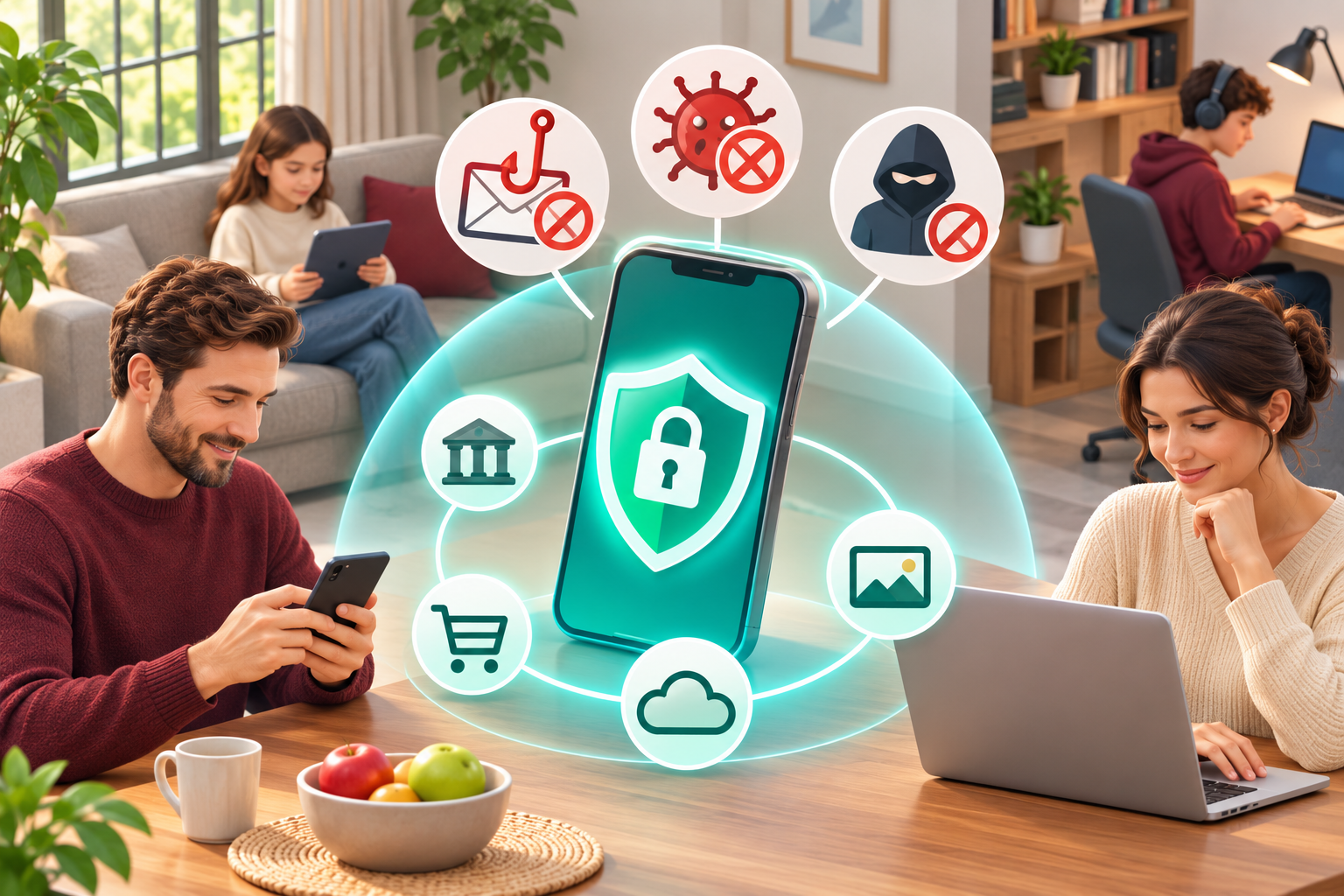
Think about everything your phone can access. Your email, banking apps, saved passwords, shopping accounts, family photographs, and private conversations may all be available from one device.
Now consider what happens when someone receives a text saying a parcel cannot be delivered until a small fee is paid. The message includes a link to a website that resembles the delivery company’s official page.
The phone may contain no malware. Its operating system may be fully updated. Yet entering payment details or a password on that fraudulent page can still expose sensitive information.
That is why mobile security needs to address more than infected applications.
A useful security setup should help prevent malicious software where possible, warn about suspicious websites, and make account compromise easier to detect.
The Most Common Threats Families Should Recognize
Phishing messages
Fraudulent messages often impersonate banks, delivery services, retailers, employers, or government agencies.
They may claim that an account will be suspended or that a payment must be made immediately.
The message usually directs the recipient to a website or asks for personal information.
Phishing can arrive through SMS, email, social media, messaging apps, or QR codes.
Malicious applications
Some applications collect information without proper authorization, display intrusive advertisements, or attempt to misuse device permissions.
Others may impersonate legitimate services.
Android and iOS have built-in protections against harmful applications, but the security risks and installation methods differ.
Compromised online accounts
A password exposed in a data breach can create problems even when the phone itself is secure.
If someone uses the same password for a shopping website and their primary email account, a breach involving one service may put the other at risk.
Unsafe connections
An unfamiliar public WiFi network may expose users to deceptive login pages or other network-related risks.
Modern HTTPS encryption protects much ordinary web traffic, but it does not make every network or website trustworthy.
Excessive application permissions
A flashlight application requesting access to contacts or a simple calculator asking for microphone access deserves scrutiny.
Some legitimate apps require sensitive permissions. The question is whether those permissions are necessary for their stated functions.
Why Built-In Phone Security May Not Cover Every Risk
Modern smartphones already include substantial protection.
Apple uses application review, code signing, sandboxing, and operating system security controls.
Android provides application isolation, permission management, and Google Play Protect on supported devices.
These protections help reduce the risk of harmful software.
They do not prevent every type of scam.
A person can still enter a password on a fake banking page, approve a fraudulent login request, or share an authentication code with someone pretending to provide customer support.
This is where additional mobile security tools may help.
A phishing protection feature may warn about a known malicious website. Breach monitoring may identify an exposed email address. A security checkup may help someone recognize an unsafe setting.
However, the additional application must provide something useful beyond the phone’s existing security features.
Installing another security app simply because it has antivirus in its name is not enough.
Core Protection Features Every Phone Antivirus Needs
When comparing an antivirus for mobile phone protection, concentrate on features that address common risks.
Three deserve close attention: phishing defense, malware detection where technically supported, and data breach monitoring.
Real-Time Phishing Defense
Phishing protection is valuable on both Android and iPhone because many mobile attacks begin with a link rather than an infected file.
Consider a message claiming that your online banking account has been restricted.
The message provides a link to restore access.
A legitimate-looking page asks for your username, password, and verification code.
If you enter that information, the attacker may gain access to your account without installing anything on your phone.
A good phishing protection feature may identify the destination as suspicious before you submit information.
Look for these capabilities:
- Warnings about known phishing websites.
- Blocking of known malicious domains.
- Protection while browsing supported websites or applications.
- A way to check suspicious links before opening them.
- QR code destination checking.
- Clear explanations when a website is blocked.
What effective protection looks like
A useful warning explains why a destination may be dangerous.
For example, it might identify a website associated with credential theft or impersonation.
A warning that simply says your phone is at risk gives you less information.
The application should help users make decisions without requiring them to understand technical threat classifications.
What to check before purchasing
Some products protect only specific browsers.
Others provide DNS-based or network-level filtering that can cover connections from multiple supported applications.
These methods have different limitations.
DNS filtering can block known harmful domains, but it cannot reliably identify every fraudulent message or inspect every page hosted on a legitimate domain.
Browser-based protection may offer more detailed website checks but might not work across every application.
Ask which browsers and apps are covered.
Also check what happens when the security service encounters a website it cannot classify.
No phishing tool detects every new scam.
A family member should still open their banking app directly when a message unexpectedly asks them to verify account details.
Automated Malware and Spyware Scanning
Malware scanning is often the first feature people associate with antivirus software.
On smartphones, its actual capabilities depend heavily on the operating system.
Android malware protection
Android includes Google Play Protect, which checks applications for potentially harmful behavior.
It can scan applications installed through Google Play and examine apps obtained from other sources.
Google explains these protections in its Play Protect guidance.
When harmful software is detected, Play Protect may display a warning, disable an application, or remove it.
Some third-party Android security applications provide additional scanning or app reputation checks.
Others mainly review permissions and device settings.
Those functions are not identical.
Before subscribing, check whether the application:
- Examines installed applications for known threats.
- Provides on-demand or automatic scanning.
- Identifies potentially harmful application behavior.
- Reviews sensitive permissions.
- Explains whether it can remove a detected threat.
- Shows what action is required from the user.
An app that identifies unusual permissions may be useful, but that does not necessarily mean it performs complete malware scanning.
iPhone malware protection
iOS works differently.
Apple uses sandboxing to restrict access between applications.
A third-party iPhone security app generally cannot inspect the private files or code belonging to other installed applications.
Apple describes this isolation in its platform security documentation.
Consequently, an iPhone security application cannot perform the same unrestricted system-wide malware scan as traditional desktop antivirus software.
This does not mean iPhones are immune to security threats.
It means the protection available to third-party applications is different.
When comparing the best mobile antivirus for iphone, look for features such as phishing checks, unsafe website warnings, account monitoring, and device security guidance.
Be skeptical of claims that an ordinary iPhone app can scan every installed application and remove all possible malware.
Spyware and suspicious permissions
Some threats involve applications misusing sensitive permissions.
On Android, pay particular attention to unfamiliar apps that request:
- Accessibility access.
- Device administrator privileges.
- SMS permissions.
- Notification access.
- Microphone or camera access.
- Location access.
- Permission to install other applications.
A permission alone does not prove an application is malicious.
A legitimate accessibility tool may need accessibility permissions. A navigation app may need location access.
The concern is whether the permission matches the application’s purpose.
A useful security application should explain the reason for a warning and let the user review it.
Proactive Data Breach Alerts
A data breach alert tells you that information associated with an online account may have been exposed.
It does not necessarily mean someone has infected your phone.
For example, a breach involving an online shopping service might expose email addresses and passwords.
If someone reused that password for another account, the exposure may create additional risk.
Breach monitoring helps identify known incidents so affected users can respond.
What to look for
A useful service may provide:
- Checks for known breaches involving an email address.
- Monitoring of multiple family email addresses.
- Notifications when new matching breach information becomes available.
- Details about the affected service when available.
- Information about the types of exposed data.
- Clear steps for securing affected accounts.
Check whether the product provides continuous monitoring or only a manual search.
A one-time email check can be useful, but it is not the same as ongoing breach alerts.
What to do when an alert appears
Do not follow an unfamiliar link in a breach notification.
Instead:
- Open the affected service through its official app or website.
- Check whether the account is still active.
- Change any password that may have been exposed.
- Replace that password anywhere else it was reused.
- Enable multifactor authentication where available.
- Review recent account activity and recovery settings.
A password manager can help create and store unique passwords.
Remember that breach monitoring only reports information available to the service. It cannot detect every compromised account or prevent every future breach.
Best Phone Antivirus Options: What Families Should Compare
The best phone antivirus category depends on the devices you own and the risks you want to address.
An Android user who frequently installs unfamiliar applications may prioritize malicious-app detection.
An iPhone user who receives suspicious banking messages may get more value from phishing protection.
A family using several phones, tablets, and computers may prefer a single subscription that covers relevant features across platforms.
The following comparison considers protection capabilities, limitations, ease of use, and family suitability.
It is not a ranking based on laboratory testing.
Option 1: Built-In Smartphone Security
Best for: People who install apps from trusted sources, update their phones regularly, and do not need additional account monitoring.
Modern iPhone and Android devices include security features that provide a useful starting point.
On iPhone, these include application sandboxing, software updates, passcode protection, and permission controls.
On Android, Google Play Protect adds malicious-app checks alongside operating system security features.
Strengths
- No separate antivirus subscription required.
- Integrated with the operating system.
- Usually requires little ongoing maintenance.
- Does not introduce another security provider handling user information.
Limitations
- May not offer the specific phishing or breach monitoring a family wants.
- Does not stop users from voluntarily entering passwords on fraudulent websites.
- May provide limited centralized management across different operating systems.
Buying advice
Before purchasing additional software, check your phone’s built-in protections.
If you already use a password manager, multifactor authentication, automatic updates, and reputable browsing protections, you may not need every feature in a paid security plan.
Pay for capabilities that fill an actual gap.
Option 2: Android Antivirus With Malicious-App Detection
Best for: Android users who want additional checks on installed applications and potentially harmful software.
Some Android security products combine malware scanning, application reputation checks, permission reviews, and phishing protection.
They may be useful for households where users regularly experiment with unfamiliar apps or install software outside the main app store.
Strengths
- May detect additional known malicious applications.
- Can help identify suspicious permissions.
- May provide scheduled scans and security notifications.
- Some products include web protection and breach monitoring.
Limitations
- Detection capabilities vary considerably.
- Some functions overlap with Google Play Protect.
- Background scanning may affect battery use.
- False positives can occur.
- Some apps use exaggerated warnings to encourage upgrades.
Buying advice
Look for an application that explains exactly what it scans and what happens after a threat is found.
If the product reports an issue, it should identify the affected application and recommend a specific action.
Avoid paying for a scanner that produces alarming messages without useful details.
Option 3: iPhone Security Apps With Phishing and Account Protection
Best for: iPhone users who want additional help avoiding scam links and protecting online accounts.
Because iOS restricts third-party access to other applications, iPhone security products generally focus on browser safety, phishing protection, breach monitoring, or security configuration checks.
These functions can still be valuable.
Strengths
- May block known phishing destinations.
- Can help evaluate suspicious links.
- May identify known email breaches.
- Can guide users through security settings.
- Some services provide WiFi or network checks.
Limitations
- Cannot perform unrestricted scans of other installed applications.
- Website filtering may not work across every app.
- Network-based protection can conflict with some VPN configurations.
- Not every product includes automatic breach monitoring.
Buying advice
When searching for the best phone antivirus iphone, read the detailed feature list rather than relying on the product category.
Check which browsers are supported and whether protection works outside the browser.
If the application claims to detect viruses on iPhone, find out what the detection process actually examines.
Option 4: Cross-Platform Family Security Plans
Best for: Families using a mixture of iPhones, Android phones, tablets, and computers.
A household might have two parent smartphones, a teenager’s phone, an iPad, and a shared Windows laptop.
Using a different security service for every device can create unnecessary subscriptions and separate sets of alerts.
A cross-platform family plan may simplify management.
Strengths
- One subscription may cover several devices.
- Can provide consistent phishing and account protection features.
- May include monitoring for multiple email addresses.
- Some products offer parental controls.
- Easier to track coverage when devices are added or replaced.
Limitations
- Features differ between operating systems.
- Device limits vary by subscription.
- Family controls may be available on only certain platforms.
- A shared subscription does not necessarily include a centralized management dashboard.
Buying advice
Count the household’s devices before comparing plans.
Then check the exact feature availability on each operating system.
An Android malware scanning feature should not be assumed to work identically on iPhone.
For families, clear compatibility information is more useful than a long list of generic security claims.
Option 5: Privacy and Network Protection Tools
Best for: People primarily concerned about unsafe websites, unwanted tracking, and unfamiliar network connections.
Some mobile security applications focus on DNS filtering, VPN services, tracker blocking, and network checks.
These can complement operating system security.
They should not be confused with traditional malware scanners.
Strengths
- May block known malicious domains.
- Can reduce some tracking connections.
- May offer additional privacy when using unfamiliar networks.
- Can complement built-in application protections.
Limitations
- DNS filtering cannot inspect every page or message.
- Tracker blocking does not remove installed malware.
- Not every filtering tool provides a full encrypted VPN service.
- Some phones cannot run multiple VPN-based protection services simultaneously.
- Strict filtering may interfere with legitimate applications.
Buying advice
Check what the product means by VPN protection.
Some applications use the phone’s VPN interface for local filtering without routing traffic through a remote VPN server.
That is different from a conventional VPN service.
The provider should explain whether it filters connections, encrypts traffic through its own servers, or does both.
Mobile Security Options Comparison Table
| Security Option | Best For | Main Strengths | Main Limitations |
|---|---|---|---|
| Built-in iOS and Android security | Users who need essential device protection | Integrated safeguards, updates, permission controls | May lack additional breach monitoring and unified family tools |
| Android antivirus application | Android users seeking additional app checks | Potential malware scanning, permission reviews, web protection | May overlap with Play Protect, and capabilities vary |
| iPhone security application | Users concerned about phishing and account theft | Unsafe link warnings, website protection, breach checks | Cannot perform traditional system-wide antivirus scans |
| Cross-platform family security | Households with different devices | Shared subscriptions, easier management, consistent supported features | Device limits and platform capabilities differ |
| Privacy and network protection | Users focused on unsafe connections and tracking | DNS filtering, privacy features, network checks | Does not replace malicious-app detection or account security |
How these options were evaluated
The comparison uses five buying criteria:
- Threat coverage: Does the product address phishing, malware, account exposure, or another identifiable risk?
- Platform compatibility: Are the advertised features actually supported on iOS or Android?
- Ease of use: Can a non-technical family member understand the alerts and recommended actions?
- Privacy: Does the provider explain permissions, data collection, and account management?
- Family value: Can the subscription cover the necessary devices without paying for redundant features?
Choose based on these criteria, not the number of features listed on a product page.
Comparing iPhone Security vs Android Threat Protection
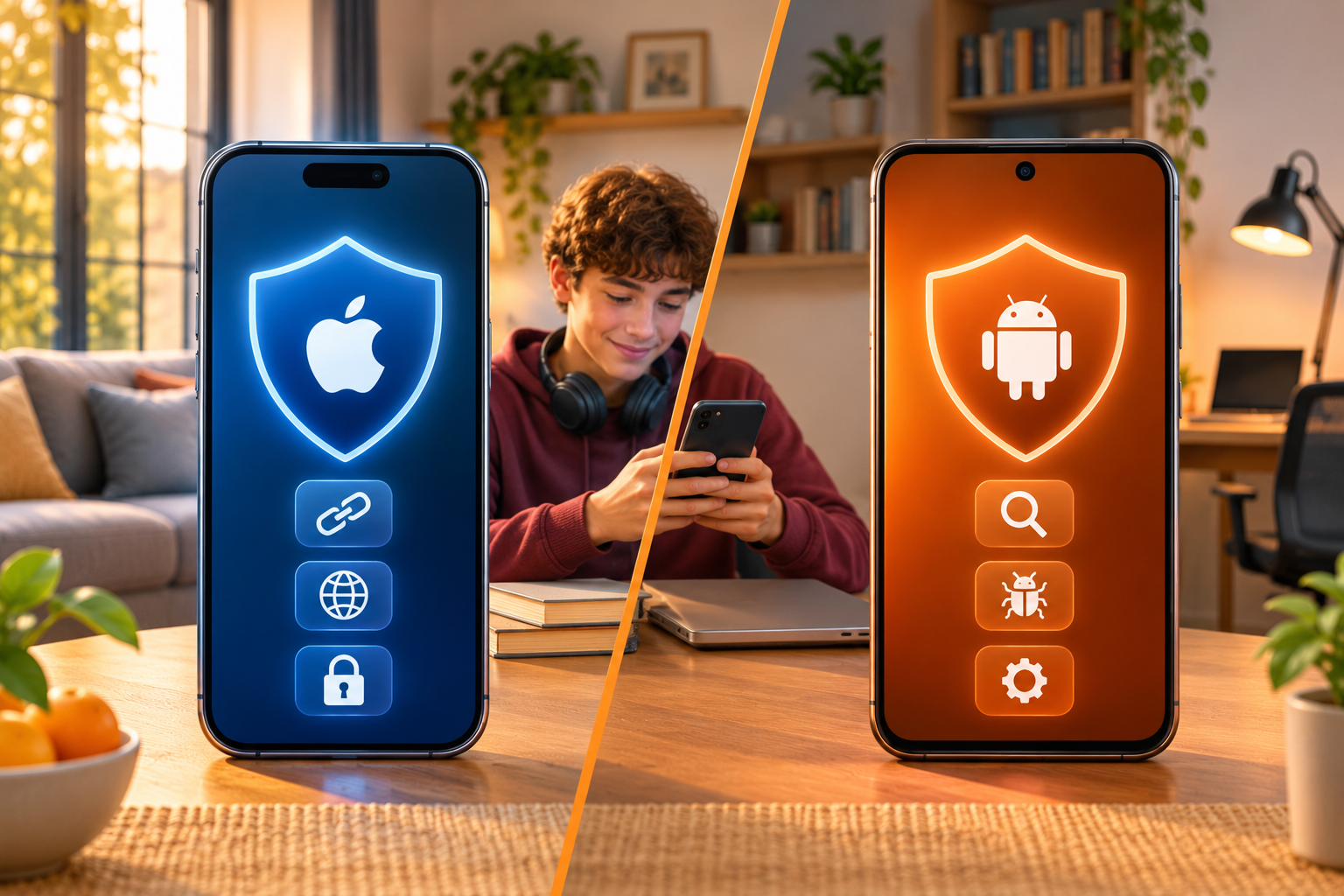
iOS and Android handle application security differently.
Both use operating system controls to protect users, but third-party security applications do not have the same access on both platforms.
Understanding those differences helps prevent unnecessary purchases.
How iPhone Security Works
Apple restricts how applications are installed, what resources they can access, and how they interact with other applications.
Application sandboxing is particularly important.
It generally prevents an ordinary third-party app from reading the private files of another app.
For example, a mobile security application cannot freely examine the data stored inside an iPhone banking application.
This limits traditional antivirus scanning.
It also helps reduce the possibility of one ordinary application accessing another app’s private information.
However, iPhone users still face security risks.
Examples include:
- Entering credentials on phishing websites.
- Approving fraudulent sign-in requests.
- Sharing verification codes with impersonators.
- Installing unsafe configuration profiles.
- Using passwords exposed in data breaches.
- Encountering malicious content that exploits a software vulnerability.
Application distribution rules can also vary by region, so users should understand the source and trustworthiness of any software they install.
For most families, effective iPhone protection begins with software updates, strong Apple Account security, and careful handling of links and login requests.
Additional phishing and breach monitoring tools can help address risks not fully covered by those controls.
How Android Security Works
Android uses application isolation, permissions, security updates, and Google Play Protect.
Play Protect checks applications for potentially harmful behavior and can warn users about malicious software.
Android also allows more flexibility in obtaining applications, depending on device configuration and platform policies.
That flexibility makes the source of an application particularly important.
An application downloaded from an unfamiliar website deserves more scrutiny than one obtained through a reputable app store.
Third-party security applications may provide additional malware checks, permission reviews, or website protection.
However, not every product calling itself antivirus performs the same functions.
Some check installed applications against threat information.
Others mainly evaluate permissions or device settings.
Ask what the app scans, how often it checks, and whether it can take action when something is detected.
Which Platform Needs More Antivirus Protection?
There is no useful answer based only on the phone’s brand.
The owner’s behavior matters.
An Android user who frequently installs software from unfamiliar sources may benefit from additional malicious-app checks.
An iPhone user who receives frequent phishing messages may benefit more from link protection and account monitoring.
Both should keep their devices updated and use strong account authentication.
Android’s more flexible application installation options create some additional opportunities for installing unsafe software.
iOS restricts application access more tightly, but that does not eliminate phishing, account compromise, or software vulnerabilities.
Choose protection based on the risks your household actually encounters.
What About Children Using Smartphones?
Children may encounter scams through games, group chats, social media, and unfamiliar websites.
A teenager might receive a message promising free game credits.
The link leads to a website requesting the teenager’s gaming account password.
A younger child might install an application and approve permissions without understanding them.
Parents should look for a combination of:
- Unsafe website filtering.
- Age-appropriate content restrictions.
- App installation controls.
- Clear warnings about suspicious links.
- Strong device screen locks.
- Account recovery protections.
Parental controls and antivirus software perform different jobs.
Parental controls help manage access, purchases, app installation, and device use.
Security tools focus on threats such as malicious applications, phishing, and compromised accounts.
Some family security products offer both, but the features should be checked separately.
Explain warnings to children rather than expecting them to understand an unfamiliar alert.
A short conversation about why a fake gaming reward website is dangerous can prevent the same mistake later.
How to Select a Cross-Platform Antivirus Plan for Families
Start with the devices and accounts your family needs to protect.
Do not purchase a subscription before checking whether it supports the operating systems and features you actually need.
Count the Devices You Want to Protect
Write down the devices used regularly.
For example:
- Two parent smartphones.
- One teenager’s Android phone.
- One iPad used for school.
- One Windows laptop.
- One Mac computer.
Check whether the subscription covers all of them.
Some plans count every phone, tablet, and computer toward the device limit.
Others may have separate limits for monitored email addresses or family profiles.
Also check what happens when someone replaces a phone.
You should be able to remove an old device from the subscription without unnecessarily losing access to the plan.
If the household has more devices than the plan permits, compare the cost of additional coverage before subscribing.
Check Feature Availability on Each Operating System
A security company may advertise support for iPhone, Android, Windows, and Mac.
That does not mean every feature works identically on all four platforms.
Operating system restrictions affect scanning, permissions, browser protection, and network filtering.
Check whether the plan provides:
- Phishing protection on iPhone.
- Malicious-app scanning or app reviews on Android.
- Data breach monitoring.
- Support for household email addresses.
- Security settings checks.
- Parental controls where needed.
- Coverage for supported laptops and tablets.
Pay attention to the difference between installation support and feature support.
An app may install successfully on iPhone while offering fewer security functions than its Android counterpart.
A trustworthy provider should explain those differences before purchase.
Choose Protection Based on Your Family’s Habits
For parents who frequently use banking and shopping apps
Prioritize phishing warnings, breach monitoring, strong passwords, and multifactor authentication.
A fraudulent login page may present a more immediate risk than an infected application.
For teenagers who install games and unfamiliar apps
Prioritize application safety, permissions, operating system updates, and appropriate installation controls.
Discuss why free downloads from unfamiliar websites can be risky.
For grandparents who receive suspicious messages
Choose tools with straightforward link checking and understandable alerts.
A simple warning is more useful than a complicated dashboard showing unexplained technical scores.
For households using several operating systems
Look for consistent account protection features and straightforward subscription management.
The objective is to reduce confusion when family members need help, not to introduce several different security procedures.
Look for Clear Privacy Practices
Security apps may request access to sensitive device functions.
Their privacy practices deserve careful review.
Before installing, check:
- Who develops the application.
- Whether it has an accessible privacy policy.
- What information it collects.
- Why it requests particular permissions.
- How it handles browsing or security-related information.
- Whether monitored email addresses are stored.
- How users can delete accounts or data.
- Whether the service shares information with other companies.
Some permissions are necessary for specific security functions.
For example, network filtering may require approval of a VPN configuration.
But the developer should explain why the permission is needed and what the application does with it.
Do not approve unfamiliar access requests automatically.
If the explanation is unclear, investigate before proceeding.
Compare Free and Paid Protection
A free application may already provide the features you need.
For example, it might offer manual security checks or limited website protection.
Paid plans may include continuous monitoring, automatic alerts, additional device coverage, or parental controls.
The differences vary by provider.
Before paying, ask:
- What protection is included for free?
- Which features require a subscription?
- Does breach monitoring run automatically?
- How many devices are covered?
- Are all household email addresses included?
- Does the price renew automatically?
- Can the subscription be canceled easily?
- Are the paid features already available through the phone’s built-in protections?
Avoid upgrading simply because an application reports a low security score.
Read the findings and decide which problems actually need attention.
Where AVO Security Fits
For households comparing phishing protection, breach monitoring, and device security checks, AVO Security multi-device protection is one option to evaluate.
Its advertised features include Web Shield, Link Checker, QR Scanner, Email Breach Scan, and security checkup tools.
These address familiar mobile risks, such as suspicious delivery links, fraudulent websites, and known account exposures.
The operating system distinction still matters.
On iPhone, security applications cannot perform unrestricted scans of other installed apps.
AVO’s iPhone-related protection should therefore be evaluated based on its supported web, account, and device security features.
Its Android offering also describes application auditing and permission checks. Those should not be confused with unrestricted file scanning or guaranteed malware removal.
Before subscribing, review the current app-store listing and plan information for your specific devices.
Confirm which features are included and how they operate on each platform.
Step by Step Setup Guide for Mobile Antivirus Software
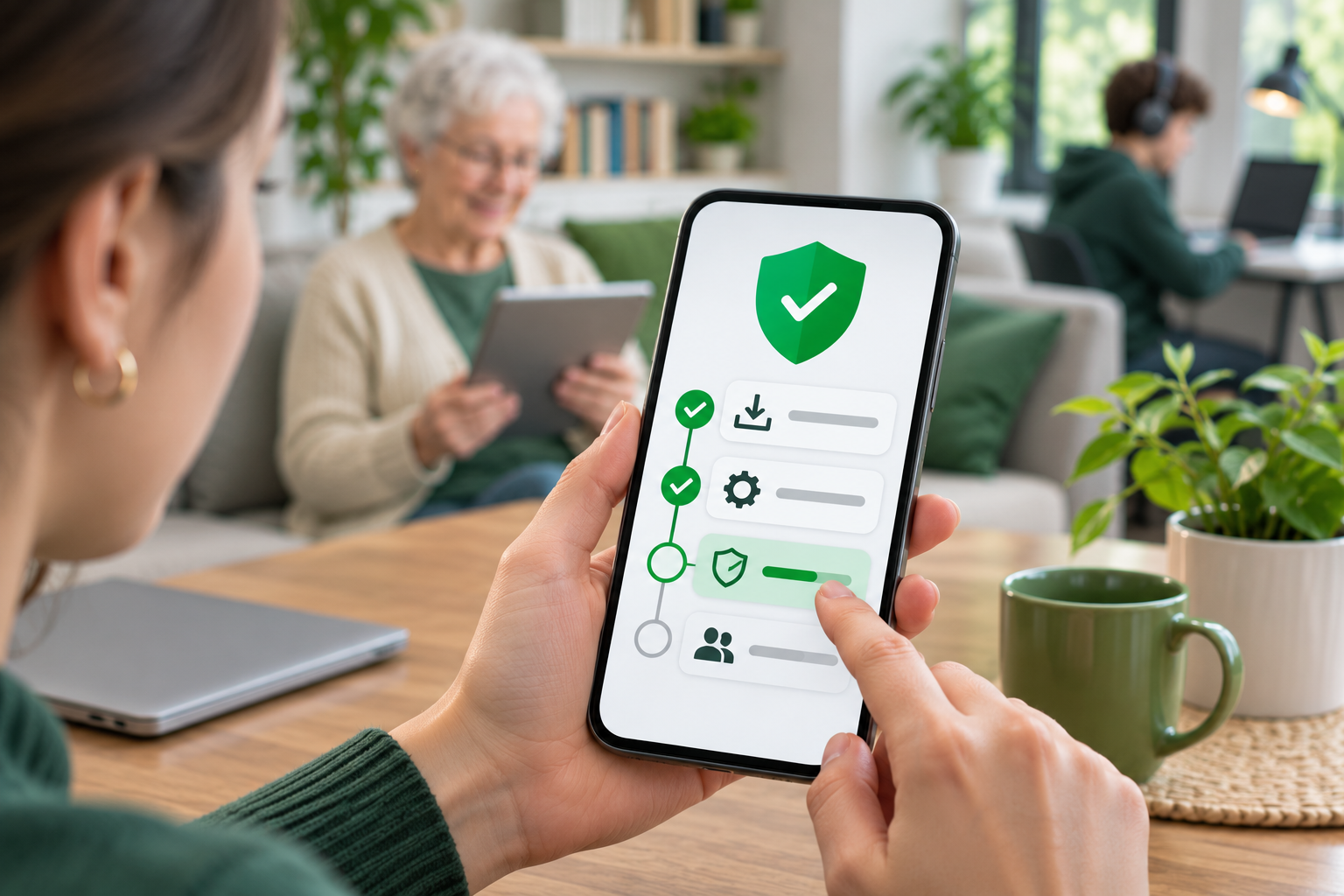
Installing a security application is only the first part of setup.
You also need to check operating system protections, review permissions, enable the features you purchased, and confirm that alerts are working.
The following steps apply broadly to iPhone and Android, although individual application menus may differ.
Step 1: Update Your Phone First
Install available operating system security updates before adding another protection application.
On iPhone:
- Open Settings.
- Tap General.
- Select Software Update.
- Install an available compatible update.
- Check the automatic update settings.
On Android:
- Open Settings.
- Find System or Security and privacy.
- Open the relevant software update section.
- Check for available updates.
- Follow the device manufacturer’s instructions.
Android menu names differ between phone brands.
If you cannot find the update section, use the search function inside Settings.
Software updates address vulnerabilities that an antivirus application may not be able to fix.
Step 2: Check the Built-In Security Features
Before installing third-party protection, check the security features your phone already provides.
On Android
Open Google Play Store.
Tap your profile icon and select Play Protect.
Open the settings section and confirm that Play Protect scanning is enabled.
Run a scan if the option is available.
Read any warnings carefully.
If a potentially harmful application is identified, follow the recommended steps and verify the app before deciding whether to keep it.
On iPhone
Open Settings.
Check that a passcode is enabled.
Use Face ID or Touch ID where supported and appropriate.
Review your Apple Account security settings, including two-factor authentication and account recovery information.
Also check whether an operating system update is pending.
These controls remain useful even when you install additional security software.
Step 3: Download the Security App From a Trusted Source
Install the selected application through its official app-store listing or another legitimate distribution channel appropriate for your device.
Check the developer name carefully.
Fraudulent applications sometimes imitate well-known services using similar names or icons.
Avoid installing an app from an unexpected message that claims your phone is infected.
A webpage displaying a flashing virus warning is not a reliable diagnosis.
If you want to investigate a security concern, leave the webpage and open your phone’s settings or a trusted security application directly.
Before installing, read the product description and available privacy information.
Step 4: Review Permissions During Installation
Do not grant every permission without reading the request.
A security app may need specific access to provide its advertised features.
For example, network filtering may use the phone’s VPN configuration interface.
That does not necessarily mean the application operates a conventional VPN service.
On Android, pay particular attention to requests involving accessibility access, notification access, device administrator functions, and installation permissions.
These are sensitive capabilities.
A legitimate security application should explain why each permission is needed.
If the requested access does not match the advertised function, investigate before approving it.
Step 5: Enable Phishing and Unsafe Website Protection
Open the security application’s settings.
Look for features such as:
- Web protection.
- Phishing detection.
- Unsafe website blocking.
- Link checking.
- Network filtering.
Enable the functions you intend to use.
Follow any required system prompts.
Some applications need a browser extension, VPN configuration, or other platform-specific setup before protection becomes active.
Afterward, check the app’s main status screen.
Look for confirmation that the feature is enabled.
If the application reports a conflict with an existing VPN or network filtering service, consult its setup guidance.
Do not assume that downloading the application automatically activated every protection feature.
Step 6: Configure Malware and Application Checks
On Android, review the available app scanning or application auditing features.
If manual scanning is supported, run an initial scan.
Read the findings instead of immediately removing every flagged application.
An app requesting microphone access is not necessarily malicious.
A voice recorder needs that permission to work.
The concern is whether the permission makes sense for the application’s purpose.
If the security application identifies known harmful software, follow the recommended removal procedure.
Avoid downloading unfamiliar cleanup utilities suggested by pop-up warnings.
On iPhone, use available security checkup features rather than expecting traditional scanning of other applications.
Review recommendations concerning software updates, account security, and unsafe settings.
Step 7: Add Email Addresses for Breach Monitoring
If the subscription includes breach monitoring, add the email addresses you want to check.
Start with important accounts.
These may include:
- Your primary personal email.
- Email used for banking and shopping.
- Accounts associated with online subscriptions.
- School-related email accounts.
- Other addresses used regularly by family members.
Follow the provider’s verification process when required.
A typical email breach lookup needs the email address, not the account password.
Do not enter an email password into an unfamiliar breach-checking website.
After adding the addresses, check whether the service provides automatic alerts or only manual searches.
If a known breach is identified, review the affected service and take appropriate account security steps.
Step 8: Set Up Protection for Children and Other Family Members
Install the relevant security application on each supported household device.
Follow the provider’s family setup instructions.
If the service includes parental controls, review which functions are available for each operating system.
Do not assume Android and iOS provide identical parental control capabilities.
For younger children, consider restricting app installations and inappropriate content.
For teenagers, focus on safe account habits, suspicious messages, and unfamiliar downloads.
Explain what to do when a security alert appears.
A child should know not to enter a password on a page offering free gaming rewards without checking the source.
Family members also need to know whom to ask when a warning is confusing.
Step 9: Check Notifications and Background Protection
Security alerts are only useful when someone notices them.
Open the phone’s notification settings.
Confirm that important alerts from the security application are permitted.
You do not need to enable unrelated promotional notifications.
Some security services require background activity or specific battery settings.
Check the manufacturer’s instructions before changing those controls.
Do not disable all battery optimizations automatically.
After setup, reopen the security application and confirm its protection status.
If a feature is inactive, investigate why before assuming the phone is protected.
Step 10: Review Protection Regularly
A monthly security check is a practical routine for most households.
Review:
- Operating system updates.
- Security app updates.
- Recent phishing or malware alerts.
- Unfamiliar installed applications.
- Sensitive permissions.
- Known account breaches.
- Devices covered by the subscription.
Check whether each family member is still using the same device.
When someone replaces a phone, remove the old one from the subscription if needed and configure the new device.
Also confirm that the security application still provides the functions you purchased.
If an important feature remains disabled because of compatibility problems, consider whether another setup would be more appropriate.
Common Mistakes When Buying Phone Antivirus Software
Many disappointing security purchases come from misunderstanding what the software actually does.
The following mistakes are worth avoiding.
Choosing Based Only on a High Security Score
Some applications display a score after checking a phone.
That score may summarize security settings, permissions, or other indicators.
It is not necessarily a direct measurement of malware infection risk.
If the application reports that your phone lacks a passcode, fix that specific issue.
If it flags an outdated operating system, check for an update.
The recommended action matters more than an unexplained number.
Assuming Every Antivirus App Can Remove Malware
A security application may identify suspicious software without being able to remove it automatically.
Some Android products require users to uninstall flagged applications manually.
Others provide permission reviews rather than traditional malware scanning.
On iPhone, third-party apps generally cannot remove malware from the private data of other installed applications.
Read the product’s detection and removal capabilities separately.
Do not assume that the word antivirus guarantees unrestricted access to the operating system.
Paying for Duplicate Features
Before purchasing a subscription, check which protections your phone already includes.
Android provides Play Protect.
iPhone includes application isolation, permission controls, and operating system security features.
You may also already have password management or web protection through another service.
Paying twice for similar functions may not improve your security.
Look for a meaningful addition, such as useful phishing protection, ongoing breach alerts, or easier household management.
Ignoring Subscription Conditions
A plan may advertise family coverage without supporting every device in your household.
Check the number of permitted devices and the available operating systems.
Also review:
- Subscription duration.
- Renewal conditions.
- Cancellation instructions.
- Monitored email limits.
- Family account requirements.
- Device replacement procedures.
Do not assume every family member can create a separate account under one subscription.
Some services have different arrangements.
Read the details before purchasing.
Assuming Antivirus Replaces Safe Habits
Security software cannot stop every social engineering attack.
A scammer may use a newly created phishing site that has not yet been classified.
Someone may also impersonate customer support over the phone and ask for a verification code.
Teach family members to open important services directly rather than following unexpected links.
Use unique passwords and multifactor authentication.
Keep operating systems updated.
These habits reduce risks that antivirus applications cannot fully control.
How to Choose the Best Phone Antivirus for Your Situation
Choose a security product based on your devices, account habits, and the threats you want additional help managing.
If You Use Only an iPhone
Start with iOS security settings and Apple Account protection.
Keep the phone updated and use a strong passcode.
If you regularly receive suspicious messages or manage sensitive accounts, consider phishing protection and breach alerts.
Avoid paying for unsupported claims about scanning every installed iPhone application.
Focus on protection that iOS actually permits.
If You Use an Android Phone
Keep Play Protect enabled.
Check application permissions and avoid installing software from unfamiliar sources.
If you want additional protection, compare third-party apps that explain their malicious-app detection methods.
Look for clear alerts, understandable scan results, and sensible removal guidance.
Do not assume a paid scanner is necessary simply because the phone runs Android.
If You Manage Your Children’s Phones
Prioritize unsafe website protection, app installation controls, and account security.
Review parental controls separately from antivirus features.
Choose controls appropriate for each child’s age and device.
Explain common scams involving gaming rewards, account verification messages, and unfamiliar downloads.
A security warning helps most when the child understands what action to take.
If Your Household Uses Different Devices
A cross-platform plan may simplify subscription management.
List the household’s phones, tablets, and computers.
Confirm exactly which features work on each operating system.
Check device limits, breach monitoring coverage, and parental controls where needed.
Avoid purchasing a family plan that covers the right number of devices but lacks the protections you actually wanted.
If Your Main Concern Is Online Scams
Prioritize phishing checks, unsafe website protection, breach alerts, and strong account authentication.
A tool that clearly explains suspicious links may provide more useful protection than a general-purpose scanner.
Pair it with a password manager and multifactor authentication.
If an unexpected message claims that your bank or shopping account has a problem, open the official application directly.
Do not rely on the link supplied in the message.
FAQ
Does iPhone need an antivirus app?
An iPhone does not generally need a traditional third-party antivirus scanner because iOS restricts applications from inspecting other apps and their private files. However, iPhone users can still encounter phishing websites, account compromise, and data breaches. A security application offering useful link protection, breach monitoring, or device security checks may provide additional protection.
What is the difference between Android and iOS malware protection?
Android includes Google Play Protect, which examines applications for potentially harmful behavior and can warn users about suspicious software. iOS relies on application review, code signing, sandboxing, and other platform restrictions that limit application access. Third-party Android products may provide additional malware-related checks, while iPhone security apps generally focus more on web, account, and device-setting protection.
How does a family antivirus plan protect smartphones?
A family antivirus plan can combine supported phishing protection, device security checks, breach monitoring, and other features under one subscription. Some plans also include parental controls and coverage for tablets or computers. Protection varies by operating system, so families should confirm which functions work on each device before buying.
The best phone antivirus is the one that addresses the risks your existing phone security does not cover.
For iPhone, phishing protection and account monitoring are often more relevant than traditional malware scanning claims. For Android, keep Play Protect active and consider additional app checks when your usage makes them worthwhile.
For families, prioritize clear warnings, appropriate device coverage, and simple management. Keep phones updated, use unique passwords, review sensitive permissions, and teach everyone to verify suspicious messages before responding.
A security subscription should make those tasks easier and provide useful protection where your phone’s built-in tools leave gaps.