Cybersecurity Monitoring Software: Guard Family Devices
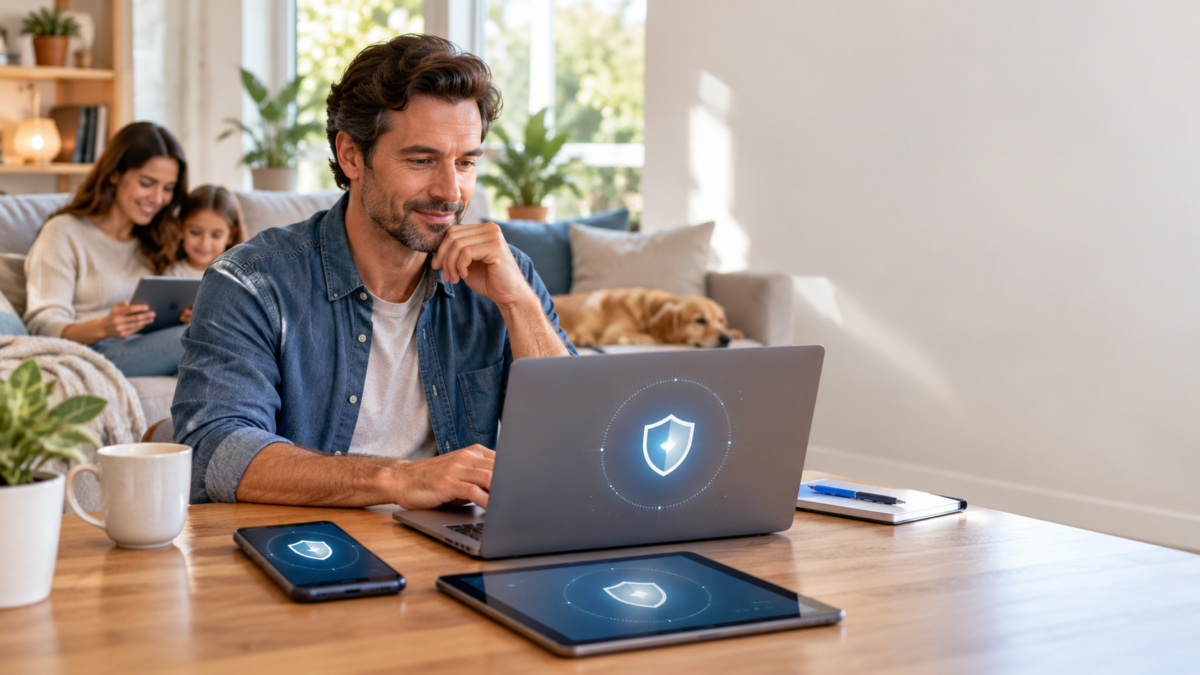
Cybersecurity monitoring software helps families spot security problems across their phones, tablets, computers, and online accounts. It checks for issues such as exposed passwords, suspicious websites, unsafe WiFi connections, and potential malware, then provides warnings so users can take action.
Unlike a manual antivirus scan, monitoring software can perform supported checks regularly and notify you when something needs attention. That is especially useful in households where different family members use different devices and online services.
AVO Security brings together features such as Smart Scan, Web Shield, Link Checker, Email Breach Scan, and WiFi Security. Its iPhone and Android applications are available, while its Mac and Windows applications are currently in development.
The important thing is knowing what your security software actually monitors, which threats it can help prevent, and what you still need to manage yourself.
What Is Cybersecurity Monitoring Software?

Cybersecurity monitoring software checks supported devices, online accounts, and network connections for signs of security problems.
Instead of waiting for someone to notice unusual activity, the software performs checks and provides alerts when it identifies a potential risk.
For example, an email breach monitor might discover that your email address appeared in a known data breach. A website protection feature might block a link associated with phishing. A device security check could identify an outdated setting that needs attention.
These features serve different purposes, but they help answer the same question: is there anything important I need to fix?
For families, that information can be more useful than a complicated technical report.
Most people do not want to spend their evenings checking security settings. They want to know that important protections are enabled and that someone will be alerted when a problem is detected.
Cybersecurity monitoring software can help with:
- Malware detection: Checking supported files, applications, and device activity for signs of malicious software.
- Data breach alerts: Identifying email addresses or other monitored information associated with known breaches.
- Phishing protection: Warning about or blocking certain fraudulent websites.
- Credential monitoring: Checking whether account information appears in available exposure records.
- WiFi security checks: Reviewing supported security characteristics of the network a device connects to.
- Device security reviews: Identifying certain outdated or insecure device settings.
- Account protection: Helping users recognize exposed credentials and take corrective action.
Not every product includes all these features.
Business monitoring software, for example, may inspect servers, employee computers, and company networks. A household security application usually focuses on personal devices, suspicious links, exposed accounts, and everyday online risks.
When comparing products, look at the specific checks they perform rather than assuming every monitoring tool provides the same protection.
Monitoring, Prevention, and Recovery Are Different
These three activities are closely related, but they should not be confused.
Monitoring means looking for warning signs.
For example, an email breach scan may identify that an account address appeared in records associated with a data leak.
Prevention means trying to stop unsafe activity.
A website filter may block a connection to a known phishing domain before the page opens.
Recovery means dealing with a problem after it happens.
If an account has been compromised, recovery might involve changing the password, signing out unfamiliar devices, reviewing account activity, and contacting the service provider.
Consider a message claiming that your shopping account will be suspended unless you confirm your password.
A phishing protection feature might identify the linked website as suspicious.
If someone already entered their password, a separate account security alert may help reveal an unauthorized sign-in. The account owner then needs to change the password and review active sessions.
One tool does not necessarily handle every part of that process.
Continuous monitoring is valuable because it can reveal problems that would otherwise go unnoticed. But alerts only help when someone understands them and responds appropriately.
Key Ways Monitoring Software Shields Household Hardware
Most households use several devices every day.
Someone might check their bank account on an iPhone, another person might shop on an Android phone, and a child may use a shared laptop for schoolwork.
Each device has different security capabilities, yet everyone encounters similar online risks.
Fraudulent links, compromised passwords, malicious downloads, and unsafe network connections can affect any household.
A practical security plan should focus on three areas: monitoring exposed account information, checking for malware and phishing, and using the appropriate protection on each operating system.
Real-Time Breach Monitoring and Credential Alerts
A data breach happens when information is accessed or exposed without authorization.
That information may include email addresses, passwords, names, phone numbers, or other personal details.
A breach does not necessarily mean your phone or computer has been infected.
The problem may have occurred at a company where you created an account.
Imagine an old online shopping account that you have not used for several years.
You may have forgotten the account exists, but the retailer still holds your email address and other information.
If that company experiences a breach, some of your details could be exposed even though your own devices are secure.
That is where breach monitoring becomes useful.
How real time breach monitoring works
Breach-monitoring services compare registered account information against available records of known breaches.
Depending on the provider, monitoring may identify:
- Email addresses appearing in known breach records.
- Password-related information associated with exposed accounts.
- The online service involved.
- Dates associated with the exposure.
- Categories of information reported as compromised.
- New findings involving previously registered email addresses.
Some services perform repeated checks as new information becomes available.
This is commonly called real time breach monitoring, although the term should not be taken literally.
A monitoring provider cannot guarantee that it will detect a breach the moment the incident occurs.
A company may take time to discover an incident. The exposed information may not become available to monitoring services immediately. Some breaches are never publicly disclosed.
The monitoring service can notify users when it identifies relevant information through its available sources.
That is still useful, but it is not the same as instantly detecting every breach.
What a useful data breach alert should tell you
A clear notification should explain:
- Which email address or monitored identifier was involved.
- Which service is associated with the exposure.
- What type of information may have been affected.
- Whether passwords were included in the available records.
- What action the user should consider taking.
For example, an exposed email address does not automatically mean your email account has been accessed.
If password information was compromised, the response may be more urgent, particularly if the same password was used on other websites.
A useful alert makes these differences understandable.
How AVO Security helps with breach monitoring
AVO Security includes Email Breach Scan.
The feature checks supported email addresses against available records of known data breaches and presents findings for review.
AVO’s published Household plan includes monitoring for up to ten email addresses, subject to current plan terms.
This can help households manage several personal accounts without relying on each family member to perform every check manually.
Consider a family using separate email addresses for banking, school, shopping, and entertainment.
A monitoring service can help identify which registered addresses have appeared in available breach records.
The household can then focus on the affected accounts rather than changing passwords randomly.
What should you do after receiving a breach alert?
Start with the account mentioned in the notification.
- Open the service directly through its usual application or trusted website.
- Review the available security information.
- Change the password if it may have been exposed.
- Check whether the same password was used elsewhere.
- Replace reused passwords with unique credentials.
- Enable two-factor authentication or passkeys where supported.
- Review recent sign-ins and active sessions.
- Sign out unfamiliar devices using the account’s security settings.
- Confirm that recovery email addresses and phone numbers are correct.
If the affected account is no longer needed, consider closing it through the service’s official account deletion process.
A password manager can help family members create and store unique passwords.
The important point is to respond to the specific exposure, not assume that every device or account has been compromised.
Why family credential monitoring matters
Families often have more accounts than they realize.
A parent might use one email address for banking and another for shopping. Children may have school accounts and gaming profiles. Older relatives may still use email addresses created many years ago.
Reused passwords are a particular concern.
If someone uses the same password on a gaming website and their primary email account, a breach at the gaming service could put the email account at risk.
Attackers sometimes test stolen passwords against other popular services.
Credential monitoring helps identify certain exposures so users can replace compromised passwords before they are misused elsewhere.
However, monitoring cannot prevent someone from voluntarily sharing a password with a scammer or guarantee that every exposed credential will be discovered.
Unique passwords and strong account authentication remain essential.
Automated Malware Detection and Phishing Defense
Malware and phishing are often discussed together, but they are not the same.
Malware is harmful software designed to perform unwanted actions on a device.
It might attempt to steal information, interfere with files, or change system settings.
Phishing involves tricking someone into revealing information or taking an unsafe action.
A phishing scam can succeed without installing malware.
For example, someone may receive an email claiming that their bank account has been locked.
The message includes a link to a fake login page.
If the person enters their username and password, the scammer may obtain those credentials even though the device itself contains no malicious software.
That is why families benefit from both malware checks and phishing protection.
How automated malware detection works
On operating systems that support it, antivirus software can examine files, applications, and certain system activities for signs of malicious software.
Detection may include checking known malware patterns, examining suspicious file characteristics, or monitoring supported activity.
Some antivirus products check files when they are downloaded or opened.
Others perform scheduled scans.
This reduces the need for users to start every check themselves.
Imagine a shared Windows laptop used for school assignments and everyday browsing.
Someone downloads a free utility from an unfamiliar website.
A compatible antivirus engine may inspect the installer and identify a known harmful component.
Depending on the software, it may block the file or display a warning.
However, scanning capabilities differ across operating systems.
Windows supports extensive file and process inspection. Android applications have different permissions and security restrictions.
On iPhone, ordinary third-party applications cannot perform traditional system-wide antivirus scanning of other applications and their private files.
This distinction matters when choosing cross-platform protection.
How phishing defense works
Phishing protection focuses on suspicious links and website destinations.
A message might claim that a delivery failed and ask the recipient to pay a small fee.
The linked website may imitate a genuine delivery company.
Security software can sometimes identify the destination as suspicious before the user enters payment information.
AVO Security includes Web Shield and Link Checker, which address these risks in different ways.
Web Shield
AVO’s Web Shield uses DNS-based filtering.
DNS is the system that helps a device locate the network address associated with a website name.
A DNS filtering service can block connections to certain domains known to be associated with phishing, malware, or other unwanted content.
This can help when a suspicious link arrives through email, text, or another application.
But DNS filtering has limitations.
A newly created phishing site may not yet appear in known threat records.
A fraudulent page hosted on an otherwise legitimate domain may also be difficult to identify using domain-level filtering alone.
Web Shield is an additional safeguard, not a guarantee that every unsafe website will be blocked.
Link Checker
AVO’s Link Checker helps users inspect suspicious web destinations before opening them.
It can provide information about supported links and reveal certain redirected destinations.
That is useful when someone receives a shortened URL.
A shortened link may hide the actual website address until it is opened.
Checking the destination first provides an opportunity to identify something suspicious.
For example, a link claiming to open a familiar shopping website may actually lead to a completely different domain.
A link inspection tool can help the user notice the difference.
Simple phishing rules every family should know
Encourage household members to be cautious when a message:
- Asks for a password unexpectedly.
- Requests a one-time verification code.
- Claims an account will be closed immediately.
- Demands payment through an unfamiliar website.
- Contains a suspicious or misspelled domain name.
- Requests installation of an unknown application.
- Asks for remote access to a personal computer.
- Pressures the recipient not to verify the request elsewhere.
A practical rule is to open important services through their normal applications rather than following unexpected message links.
If a bank sends a suspicious account warning, open the banking app directly.
If a delivery message requests payment, check the shipment through the delivery company’s usual website or application.
Security software can provide useful warnings, but careful verification remains important.
Cross-Platform Device Protection for Every OS
Most households do not use just one operating system.
A parent may prefer an iPhone, another person may use Android, and the family computer might run Windows or macOS.
Each platform includes different security features.
Cross-platform security means supporting appropriate protections across these device types rather than assuming every application can perform identical scans.
iPhone and iPad
Apple restricts how applications access information belonging to other apps.
These restrictions prevent ordinary third-party applications from performing traditional system-wide antivirus scanning.
Useful additional features can include phishing protection, suspicious-link inspection, breach monitoring, and supported device security checks.
Keeping iOS updated and using a secure screen lock are also important.
Android
Android includes built-in security controls such as Google Play Protect and application permissions.
Additional security software may provide supported app reviews, unsafe website filtering, breach checks, and network safety information.
Users should avoid installing unfamiliar applications from links or unofficial sources without verifying them.
Windows
Windows includes Microsoft Defender Antivirus through Windows Security.
It provides built-in malware protection and other security controls.
Families should confirm that protection is active and that the operating system receives updates.
Additional monitoring may be useful for account exposure and phishing-related risks.
Avoid installing overlapping active antivirus engines without checking compatibility.
macOS
Mac computers include security features such as Gatekeeper and XProtect.
These help manage potentially unsafe applications and identify known malware.
Additional protection may include supported malware checks, phishing filtering, or breach monitoring.
Built-in operating system security should remain enabled.
AVO Security’s current platform support
AVO Security’s Household plan is designed around protection for multiple personal devices, with a published limit of up to six devices.
Its iPhone, iPad, and Android applications are available.
As of October 2026, its Mac and Windows applications are still listed as in development.
That means households needing immediate desktop protection should continue using available operating system safeguards and verify current application availability before purchasing specifically for those platforms.
A shared subscription is most useful when its available features match the devices your family actually uses.
Why Built-In Device Tools Aren’t Enough for Families
Built-in security tools are valuable and should not be ignored.
Windows includes antivirus and firewall protection. Android offers application screening and security controls. iPhone and iPad devices use application restrictions, while macOS includes malware and application security features.
For many everyday tasks, these protections provide a strong starting point.
The difficulty for families is that each system focuses primarily on its own device.
A Windows antivirus scan does not automatically tell you that your child’s email address appeared in a data breach.
An iPhone security setting does not show whether another household member reused a compromised password.
A Mac’s built-in malware protection does not automatically monitor the family’s online shopping accounts.
The gap is often in household oversight, not necessarily in the quality of the operating system’s security.
Device protection and household monitoring address different needs.
Consider a Windows laptop that reports no malware.
The computer may be functioning normally and its antivirus protection may be active.
But the owner’s password could still have appeared in a known breach involving an unrelated online service.
A malware scan would not necessarily identify that account exposure.
Breach monitoring provides a different kind of information.
Similarly, an iPhone can be fully updated and still receive a phishing text message.
Website filtering and link inspection may help with that risk.
A sensible family security plan combines built-in device protection with additional monitoring where it provides meaningful value.
The Challenge of Managing Multiple Security Settings
Every device comes with its own settings and notifications.
A household manager may need to check:
- Operating system updates.
- Screen locks.
- Application permissions.
- Active antivirus protection.
- Website filtering.
- Account recovery details.
- Email breach notifications.
- Backup status.
- Signed-in devices.
These tasks are manageable individually.
They become easier to overlook when several family members use different products.
An older tablet may stop receiving updates but remain signed in to a personal email account.
A child’s phone may have a disabled screen lock.
A family laptop may contain software nobody uses anymore.
A regular household review helps identify these situations.
A monitoring service can support that routine through available scans and alerts.
However, do not assume that every family subscription provides a single dashboard with remote control over all devices.
Check the actual management features before purchasing.
Why Home Network Security Also Matters
Most home devices connect through the same router.
That includes phones, computers, smart televisions, cameras, and other connected equipment.
Protecting the network helps support the security of those devices.
Home network security begins with the router itself.
Useful precautions include:
- Changing default administrator credentials.
- Using a strong, unique router password.
- Enabling supported modern WiFi encryption.
- Keeping router firmware updated.
- Reviewing connected devices periodically.
- Using a guest network where appropriate.
- Removing equipment that no longer needs network access.
- Disabling remote management features that are not required.
The phrase home network security monitoring can describe different capabilities.
Some router security systems inspect connected equipment or certain network traffic.
Other tools focus only on the WiFi connection used by a particular device.
These are not equivalent.
How AVO Security’s WiFi Security feature works
AVO Security includes WiFi Security, which reviews supported characteristics of the network a mobile device joins.
Checks can involve encryption and certain suspicious connection conditions.
This is particularly useful when someone connects to an unfamiliar wireless network.
For example, a family member might join WiFi at an airport, hotel, or cafe.
A network safety check can help identify certain connection risks.
However, AVO’s WiFi Security feature should not be confused with a router-level monitoring system that continuously inspects traffic from every device in the house.
If you need a complete inventory of connected home devices, start with your router’s available management controls.
Why Monitoring Cannot Replace Good Security Habits
Security software can identify certain risks, but it cannot prevent every unsafe decision.
Someone may still share a verification code with a convincing caller.
A family member might approve a fraudulent account sign-in request.
A reused password might be exploited before breach information becomes available.
These situations are reasons to maintain basic security habits.
Encourage everyone to:
- Use unique passwords for important accounts.
- Enable two-factor authentication or passkeys where available.
- Keep operating systems updated.
- Install applications from trusted sources.
- Review unfamiliar account activity.
- Avoid unexpected links requesting sensitive information.
- Back up important documents and photographs.
- Ask for help when a security warning is unclear.
Children should know they can report suspicious messages without getting into trouble simply for asking.
Adults should also feel comfortable checking a questionable request instead of responding immediately.
Monitoring works best when it supports these habits.
Core Features to Look for in a Family Protection Plan
Choosing family security software should not require comparing dozens of technical terms.
Start with the devices you own and the online risks you want help managing.
A household with several smartphones may value phishing filtering and breach alerts.
A family using shared desktop computers may also need extensive malware scanning.
Parents may want supported content filtering and child profiles.
Focus on features you will actually use.
| Feature | What It Helps With | What to Verify |
|---|---|---|
| Data breach alerts | Identifies supported known account exposures | Number of monitored email addresses |
| Malware detection | Checks supported files, apps, or activity | Scanning capabilities on each operating system |
| Phishing protection | Helps identify or block certain fraudulent destinations | Filtering method and limitations |
| Link inspection | Reveals information about suspicious URLs | Supported checks and redirects |
| WiFi security checks | Reviews supported network characteristics | Whether it checks one device’s connection or the entire network |
| Cross-platform protection | Supports different operating systems | Currently available applications |
| Parental controls | Helps manage children’s online access | Child profiles and available filtering |
| Automated checks | Reduces manual security tasks | Scheduling and notification options |
| Device management | Helps organize covered devices | Device limits and replacement process |
| Subscription terms | Helps households manage costs | Renewal price, billing period, and cancellation |
A useful family plan should make security easier to understand.
A long feature list is not particularly helpful if the software does not support your devices or explain what you need to do.
Look for Clear and Actionable Alerts
A warning should tell you what happened.
For example, a breach notification should identify the affected email address and available information about the exposed account.
A phishing warning should explain that the destination may be unsafe.
A device security check should identify the setting or application that needs attention.
The user should not have to guess whether a warning requires immediate action.
Look for products that distinguish between important findings and ordinary maintenance recommendations.
An exposed password and an optional privacy setting should not be presented as identical problems.
Clear explanations matter more than dramatic warning messages.
When alerts are understandable, family members are more likely to take appropriate action.
Check the Difference Between Free and Paid Features
Some security applications allow a free initial scan but require a subscription for continuing protection or additional tools.
Before subscribing, check exactly what is included.
Useful questions include:
- Can I review initial scan findings without paying?
- Which features require an active subscription?
- How many devices can I register?
- How many email addresses can be monitored?
- Are scheduled checks included?
- What parental controls are available?
- Can I remove a retired device and register another?
- Which applications can I install today?
- What happens when the subscription renews?
AVO Security offers free installation and an initial scan on supported platforms.
Its published Household plan lists support for up to six devices, ten monitored email addresses, and five child profiles, subject to current terms and application availability.
These limits can help families assess whether the plan fits their needs.
If your household has more devices than the plan allows, determine which devices need additional protection before purchasing.
Understand the Limits of Identity Theft Prevention
Some cybersecurity products describe breach monitoring as a form of identity protection.
That can be reasonable when the service helps users identify exposed information.
However, monitoring a leaked email address does not automatically prevent identity theft.
A breach alert may help you recognize compromised credentials.
Phishing filtering may reduce the chance of visiting certain fraudulent websites.
Neither guarantees protection against every unauthorized financial transaction or fraudulent credit application.
If you specifically need credit bureau monitoring, identity restoration specialists, credit freezes, or insurance coverage, verify those services separately.
Do not assume they are included with a family antivirus subscription.
For many households, secure passwords, account authentication, regular financial reviews, and appropriate credit safeguards remain important alongside cybersecurity monitoring.
Choose Security Features People Will Actually Use
Different family members need different levels of guidance.
A parent managing household security may appreciate a clear list of findings.
A teenager may benefit from simple explanations about suspicious links.
An older family member may prefer warnings that avoid complicated technical language.
Consider how the software presents information.
Does it clearly explain the problem?
Can users understand the recommended action?
Are notifications easy to review?
Does the application provide the controls needed without making routine tasks unnecessarily complicated?
A product that is difficult to use may eventually be ignored.
Choose protection that fits the people using it, not just the devices.
How to Deploy Centralized Protection Across Your Home

Setting up family security is easier when you take it one device at a time.
Begin by identifying the devices and accounts your household uses.
Then review their existing protection before installing additional software.
This avoids unnecessary overlap and makes troubleshooting simpler if something does not work as expected.
Step 1: List Every Device Your Household Uses
Start with a basic device inventory.
Include:
- Personal smartphones.
- Tablets.
- Shared laptops.
- Desktop computers.
- Older devices still signed in to important accounts.
For each device, record who normally uses it and which operating system it runs.
Check whether it receives security updates and has a working screen lock.
Also identify whether it contains important personal information or account access.
You do not need to record passwords.
An older tablet used only occasionally may still contain email, saved photographs, or shopping accounts.
That makes it worth reviewing.
Step 2: Review Built-In Protection First
Before installing a new security application, check what the operating system already provides.
Windows: Open Windows Security and review the active antivirus provider, firewall status, and available updates.
Mac: Check macOS updates and keep built-in application security features enabled.
Android: Review Google Play Protect, operating system updates, application permissions, and screen lock settings.
iPhone: Check iOS updates, passcode settings, and relevant account security controls.
Do not disable existing protection simply because you plan to install a monitoring service.
Additional tools should complement working safeguards.
Step 3: Select a Plan That Matches Your Devices
Count how many devices you want to cover.
Compare that number with the plan’s limits.
Also check which operating systems are currently supported.
AVO Security’s Household plan is designed for up to six devices.
Its iPhone, iPad, and Android applications are available.
As of October 2026, Mac and Windows applications remain in development.
Families that need an AVO desktop application immediately should confirm the release status before subscribing for that purpose.
You can explore AVO Security’s multi-device antivirus and family protection features and current household options.
Make sure the available applications meet your immediate needs.
Step 4: Install the App on Supported Devices
Begin with one supported phone or tablet.
Install the official security application and complete the account setup.
Review the permissions requested during installation.
Some functions require permission to display notifications or provide supported network filtering.
Enable the permissions necessary for the features you intend to use.
Once the application is configured, check that its main functions are available.
Then repeat the process on other supported devices.
Setting up one device first makes it easier to identify configuration problems before adding the rest of the household.
Step 5: Run the Initial Security Check
Open the security application and start its available scan or device check.
AVO’s Smart Scan reviews supported security information and provides findings that may need attention.
Read the results before changing settings.
Not every warning means malware is present.
For example:
- An outdated operating system needs an update.
- An unsafe application may require further inspection or removal.
- A missing screen lock needs to be configured.
- An exposed email account may require a password change.
- A disabled protection feature may need to be enabled.
Follow the recommendation appropriate to the finding.
Avoid deleting unfamiliar files manually or changing unrelated device settings.
After completing the necessary steps, run another supported check if appropriate.
Step 6: Turn On Phishing Protection
Configure website filtering on supported devices.
With AVO Security, review the available Web Shield settings.
Choose a filtering profile appropriate for the user.
A younger child’s device may need stricter content restrictions than an adult’s phone.
Confirm that the feature is active after configuration.
Then explain its limitations.
A warning can help identify certain dangerous destinations, but a link that produces no warning is not automatically safe.
Family members should still verify unexpected account, payment, or password requests through trusted channels.
Step 7: Add Household Email Addresses for Monitoring
Choose the email addresses you want to monitor.
Start with accounts used for:
- Personal communication.
- Financial services.
- Online shopping.
- School or education.
- Household subscriptions.
- Other important online services.
Add eligible addresses within your plan’s limits.
When monitoring another adult’s information, obtain their permission.
Review any existing exposure findings.
If a password may have been compromised, change it and check whether it was reused elsewhere.
Enable stronger authentication where available.
An alert is useful only when it leads to the appropriate action.
Step 8: Check WiFi Security Settings
Review the security of your home network.
Start with the router.
Use a strong administrator password and supported modern WiFi encryption.
Install router firmware updates when available.
Check which devices are connected through the router’s management controls.
If supported, use a separate guest network for visitors.
When household members connect to unfamiliar public WiFi, encourage them to check the network carefully.
AVO’s WiFi Security feature can review supported security characteristics of the network a mobile device joins.
Its VPN feature may provide additional privacy for supported traffic when enabled.
However, a VPN does not make a phishing website safe or prevent someone from voluntarily sharing account credentials.
Network security and safe browsing habits need to work together.
Step 9: Configure Child Profiles Where Needed
If children use supported devices, review the parental control options.
AVO offers child profiles and supported website filtering.
Choose settings that match the child’s age and normal activities.
For example, younger children may need more restrictive browsing controls.
Older children may benefit from more independence combined with clear rules about passwords, suspicious contacts, and personal information.
Explain what the controls do.
Children should know they can ask for help when they encounter an unfamiliar link, unexpected payment request, or message asking for private information.
Technical filters are helpful, but they do not replace conversations about online safety.
Step 10: Establish a Regular Security Review
Automated monitoring reduces repetitive checks, but it does not remove the need for occasional maintenance.
A short household review can help keep everything organized.
Check:
- Unresolved security findings.
- Recent breach notifications.
- Operating system updates.
- Unexpected account sign-ins.
- Unused applications.
- Device permissions.
- Important file backups.
- Devices still registered under the subscription.
- Renewal and monitoring settings.
You do not need to inspect every setting every day.
Focus on findings that require action.
If a new phone replaces an older one, review whether the old device should remain associated with the household plan.
Before selling or recycling equipment, follow the manufacturer’s supported process for signing out of accounts and erasing personal information.
The purpose of the routine is to prevent small problems from being forgotten.
Good monitoring software helps make those problems visible, while the household remains responsible for responding appropriately.
Frequently Asked Questions
What does cybersecurity monitoring software actually do?
Cybersecurity monitoring software checks supported devices, accounts, or network information for potential security problems. Depending on the product, it may identify exposed credentials, suspicious websites, malware-related findings, or insecure settings. It then provides warnings or reports that help users decide what action is needed.
How does real-time breach monitoring protect family devices?
Real-time breach monitoring checks registered account information against available records of known data exposures. When a relevant exposure is identified, the service may notify the user so they can change affected passwords and secure related accounts. It helps protect the accounts used on family devices, rather than preventing the original breach at another organization.
Can one monitoring plan cover iPhone, Android, Windows, and Mac?
Yes, a monitoring plan can be designed to support several operating systems, although the available security features differ by platform. AVO Security’s Household plan is intended for multiple devices, with iPhone and Android applications currently available and Mac and Windows applications still in development as of October 2026. Check current application availability before purchasing if immediate desktop coverage is required.
What is the difference between standard antivirus and continuous security monitoring?
Traditional antivirus primarily focuses on detecting malicious software on supported devices. Continuous security monitoring may also include website filtering, account breach alerts, network safety checks, and ongoing reviews of supported security settings. Many modern security products combine these functions, but the exact capabilities depend on the application and operating system.
How quickly are users notified during a data leak?
Notification timing depends on when the breach becomes known, when exposed information becomes available to the monitoring provider, and how frequently the provider checks for new records. Some alerts may follow relatively soon after information is identified, while others may concern incidents that happened much earlier. No monitoring service can guarantee immediate notification of every data leak.
Cybersecurity monitoring software is useful when it helps families discover security issues that might otherwise go unnoticed.
Data breach alerts, phishing protection, supported malware checks, and WiFi security information all provide different types of protection. Together with strong passwords, updated devices, and careful account habits, they can make household security easier to manage.
AVO Security offers Smart Scan, Web Shield, Link Checker, Email Breach Scan, WiFi Security, and other family-focused features. Explore its available applications and Household plan to choose security tools that match the devices your family uses and the risks you want help monitoring.