Does Linux Need Antivirus? Security Guide for Home Users

Does Linux need antivirus software? For most people using an updated Linux desktop at home, a separate antivirus program is optional. Linux has built-in security features that help protect the operating system, but it can still be affected by malware, phishing attacks, unsafe downloads, and compromised accounts.
If you use Ubuntu, Fedora, or another supported Linux distribution for browsing, email, streaming, or office work, keeping your system updated and installing software from trusted sources should be your first priorities.
Antivirus becomes more useful when you frequently download unfamiliar files, exchange documents with Windows users, or run a shared household file server.
There is also a difference between protecting the operating system and protecting your online accounts. A fake banking website can steal your login details even when your Linux computer is completely free of malware.
This guide explains the security features Linux already provides, the threats home users should watch for, when antivirus scanning makes sense, and how to protect other computers and phones connected to the same home network.
The Quick Answer: Does Linux Need Antivirus?

Linux can get malware. The real question is whether your computer needs a separate antivirus application to manage the risks you face.
For a typical home desktop, the answer is often no.
A supported Linux distribution already includes several security measures, including user permissions, controlled software installation, and regular security updates.
These make certain attacks harder to carry out.
However, they do not guarantee that every application is safe or that your personal information cannot be stolen.
Consider someone who uses Ubuntu mainly to browse websites, watch videos, and edit documents.
If they install applications through trusted repositories, keep the browser updated, and avoid suspicious downloads, traditional antivirus may provide only a modest additional benefit.
Now consider someone who regularly downloads unfamiliar archives, runs third-party scripts, and shares files with Windows computers.
That person has more reasons to use malware scanning.
When should you consider Linux antivirus?
Additional scanning is useful when you:
- Download software or files from unfamiliar websites.
- Regularly receive attachments from unknown senders.
- Share documents with Windows or Mac computers.
- Use USB drives from other people’s devices.
- Maintain a household file server.
- Store files that other family members download.
- Test software from sources you cannot fully verify.
- Suspect a malicious file has reached your computer.
For these situations, ClamAV is one option worth considering.
ClamAV is an open-source malware scanning toolkit available for Linux. It can examine files, archives, and other supported content for known malicious signatures.
It is particularly useful when checking files before sharing them with devices running other operating systems.
However, ClamAV is not a complete substitute for system updates, safe browsing, strong passwords, or secure backups.
Linux security needs by usage
| How you use Linux | Antivirus recommendation | Main priority |
|---|---|---|
| Everyday browsing and streaming | Usually optional | Browser updates and phishing awareness |
| Email and office documents | Optional, useful for unfamiliar attachments | Trusted files and account protection |
| Home office work | Depends on the software and files handled | Updates, permissions, and backups |
| Sharing files with Windows PCs | Worth considering | Scan transferred files |
| Using unknown USB drives | Useful for checking suspicious content | Inspect and scan files |
| Running a home file server | Often useful | Permissions, scanning, and backups |
| Testing unfamiliar software | Additional precautions recommended | Isolation and restricted privileges |
| Suspected malware infection | Investigate and scan | Containment and recovery |
A scanner is one layer of protection. It should not become the reason you ignore the others.
For most people, sensible system maintenance will prevent more everyday problems than installing an antivirus application and never checking it again.
Why Linux Is Considered Naturally Secure
Linux has a strong security reputation for several practical reasons.
It separates ordinary user activity from system administration, provides controlled ways to install software, and includes mechanisms that restrict what applications can do.
Popular Linux distributions also publish security updates for supported releases.
These features reduce certain risks, especially when compared with installing applications from unknown websites and giving them unrestricted access.
But Linux security depends partly on how the computer is used.
A person can still install an unsafe application, approve unnecessary administrator access, or enter credentials on a fraudulent website.
Understanding the built-in protections helps you use them properly.
User Privilege Separation and Root Access
Linux separates everyday tasks from system administration.
When you sign in to a normal Ubuntu or Fedora desktop, you usually work through a standard user account.
You can open applications, browse websites, and manage files that belong to you.
However, you normally cannot modify every protected system file without additional authorization.
Why does this matter?
Suppose you accidentally open a malicious application.
If it runs under your standard account, some system-level actions may be blocked.
The program may be unable to modify certain protected settings or install services that require administrator privileges.
That limits some forms of damage.
But it does not mean the program is harmless.
A malicious application running as your user may still be able to read documents, access files, or interfere with information that your account can use.
For example, if your family photographs and financial documents are accessible to your signed-in account, malicious software running with those permissions may also be able to reach them.
What is root access?
Root is the traditional Linux administrator account.
It has extensive authority over the operating system.
Administrative actions include:
- Installing or removing system software.
- Changing protected configuration files.
- Managing user accounts.
- Modifying system services.
- Adjusting certain network settings.
- Changing file ownership and permissions.
On Ubuntu, administrative tasks commonly use sudo.
Fedora also provides controlled methods for administrative access.
Desktop users often encounter these permissions through a password or authentication prompt.
Be careful when granting administrator permission.
An authentication prompt during a legitimate system update may be expected.
A website asking you to run an unfamiliar script with administrator privileges deserves a different response.
Before approving a request, consider what the application is trying to change.
Avoid copying terminal commands from unknown websites, particularly commands that download and immediately execute remote scripts.
You don’t have to learn advanced terminal administration to stay safe.
For everyday software, start with your distribution’s graphical software center.
Additional Linux security controls
Linux distributions may include security systems that restrict application behavior beyond basic user permissions.
Ubuntu commonly uses AppArmor.
Fedora commonly uses SELinux.
These systems apply security policies that can limit access to files, processes, and other resources.
Most home users can leave the supported defaults in place.
Avoid disabling these protections simply because an unfamiliar application asks you to do so.
Curated Package Repositories vs. Third-Party Downloads
Linux has an advantage that many home users appreciate once they become familiar with it: software can often be installed from one managed source.
Instead of visiting several websites and downloading separate installers, you can use your distribution’s software center.
Behind that interface is a package management system.
A Package Manager installs, updates, and removes software while managing the components the applications require.
Software installation on Ubuntu
Ubuntu uses APT for traditional Debian-format packages.
Desktop users can also install many applications through graphical tools such as App Center.
Ubuntu supports Snap applications as well.
Software installation on Fedora
Fedora uses DNF for traditional RPM packages.
Fedora Workstation users can manage many applications and updates through the Software application.
Flatpak applications may also be available through configured software sources.
Why are managed repositories useful?
Official repositories give users a consistent source for software and updates.
Package management systems include mechanisms for verifying repository information and package authenticity.
This reduces the need to search for installers on unfamiliar websites.
For example, suppose you want a PDF reader.
On Ubuntu or Fedora, checking the software center is a sensible first step.
If a suitable application is available from a trusted source, you can avoid searching through questionable download pages.
Are third-party repositories dangerous?
Not automatically.
Legitimate developers sometimes provide official repositories or other distribution channels for their applications.
The risk comes from trusting a source you have not verified.
When you add a repository, you may also allow that source to provide future software updates.
Check who operates it and whether the software is actively maintained.
Avoid modified copies of paid applications, unofficial installers, and repositories with unclear ownership.
What about Flatpak and Snap?
Flatpak and Snap can provide application isolation, depending on the packaging and permissions.
For example, an application may be restricted from accessing certain folders unless permission is granted.
But the level of isolation varies.
Some applications legitimately need broad file access, while others request permissions that do not match their purpose.
Review those requests instead of assuming that every application installed through a modern package format is automatically safe.
Modern Security Threats Facing Linux Desktops
Linux can be affected by malware, but many of the risks home users encounter do not require an attacker to compromise the operating system.
A convincing phishing message may be enough to steal an account password.
An unsafe browser extension may access information you would rather keep private.
A malicious script may cause damage after a user grants it elevated privileges.
Knowing the difference helps you respond to the actual problem.
Cross-Platform Malware and Email Phishing
Phishing works on Linux just as it does on Windows, macOS, Android, and iPhone.
A scammer does not need to install a virus to steal information.
They may simply create a website that imitates a legitimate login page.
Consider a cloud storage scam.
You receive an email claiming your account will be suspended unless you verify your details.
The message contains a link.
The website looks similar to the real cloud storage service and asks for your password.
If you enter it, the attacker may capture the credentials.
Your Linux computer could be fully updated and free from malware.
The account would still be exposed.
Common phishing attempts include:
- Fake banking security alerts.
- Unexpected delivery payment requests.
- Fraudulent password reset messages.
- Messages impersonating technical support.
- Fake subscription renewal notices.
- QR codes leading to imitation websites.
- Shared document invitations asking you to sign in.
How to protect yourself
Open important services through their official applications or websites.
Avoid using unexpected email links to sign in.
Use a unique password for each account.
Enable multi-factor authentication where supported.
Passkeys and phishing-resistant security keys offer stronger protection against certain credential phishing attacks.
If a message claims to be from your bank, verify it through the bank’s official app or published contact information.
Do not rely on the message’s appearance alone.
What about cross-platform malware?
Some malicious content affects users across different operating systems.
That doesn’t mean every malicious file can execute everywhere.
A Windows executable normally will not run directly on a standard Linux installation.
However, phishing websites, malicious browser extensions, unsafe scripts, and certain application vulnerabilities can affect users across multiple platforms.
A malicious document may also pose different risks depending on which application opens it.
For home users, this means browser security and account protection deserve attention alongside file scanning.
Cryptominers, Trojans, and Malicious Scripts
Linux malware exists in several forms.
Some programs steal information. Others misuse computing resources or attempt to maintain unauthorized access.
You don’t need to recognize every malware family to protect yourself.
It helps to understand the main behaviors and warning signs.
Cryptominers
A malicious cryptominer uses your computer’s processing power to generate cryptocurrency for someone else.
Possible symptoms include:
- High CPU usage without an obvious reason.
- Fans running constantly.
- Reduced performance during ordinary tasks.
- Unexpected background processes.
- Increased electricity consumption.
These signs are not proof of infection.
Software updates, video editing, browser tabs, and file indexing can produce similar behavior.
If the problem persists, check which applications are using resources.
Review recently installed software and unusual background activity.
Trojans
A Trojan is malicious software presented as a useful or harmless application.
For example, a download may claim to provide a free utility or a modified version of paid software.
Once opened, it may attempt to access personal files, collect credentials, or install unwanted components.
The safer approach is to obtain software from trusted repositories or the legitimate developer.
Malicious scripts
Scripts are commonly used for legitimate Linux tasks.
They can automate software installation, backups, and system maintenance.
But a script from an unknown source can also execute unwanted actions.
Be cautious when a website asks you to copy several commands into a terminal without explaining their purpose.
The risk is greater when the commands require administrator privileges.
If a legitimate application offers a supported graphical installation method, that may be easier for a home user to assess.
Rootkits
A Rootkit is malicious software or a collection of techniques designed to maintain unauthorized access while hiding evidence of that access.
Some rootkits interfere with system tools or conceal changes made by an attacker.
They can be difficult to identify and remove after a serious system compromise.
Specialized scanners may detect suspicious signs, but a clean result does not prove that the system is trustworthy.
If there is credible evidence that an attacker obtained administrator-level access, reinstalling Linux from verified installation media may be safer than attempting to remove individual suspicious files.
Important passwords should be changed from another trusted device if credential theft is suspected.
Acting as an Unwitting Carrier to Windows and Mac Devices
A Linux computer can store malicious files intended for other operating systems.
Those files may not execute on Linux, but they can still be transferred to another computer.
This is one reason antivirus scanning can be worthwhile in a mixed-device household.
Consider a shared downloads folder.
A family uses a Linux desktop to organize documents downloaded from the internet.
The same folder is accessible to a Windows laptop.
Someone downloads a Windows executable containing malware.
The file may do nothing while stored on Linux.
However, if someone opens it on the Windows laptop, it could cause problems.
The Linux computer has passed along the malicious file without necessarily becoming infected.
Email attachments create a similar risk.
Suppose someone sends you an unfamiliar attachment.
You receive it on Linux and forward it to a family member using another operating system.
The recipient may be exposed to a threat that does not affect your own computer in the same way.
When scanning shared files helps
Consider checking:
- Downloaded archives.
- Unfamiliar executable files.
- Files copied from USB drives.
- Attachments from unknown senders.
- Shared folders containing mixed-device downloads.
- Software packages from unverified sources.
ClamAV can identify many known malicious files, including some designed for Windows or macOS.
It cannot detect everything.
A clean scan result should not be treated as permission to run software from an untrustworthy source.
Every device receiving files should maintain its own appropriate security protections.
Essential Security Practices for Linux Home Users
Most Linux security problems are easier to prevent than repair.
For everyday home use, the basics matter more than complicated security utilities.
Keep the operating system updated, install trusted applications, protect your accounts, and maintain backups.
The following practices are useful whether you have recently switched to Linux or have used it for years.
1. Keep Linux updated
Operating system updates fix bugs and known security vulnerabilities.
Install them regularly.
On Ubuntu, use Software Updater or the supported graphical update interface.
On Fedora Workstation, use the Software application or your distribution’s supported update tools.
Restart when required, especially after important system updates.
Also check whether your Linux release still receives security maintenance.
An unsupported distribution version may contain known vulnerabilities that will not receive normal fixes.
2. Use trusted software sources
Install applications through official repositories or recognized software channels whenever possible.
If you need software from another source, verify the developer’s website.
Avoid modified installers and unauthorized copies of paid applications.
Be cautious when adding repositories that will provide future updates.
3. Protect your login account
Use a strong login password.
If several people share the computer, create separate user accounts.
This helps keep files and settings private.
Avoid giving administrator privileges to household members who do not need them.
4. Enable multi-factor authentication
Your Linux login and online accounts are separate security concerns.
A secure desktop cannot prevent someone from signing in to your email account with a stolen password.
Enable multi-factor authentication on banking, email, cloud storage, and password manager accounts.
Use passkeys or stronger authentication methods where supported.
5. Review browser extensions
Browser extensions may have access to website content and other browsing information.
Remove extensions you no longer use.
Before installing one, check the developer and requested permissions.
An extension asking to read information across every website deserves careful review.
6. Keep your browser updated
Use a supported browser version.
Install security updates promptly.
Leave built-in protections against known deceptive websites and unsafe downloads enabled where available.
If your browser warns that a website may be dangerous, investigate rather than ignoring the warning.
7. Use a firewall appropriately
A firewall helps control network connections reaching your computer.
For many home desktops, limiting unnecessary incoming connections is a sensible starting point.
Ubuntu and Fedora provide supported firewall tools, although their default configurations may differ.
You generally do not need complicated rules for ordinary browsing or office work.
If you enable file sharing or remote desktop access, review which devices should be allowed to connect.
8. Disable services you don’t use
Your Linux computer may have file-sharing, remote-access, or other network services available.
Only enable them when needed.
For example, remote desktop access can be useful if you intentionally connect to the computer from another device.
If you never use it, disabling the service reduces unnecessary exposure.
9. Back up important files
Malware is not the only threat to personal data.
Accidental deletion, storage failure, theft, and software problems can also cause data loss.
Keep backups of important files.
An external drive is useful, and a separate secure backup location provides additional protection.
Avoid keeping every backup permanently accessible from the same computer.
Occasionally restore a test file to confirm that your backup works.
10. Consider full-disk encryption
Full-disk encryption helps protect stored information if a laptop is lost or stolen.
Many Linux distributions offer encryption options during installation.
This is particularly useful for laptops containing financial records, work documents, or personal photographs.
Keep recovery information secure.
Encryption mainly protects data when the device is locked or its storage is not accessible to an unauthorized user. It does not stop malware from reading files that are already available during an active session.
11. Treat unknown USB drives carefully
Avoid running software from unfamiliar removable drives.
Inspect files before opening them.
Scan suspicious content when appropriate.
If the drive contains scripts or executable programs you do not recognize, do not run them simply to discover what they do.
12. Investigate unusual behavior sensibly
A slow computer is not automatically infected.
Software updates, background backups, full storage, and demanding applications can cause performance problems.
Check running applications and recent system changes.
Investigate unexpected account activity, unfamiliar installed software, or suspicious processes that persist without a clear explanation.
If you have convincing evidence of an active compromise, disconnecting the computer from the network may help contain the problem while you assess it.
Practical Linux security checklist
| Security task | Why it matters | When to check |
|---|---|---|
| Install system updates | Fixes known vulnerabilities | Regularly |
| Review installed applications | Removes unnecessary software | Every few months |
| Update browsers and extensions | Reduces browser-related risks | When updates are available |
| Review account security | Helps prevent unauthorized access | Periodically |
| Check firewall and sharing settings | Limits unnecessary network exposure | After configuration changes |
| Back up important files | Supports recovery from data loss | Regularly |
| Scan suspicious downloads | Helps identify known malware | When handling questionable files |
| Confirm distribution support | Ensures continued security updates | Before support expires |
You do not need to inspect every system setting each day.
Set up the basics correctly, check for updates regularly, and review security settings when you install new software or change how the computer is used.
When Should You Install Antivirus on Linux?
Whether antivirus is worth installing depends on what you do with your Linux computer.
A desktop used for email and browsing has different risks from a computer receiving unfamiliar files from several other devices.
For ordinary browsing and office work
If you use a supported Linux distribution, keep it updated, and install trusted applications, separate antivirus may be optional.
Focus on safe browsing, account protection, updates, and backups.
For frequent downloads
If you regularly download unfamiliar archives, scripts, or executable files, a malware scanner can provide an additional check.
It may identify known threats before you open or share them.
However, no scanner can guarantee that an unfamiliar download is safe.
For households sharing files between operating systems
Linux antivirus becomes more useful when your computer regularly shares files with Windows and Mac devices.
Scanning downloads before transferring them can help reduce the chance of passing along known malicious files.
For home file servers
A Linux computer used for household file storage may benefit from scheduled scanning.
This is especially relevant when several people upload files from different devices.
Keep file permissions appropriate, install system updates, and maintain backups.
Scanning should complement those protections.
For suspicious activity
If you suspect malware, scanning can help identify certain known threats.
But serious compromises may require more than a scanner.
If someone may have gained administrative control, restoring the system from verified installation media and clean backups can be more dependable than attempting a partial cleanup.
Which free antivirus tools are available for Linux?
Two commonly discussed tools are ClamAV and ClamTk.
ClamAV
ClamAV is an open-source antivirus toolkit available for Linux.
It can scan files, folders, archives, and other supported content for known malicious signatures.
It is useful for checking downloaded files and content shared with Windows or Mac computers.
Automated and on-access scanning are possible in supported configurations, but they require additional setup.
A basic ClamAV installation should not automatically be treated as a full real-time endpoint security product.
ClamTk
ClamTk provides a graphical interface for ClamAV.
It can make on-demand scanning easier for people who prefer not to use the terminal.
Availability and maintenance depend on the Linux distribution and software source.
Check your distribution’s supported repositories before installing it.
What about rootkit detection tools?
Specialized Linux tools can look for certain suspicious files or indicators associated with rootkits.
Their results require interpretation.
False positives are possible, and a clean result cannot establish that a compromised system is completely safe.
For most home users, regular updates, trusted software, account security, and reliable backups should remain the main priorities.
Questions to ask before installing antivirus
- Do I download files from unfamiliar sources?
- Do I regularly exchange documents with Windows users?
- Do I use USB drives from other computers?
- Does my Linux machine host shared family folders?
- Do I often open attachments from unknown senders?
- Can I maintain the scanner and keep its detection data updated?
If several answers are yes, on-demand malware scanning is worth considering.
If your Linux desktop is used for routine tasks and maintained carefully, another antivirus application may add less value than improving the security habits you already have.
What antivirus cannot do
Antivirus cannot guarantee protection against unknown malware.
It cannot make phishing websites legitimate.
It cannot prevent every account takeover or recover files that were never backed up.
It also cannot prove that a deeply compromised operating system has been fully repaired.
Use it as one security tool, not as your entire security strategy.
Securing Your Entire Household Network
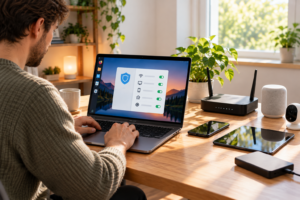
Your Linux computer probably shares an internet connection with several other devices.
A typical household may have Windows laptops, Mac computers, Android phones, iPhones, tablets, printers, and smart-home equipment.
Each device has its own security requirements.
That is why linux home network security involves more than protecting one Linux desktop.
A secure Linux computer cannot compensate for a compromised family email account or a router running outdated firmware.
Start with the network, then review the devices connected to it.
1. Secure the WiFi router
Your router handles connections between household devices and the internet.
Use WPA3-Personal if your router and devices support it.
WPA2-AES remains appropriate for compatible equipment that does not support WPA3.
Avoid outdated wireless security methods such as WEP.
Change default administrator credentials where necessary.
Use a strong, unique WiFi password.
Keep the router firmware updated through the manufacturer’s supported process.
2. Separate guest devices when practical
If your router supports an isolated guest network, use it for visitors.
This can provide internet access without allowing ordinary access to household computers and shared storage.
Some families also separate compatible smart-home equipment from personal computers.
The available options depend on the router.
3. Review Linux file-sharing permissions
If your Linux desktop shares folders with other computers, check who can access them.
For example, a shared family photo folder may need to be readable from several devices.
That does not mean every connected device should have permission to delete or replace its contents.
Use appropriate access controls.
Disable shares you no longer need.
Avoid exposing ordinary file-sharing services directly to the public internet.
4. Protect important household accounts
Use different passwords for email, banking, cloud storage, and other sensitive services.
Enable multi-factor authentication.
A password manager can make unique passwords easier to maintain.
Review recovery information periodically.
Online account compromise can affect any household, regardless of the operating systems being used.
5. Protect Windows and Mac computers separately
Windows and Mac devices need their own security updates and appropriate protections.
Keep their operating systems and browsers current.
Avoid untrusted downloads.
Use suitable malware protection for each platform.
If these computers receive files through a Linux shared folder, scanning questionable downloads can provide another useful check.
6. Keep phones and tablets secure
Phones often contain payment methods, account sessions, personal photographs, and private messages.
Enable screen locks.
Install updates.
Review application permissions.
Use phishing protection and breach monitoring where available.
A secure desktop does not prevent someone from stealing a phone account password through a fake website.
7. Understand where AVO Security fits
AVO Security provides cross-platform security for supported iPhone, Android, Mac, and Windows devices.
Its features include Smart Scan, Web Shield, Wi-Fi Security, Link Checker, Email Breach Scan, and other tools intended to address common online security risks.
These features can help household members assess suspicious links, monitor known breach exposure, and manage selected device security concerns.
AVO Security does not currently list Linux among its supported operating systems.
For your Linux desktop, rely on its built-in security protections, supported software updates, trusted repositories, and suitable Linux-compatible scanning tools when needed.
For other supported computers and phones in the household, AVO Security can provide additional coverage through its family plan.
Cross-platform protection does not automatically mean Linux compatibility.
Check the supported operating systems before choosing any security product.
8. Maintain backups for the whole household
Every device storing important files should have an appropriate backup method.
That includes Linux computers, Windows laptops, Macs, and phones containing irreplaceable photographs or documents.
Protect backup accounts with strong authentication.
Keep at least one backup copy separate from everyday files when practical.
Test file recovery occasionally.
Household security checklist
| Device or service | Primary protection | Additional check |
|---|---|---|
| Linux desktop | Updates, permissions, trusted software | Scan unfamiliar or shared files |
| Windows computer | System security and malware protection | Review suspicious downloads |
| Mac computer | macOS protections and updates | Check applications and account security |
| iPhone or iPad | System updates and secure accounts | Review phishing and breach risks |
| Android device | Updates and application permissions | Check untrusted downloads |
| Home router | Strong WiFi and administrator credentials | Review firmware and connected devices |
| Shared household accounts | Unique passwords and MFA | Monitor suspicious logins |
| Household backups | Secure storage and recovery settings | Test restoring files |
A simple monthly security routine
Once a month, review the household’s most important security settings.
Check whether computers and phones need updates.
Look at unexpected account alerts.
Confirm that backups are completing successfully.
Review whether the router needs a firmware update.
If someone has installed unfamiliar software or enabled a new sharing service, check its permissions.
The goal is not to inspect every technical setting. It is to catch straightforward problems before they become harder to resolve.
Frequently Asked Questions About Linux Antivirus
Can Linux get infected with viruses?
Yes. Linux can be affected by malicious software, including Trojans, malicious scripts, cryptominers, and certain rootkits. Its permissions and software management features help reduce some risks, but they do not make it immune. Keeping Linux updated and using trusted software sources are essential precautions.
Why do people say Linux does not need antivirus?
Linux includes user privilege separation, managed software repositories, and application security controls that can reduce common malware risks. For people who use supported distributions and install trusted software, traditional antivirus scanning may be optional. However, phishing, unsafe downloads, and compromised accounts remain possible.
Can a Linux machine pass viruses to Windows or Mac computers?
Yes. A Linux computer can store files containing malware intended for Windows or macOS without necessarily executing those files itself. Shared folders, email attachments, and USB drives can transfer them to other devices. A scanner such as ClamAV can help identify certain known threats before files are shared.
What are the best free antivirus tools for Linux?
ClamAV is a widely available open-source toolkit for scanning files for known malware. ClamTk offers a graphical interface for ClamAV on supported distributions, making manual scanning more convenient. Neither replaces system updates, trusted software sources, secure accounts, or other essential protections.
How can home users keep their Linux systems secure?
Use a supported distribution, install updates, download software from trusted repositories, and avoid granting unnecessary administrator privileges. Keep browsers updated, use unique passwords with multi-factor authentication, and maintain reliable backups. Consider malware scanning when regularly handling untrusted files or sharing downloads with other devices.
Conclusion
Linux is generally a secure operating system for everyday home use, but it still needs proper maintenance.
For most users, keeping Ubuntu, Fedora, or another supported distribution updated is more useful than immediately installing a traditional antivirus program. Trusted software sources, controlled permissions, secure accounts, and regular backups provide a strong foundation.
Malware scanning becomes more useful when a Linux computer handles unfamiliar downloads, shares files with Windows or Mac devices, or manages household file storage.
For families using several operating systems, AVO Security can provide phishing protection, breach monitoring, and other security features on supported iPhone, Android, Mac, and Windows devices. Combined with sensible Linux security practices, these tools can help households manage online risks without adding unnecessary complexity.