How to protect kids online

Your child receives a message offering free gaming credits. The link opens a page that looks like the game’s official website, complete with familiar colors and a login form. Your child is about to enter their password. Meanwhile, their younger sibling wants to install a new app, and you have no idea whether it allows public chats or in-app purchases.
If you want to know how to protect kids online, start with five things: set up parental controls, secure every device, limit unfamiliar downloads, protect family accounts, and teach children how to recognize suspicious messages. Check these settings on the phones, tablets, and computers your children actually use.
You do not need a complicated monitoring system. You need working restrictions, sensible privacy settings, and a child who knows when to ask for help. This guide walks through the controls available on iPhone, Android, Windows, and Mac, explains what each setting does, and shows how to respond when something goes wrong.
Why online safety for children requires a multi-layered approach
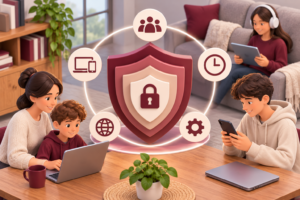
A child’s tablet can serve as a homework device, gaming console, video player, and messaging tool. Those activities create different risks.
The homework website may request account credentials. A game may allow conversations with strangers. A video application may recommend content you would not have chosen. A message from a friend may contain a link to a fake login page.
No single security setting handles all of these situations.
A content filter may block an inappropriate website, but it cannot reliably identify every harmful conversation inside an approved game. Antivirus software can help detect certain malicious downloads, but it cannot always recognize when a child is being persuaded to reveal personal information.
Protecting children requires several types of safeguards working together.
Device security helps defend phones, tablets, and computers against harmful software and known technical threats.
Parental controls manage app access, content restrictions, purchases, and screen time limits.
Account security protects email, gaming, school, and social media accounts from unauthorized access.
Digital privacy settings reduce the amount of personal information applications and other users can collect or see.
Family conversations help children recognize problems that software cannot reliably detect.
Start by listing the devices your child can access. Include older phones, shared laptops, gaming devices, and tablets that are no longer used by adults.
A child may have strict controls on their own phone but unrestricted access to a family laptop.
That gap is easy to overlook.
Why one security app is not enough
Imagine a teenager using a Windows laptop for school and an Android phone for gaming.
Windows may already have Microsoft Defender Antivirus enabled. The Android phone may use Google Play Protect to check applications for harmful behavior.
Both are useful.
Neither automatically decides who can message your child in a multiplayer game.
They also do not replace content restrictions, account security, or family rules about online contacts.
Consider a message from someone claiming to be a game administrator.
It says the child’s account will be suspended unless they confirm their password immediately.
The message may contain no malware. Its purpose is to steal login information.
Malware protection alone cannot solve that problem.
Your child needs to know how to close the message, open the legitimate game’s app independently, and ask for help before entering anything.
The same principle applies to online purchases, social media privacy, and inappropriate content.
Use security software for the threats it can address. Use parental controls and education for the rest.
Match protection to your child’s age
A seven-year-old using a tablet for cartoons and educational games usually needs tighter restrictions than a teenager researching school projects and communicating with classmates.
For younger children, consider:
- Requiring approval before installing new applications.
- Blocking purchases without parental permission.
- Using age-appropriate content restrictions.
- Limiting public messaging and social features.
- Establishing device-free periods for meals and bedtime.
- Keeping adult account passwords private.
For older children and teenagers, place more emphasis on:
- Privacy settings for gaming and social media.
- Strong, unique account passwords.
- Recognizing impersonation and phishing.
- Controlling location sharing.
- Understanding permanent or widely shared online posts.
- Blocking unwanted contacts.
- Reporting threats and uncomfortable conversations.
Do not treat age settings as something you configure once and forget.
Review them when your child gets a new device, starts using a new platform, or begins needing more independence.
Explain why each restriction exists.
A child who understands the reason behind a rule is better equipped to handle unfamiliar situations without immediate adult supervision.
Key digital risks facing kids and teenagers today
Many parents associate internet security with viruses. But children are also exposed to scams, misleading content, unwanted contact, and requests for private information.
A child can lose access to a gaming account without downloading any software.
They can disclose their location through a photograph without realizing it.
They can also encounter inappropriate material inside an application their parents approved.
Understanding the specific risks helps you set the right controls.
Phishing attempts and malicious web links
Phishing involves messages or websites designed to trick someone into sharing information or performing an unsafe action.
Children commonly encounter suspicious links through:
- Gaming reward offers.
- Fake account suspension notices.
- Social media direct messages.
- Group chats.
- Messages pretending to come from schools.
- Free premium app offers.
- Unofficial game download websites.
- Fake contests and giveaways.
Suppose your child receives a message saying they have won a free gaming subscription.
The link leads to a page that asks for their email address, password, and verification code.
The website may look convincing.
That does not make it legitimate.
Explain that passwords and verification codes should never be entered through unexpected messages.
A useful family rule is simple: If a message asks you to log in urgently, close it and open the service through its official app or website.
Teach children to recognize pressure.
Messages that threaten account deletion, promise unusually valuable rewards, or demand secrecy deserve extra caution.
Phishing defense tools and browser warnings can help block known malicious destinations. However, newly created scams may not yet be recognized.
Children should learn to question the request, not just the appearance of the website.
Unfiltered content and credential privacy risks
An approved video or gaming application can still contain unsuitable material.
User comments, live streams, public groups, and recommendation feeds may expose children to content outside the original purpose of the app.
A content restriction on the device may reduce some exposure, but it does not necessarily control everything inside the application.
Review the services your child uses.
For a video platform, check whether supervised accounts or restricted content settings are available.
For a game, examine who can send messages, invite the child into groups, or request private conversations.
For social media, check whether strangers can view the profile or contact the account directly.
Password habits deserve similar attention.
Children sometimes use one password for school, games, and other services because it is easy to remember.
If one account is compromised, the same password may be used against the others.
Use unique passwords and enable multifactor authentication where supported.
For younger children, parents can help manage account credentials through an appropriate password manager or another secure method.
Explain that even a close online friend should not need their login password.
Identity theft and personal information exposure
A child’s personal information can be misused.
Scammers may ask for a full name, date of birth, address, school, family contact information, or identification details.
Sometimes the request is direct.
Other times, information is collected gradually through conversations or public profiles.
A gaming profile displaying a school name, city, and full date of birth can reveal more than the child intended.
Review what is visible to other users.
Avoid posting photographs of school identification cards, travel documents, or account recovery information.
Consider whether family photos reveal home addresses, vehicle registration details, or a child’s regular location.
Identity theft involving minors can remain unnoticed because children typically do not monitor financial accounts or credit activity.
If sensitive information has been exposed, determine exactly what was shared and contact the affected service or appropriate reporting organization.
Do not assume every exposed email address means identity theft has occurred.
The appropriate response depends on the information involved.
Cyberbullying and unwanted contact
A child may experience repeated insults, impersonation, threats, exclusion from online groups, or pressure to share personal information.
These problems can happen inside legitimate games and messaging platforms.
A security app cannot reliably prevent every harmful interaction.
Show children how to block and report users on the services they use most often.
Explain that they do not have to answer threatening messages.
If a conversation becomes abusive, save relevant evidence when safe to do so and use the platform’s reporting tools.
If someone threatens physical harm, attempts sexual exploitation, or pressures a child to share intimate material, prioritize the child’s immediate safety and seek appropriate assistance.
Do not encourage the child to negotiate privately with the person making threats.
Most importantly, make it clear that asking for help is the right response, even if the child initially replied to the person or clicked a suspicious link.
Essential steps to secure child devices across platforms
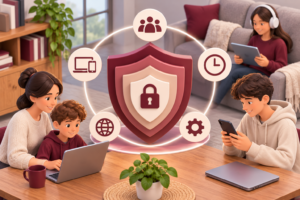
Before paying for additional security software, configure the protections already included with your family’s devices.
Apple, Google, and Microsoft provide tools for managing child accounts and restricting certain activities.
The settings are different on each platform.
Use the following steps for your child’s actual device instead of assuming the same menu or feature exists everywhere.
Configuring built-in parental controls on mobile and desktop
Parental controls help manage access to apps, content, purchases, and device use.
The controls you can apply depend on the child’s age, account type, operating system, and device.
Step 1: Set up Apple Screen Time on iPhone and iPad
What to do
If your child uses an iPhone or iPad, consider setting up an appropriate child Apple Account through Family Sharing.
On a parent’s iPhone:
- Open Settings.
- Select Screen Time.
- Choose your child’s name from the family section.
- Open App Limits to set restrictions for selected applications or categories.
- Review Downtime for scheduled breaks.
- Open Content & Privacy Restrictions.
- Configure age-appropriate content, purchase, and privacy settings.
- Review available communication safety controls.
Screen Time can also be configured directly on the child’s device.
What you should see
The child’s Screen Time settings should display the selected restrictions.
For example, a gaming application may have a daily limit while school-related applications remain available.
Downtime can help establish periods when most applications are restricted.
What to watch for
Confirm that your child is signed in to the intended Apple Account.
If the device is using an adult’s account, your family management setup may not work as expected.
Protect the settings using the available parent authentication or Screen Time passcode controls.
Test the restrictions.
A setting that appears enabled is not useful if it does not apply to the child’s actual account.
Some controls depend on the child’s age, region, and software version.
For official instructions, see Apple’s Screen Time parental controls guide.
Step 2: Configure Google Family Link on Android
What to do
Google Family Link can help parents manage supported child accounts and compatible Android or ChromeOS devices.
To begin:
- Open or install Google Family Link on the parent’s device.
- Sign in with the parent’s Google Account.
- Create or add the child’s eligible Google Account.
- Follow the instructions for supervision.
- Select the child’s profile.
- Review screen time and app controls.
- Configure daily limits, downtime, and available approvals.
- Check supported content settings.
What you should see
The child’s supervised profile should appear in Family Link.
Depending on the device and account, you may be able to approve applications, manage screen time, and configure some content restrictions.
What to watch for
Family Link supervision is not identical across operating systems.
A parent can manage Family Link from an iPhone, but most supervision functions do not apply to a child’s iPhone in the same way they apply to Android.
Use Apple Screen Time for a child’s iPhone or iPad.
Also remember that Family Link does not control every website or every message inside an approved app.
Google’s Family Link help documentation explains compatible devices and available controls.
Step 3: Configure Microsoft Family Safety on Windows
What to do
If your child uses a Windows laptop or desktop, set up a separate child account.
Use a standard account for ordinary activity rather than giving the child administrator access.
Then:
- Open Windows Settings.
- Go to Accounts.
- Select Family.
- Add the child’s Microsoft account to the family group if necessary.
- Sign in to Windows using the child’s account.
- Open Microsoft Family Safety or the family management website.
- Configure supported screen time, app, and content controls.
What you should see
The child’s account should appear in your family group.
You should be able to manage supported restrictions for connected devices.
What to watch for
A child using a separate unrestricted account may bypass the intended family settings.
Check which account is active.
Microsoft’s web and search filtering also has browser-specific requirements.
If the child uses a browser that is not covered by the selected filtering feature, the restriction may not work as expected.
Review browser access and test the settings.
Step 4: Set up Screen Time on Mac
What to do
On a Mac:
- Open System Settings.
- Select Screen Time.
- Choose the appropriate child account if family management is configured.
- Set App Limits and Downtime.
- Review Content & Privacy settings.
- Confirm that the child uses a standard user account for everyday activity.
What you should see
Screen Time should show the restrictions associated with the selected account.
You can manage supported app use and content settings.
What to watch for
Do not give a child unnecessary administrator access.
On a shared Mac, create separate accounts rather than allowing everyone to use the same unrestricted login.
Check that the settings are applied to the account your child actually uses.
Deploying central family antivirus and real-time threat scanning
Parental controls and malware protection serve different purposes.
Screen Time cannot inspect a suspicious Windows download for malware.
An antivirus application cannot decide which online conversations are appropriate for your child.
Use both categories where they address genuine needs.
Step 5: Enable built-in malware protection
What to do
On Windows, open Windows Security and select Virus & threat protection.
Check whether Microsoft Defender Antivirus or another compatible security solution is active.
On Android, open the Google Play Store, tap your profile picture, and select Play Protect.
Review the scanning status and resolve any warnings.
On Mac, keep macOS updated and maintain built-in platform protections.
On iPhone and iPad, keep iOS or iPadOS updated and use Apple’s security features.
What you should see
The device should not show unresolved warnings about disabled protection or known harmful applications.
Supported operating systems should receive appropriate updates.
What to watch for
Do not assume every platform supports the same scanning features.
Android and Windows security products can perform certain kinds of malware scanning.
Ordinary third-party iPhone applications cannot inspect every installed app or system file in the same way.
A product advertised for the whole family may therefore provide different features on different devices.
Check what each version actually does.
Step 6: Add family antivirus features where useful
What to do
Review the protections already available.
Then identify what is missing.
For example, your child’s Android phone may have Play Protect enabled but lack an additional tool for checking unfamiliar links.
A shared family laptop may already have real-time malware protection, but its browser security settings may need attention.
A household that regularly receives suspicious messages might benefit from web filtering, link checking, or breach notifications.
Compare features by device.
The best antivirus for family guide explains what to consider when protecting several household devices.
What you should see
You should be able to identify which protection functions are active on each device.
Relevant features may include:
- Android malware scanning.
- Windows real-time protection.
- Malicious website filtering.
- Suspicious-link checking.
- Email breach alerts.
- Device and network security checks.
What to watch for
Avoid installing several overlapping real-time antivirus products without understanding compatibility.
Some security features require browser access, network permissions, or additional configuration.
Confirm that the service supports your child’s device and operating system.
AVO Security offers features such as Web Shield, Link Checker, and Email Breach Scan that may help families address phishing and account exposure. These tools should complement parental controls, operating system protection, and everyday safety habits.
Step 7: Secure family accounts and recovery settings
What to do
Identify your child’s important accounts.
Start with:
- Email.
- School platforms.
- Gaming accounts.
- Messaging apps.
- Social media.
- Cloud storage.
- Shopping or payment-enabled accounts.
Set a unique password or passkey for each important service.
Enable multifactor authentication where available.
Review recovery email addresses and telephone numbers.
What you should see
Accounts should have appropriate authentication and recovery settings.
A parent should understand how to help a younger child recover an account if needed.
What to watch for
Children should never share one-time verification codes with people offering prizes, game credits, or account support through unsolicited messages.
A scammer may already know the password and ask for the verification code to complete the login.
Explain that an unexpected authentication prompt is a reason to stop and check.
Step 8: Review app permissions and location sharing
What to do
Open the privacy settings on your child’s device.
Review access to:
- Location.
- Camera.
- Microphone.
- Contacts.
- Photos.
- Notifications.
Disable permissions the application does not need.
Then examine whether social media and gaming profiles expose the child’s location or identifying details.
What you should see
Applications should have access that makes sense for their function.
A video calling app may need microphone and camera access.
A simple game or utility should not receive continuous location access without a clear reason.
What to watch for
Some applications need particular permissions to work correctly.
Do not remove everything indiscriminately.
Instead, ask why the permission is necessary and whether a more limited setting is available.
Also check photographs and public profile information for details about your child’s school, home, or daily routine.
Step 9: Set screen time limits that fit family routines
What to do
Choose limits based on your child’s age, schoolwork, sleep schedule, and family activities.
For example, you might restrict entertainment applications during homework while allowing educational tools.
Use App Limits, Downtime, Family Link controls, or the equivalent feature on the device.
What you should see
The selected applications and devices should follow the schedule.
Check whether essential communications remain available where supported.
What to watch for
Screen time totals do not explain how the time was spent.
An hour completing homework is different from an hour scrolling through short videos.
Review activities rather than relying only on a daily number.
Adjust the limits when the child’s needs change.
Teaching safe online habits and privacy hygiene

Security settings can protect a child’s phone, but they cannot make every decision for them.
Your child might receive a suspicious message on a school computer, use a friend’s device, or join a new gaming platform you have not configured yet.
They need simple rules they can remember when you are not beside them.
Teach these habits through examples from the apps and games they already use.
Step 10: Practice identifying suspicious messages
What to do
Show your child examples of messages that should make them cautious.
A fake gaming administrator might claim their account will be deleted.
A message might promise free game credits if they complete a login form.
Someone impersonating a classmate might ask them to open an unfamiliar file.
Ask your child what they would do before explaining the answer.
Encourage three actions:
- Stop before opening an unfamiliar link.
- Check the request through the service’s official app or website.
- Ask a trusted adult when something seems unusual.
What you should see
Your child should understand that a familiar logo or professional-looking website does not prove a message is genuine.
They should know to avoid entering passwords or verification codes through unexpected links.
What to watch for
Do not teach children that spelling mistakes are the main sign of phishing.
Fraudulent messages can be well written.
Look instead at unexpected requests for passwords, secrecy, urgent payments, downloads, or account verification.
Step 11: Teach children what not to share online
What to do
Explain which details should remain private, including:
- Home address.
- Personal telephone number.
- School location and timetable.
- Account passwords.
- Login verification codes.
- Identification documents.
- Live location.
- Family financial information.
- Private photographs.
Use examples suitable for your child’s age.
For a younger child, explain that an unfamiliar player in an online game does not need their home address.
For a teenager, discuss how combining a public profile, school name, and location-tagged photos can reveal personal details.
What you should see
Your child should recognize requests for information they should not provide.
They should also understand the difference between sharing information with a trusted person and posting it where strangers can access it.
What to watch for
Privacy risks are not limited to text.
Photographs may contain identifying information such as school badges, documents, or recognizable locations.
Review public profile settings and location sharing together.
Step 12: Create a simple family rule for online strangers
What to do
Explain that people online may not be who they claim to be.
Agree that your child should tell a parent or trusted adult if someone:
- Asks them to keep conversations secret.
- Requests personal or intimate photographs.
- Offers gifts in exchange for private information.
- Pressures them to move to another messaging app.
- Makes threats.
- Wants to arrange a private meeting.
- Claims they must prove their friendship by sharing a password.
Show your child how to block and report contacts in their regular gaming and messaging apps.
What you should see
Your child should know they can end an uncomfortable conversation without explaining themselves.
They should also know whom to contact if someone keeps trying to reach them.
What to watch for
A suspicious contact may initially appear friendly, offer help, or share the child’s interests.
Do not assume children will immediately recognize manipulation.
Make reporting easier by responding calmly when they describe uncomfortable experiences.
Step 13: Explain what to do after clicking a suspicious link
What to do
Give your child a response they can remember.
If they opened a suspicious website, they should close it and tell you what happened.
If they entered a password, help them open the legitimate service independently and change it.
If they shared a verification code, secure the account, review active sessions where available, and contact the service if necessary.
If they downloaded an unfamiliar application, stop using it and investigate through the device’s security tools.
On Android, review Google Play Protect and the installed app.
On Windows, check Windows Security.
What you should see
Your child should be able to describe what happened without feeling pressured to hide details.
Knowing whether they clicked a link, entered information, or installed software helps you decide what action is needed.
What to watch for
A phishing website may steal information without installing malware.
A clean malware scan does not mean an exposed password is safe.
Likewise, opening an unfamiliar page does not automatically mean the device is infected.
Respond to the actual activity rather than assuming the worst.
Step 14: Establish a response to cyberbullying
What to do
Show children how to block users and report abusive messages.
If threatening behavior continues, preserve relevant evidence where safe and appropriate.
Use the reporting features provided by the platform.
Where necessary, involve school staff or other appropriate support services.
What you should see
Your child should know which adult they can approach and what information may be useful.
They should understand that repeated harassment is not something they are expected to handle alone.
What to watch for
Avoid encouraging children to retaliate or argue publicly.
If a situation involves credible threats of physical harm, sexual exploitation, or immediate danger, seek appropriate urgent assistance.
Step 15: Talk about VPNs and public network privacy
What to do
Explain that unfamiliar public WiFi networks deserve caution.
Teach children to check the network name and avoid suspicious login pages.
They should never install unknown security applications or certificates simply because a public network asks them to.
A reputable VPN can provide additional network privacy in certain situations.
Parents exploring a VPN for remote privacy should understand the specific benefits and limitations.
What you should see
Your child should understand that a VPN protects certain network communications, not every online action.
What to watch for
A VPN does not prevent someone from entering a password into a phishing page.
It also does not replace parental controls, malware protection, or safe browsing habits.
Children should not use VPNs to bypass school or household safety restrictions.
Step 16: Review online safety as a family
What to do
Set aside a few minutes each week to check device protection and discuss recent online activity.
Ask questions such as:
- Have you received any strange messages?
- Has a game asked you for personal information?
- Have you installed any new apps?
- Has anyone made you uncomfortable online?
- Have any screen time restrictions become difficult because of schoolwork?
Review important settings together.
What you should see
Your child should become comfortable raising concerns before they develop into bigger problems.
You should also have a clearer picture of the apps and online communities they use.
What to watch for
Avoid making every conversation feel like an investigation.
Explain what parental controls can monitor and why you use them.
As children grow older, review the balance between privacy, independence, and supervision.
A teenager who feels trusted is more likely to talk about suspicious messages or uncomfortable interactions.
Common mistakes parents make when protecting kids online
Even careful parents can overlook basic security gaps.
The following mistakes are common because device protection, parental controls, and account security are often managed separately.
Relying only on antivirus
Malware protection helps address harmful software and some online threats.
It cannot reliably control every gaming conversation or prevent children from revealing information to a convincing scammer.
Use parental controls and regular conversations alongside appropriate security tools.
Assuming content filters block everything
Content restrictions can reduce access to unsuitable websites.
They may not filter every live stream, private message, or user-generated post inside an approved application.
Review the safety settings within the services your child uses.
Sharing one adult account across family devices
A child using an adult’s unrestricted account may have access to purchases, personal documents, or applications intended for adults.
Separate child accounts make it easier to apply suitable settings.
Ignoring shared laptops and old tablets
An older tablet may still be signed in to important accounts.
A shared computer may allow applications to be installed without approval.
Include these devices in your family security review.
If a device is no longer needed, sign out of accounts and erase it securely before passing it on or disposing of it.
Using the same password everywhere
Reusing passwords can turn one compromised account into several.
Help children create unique passwords and enable multifactor authentication on important services.
Making children afraid to report mistakes
If children expect to lose their device immediately after admitting they clicked a suspicious link, they may hide the incident.
Explain that reporting a possible scam promptly helps protect their accounts.
Handle the immediate security issue before discussing better choices.
Setting restrictions without testing them
After enabling screen time limits or content restrictions, verify that they work.
Check the supervised account, device compatibility, and relevant browser settings.
A restriction displayed in a parent’s app does not always mean every activity is covered.
What to do if parental controls or security protection do not work
Parental controls sometimes appear correctly configured but fail to restrict the intended activity.
Before reinstalling applications or changing several settings at once, identify where the problem occurs.
Check which account the child is using
Make sure the child is signed in to the intended supervised account.
This matters especially on shared Windows and Mac computers.
For example, restrictions associated with a child’s account may not apply when the child signs in through an unrestricted adult account.
Confirm the device is supported
Google Family Link, Apple Screen Time, and Microsoft Family Safety do not offer identical features on every device.
A parent using an iPhone to manage Family Link does not mean Family Link provides full supervision of a child’s iPhone.
Check the service’s official compatibility information.
Also verify whether a content filter works in the browser your child uses.
Update the device
Check for supported operating system updates.
Restart the device if appropriate.
Some changes require an internet connection or time to synchronize.
After updating, test the specific restriction again.
Review permissions and protection status
Open the relevant parental control or security application.
Check whether protection is enabled and whether any required permissions have been disabled.
For example, web protection may require a supported browser or particular network settings.
Do not grant unrelated permissions simply to eliminate a warning.
Contact the official provider
If the issue continues, use the official support documentation for the relevant platform.
Avoid unfamiliar websites offering special downloads to repair parental controls or bypass account restrictions.
Those offers may introduce additional security problems.
Summary checklist for parents
Use this checklist when setting up a child’s first device and whenever your household adds a new phone, tablet, or computer.
| Safety area | What parents should check | When to review |
|---|---|---|
| Device updates | Operating system and important apps are current | Regularly and after security alerts |
| Parental controls | Appropriate child accounts and content restrictions are configured | When devices or activities change |
| Screen time limits | Limits support school, sleep, and family routines | During family routine reviews |
| Malware protection | Built-in protections are active and warnings are resolved | After alerts or unfamiliar downloads |
| Phishing defense | Browser safeguards and supported web protection are enabled | When apps or browsers change |
| Account security | Important accounts use unique passwords and multifactor authentication | After suspicious sign-ins or breach alerts |
| Digital privacy | Location sharing, app permissions, and public profiles are reviewed | After installing or joining new services |
| Online contacts | Children know how to block, report, and ask for help | When joining new platforms |
| Family communication | Children know they can report mistakes without hiding them | Regularly |
A practical weekly family safety check
Choose a regular time for a short review.
Check for unresolved security warnings.
Look at recently installed apps.
Review important account notifications.
Ask whether any unfamiliar person has contacted your child.
Make sure parental controls still match school and family routines.
You do not need to inspect every message or monitor every minute of activity to make these reviews worthwhile.
The purpose is to notice new risks and maintain an open conversation.
What to prioritize first
If you only have time to address the essentials today, start here:
- Update the phones, tablets, and computers your children use.
- Set up appropriate child accounts and parental controls.
- Confirm built-in malware and browser protections are active.
- Secure important accounts with unique passwords and multifactor authentication.
- Teach children to stop before opening unexpected links or sharing private information.
- Review application permissions and public profile settings.
Once these basics are in place, consider whether additional web protection, breach monitoring, or family antivirus features would address a genuine need.
Practical Takeaway
Protecting children online starts with knowing which devices, accounts, games, and messaging services they use.
Configure parental controls on the correct accounts.
Keep devices updated and enable appropriate malware protection.
Review privacy settings and make sure important accounts have strong authentication.
Then explain how to recognize suspicious messages, avoid sharing personal information, and report unwanted contact.
The settings will change as children grow and begin using new platforms. Review them together rather than assuming one setup will remain appropriate forever.
The most useful family safety plan combines reliable device protection, sensible restrictions, and children who feel comfortable asking for help when something online seems wrong.
FAQ
How do I set up parental controls on my child’s phone?
On iPhone, use Screen Time in Settings, preferably with a child account managed through Family Sharing. On Android, Google Family Link can manage supported child accounts, app approvals, and screen time limits. Check that the correct account is being supervised, then test the restrictions on the child’s device.
What are the biggest online safety risks for children?
Common risks include phishing messages, stolen account passwords, inappropriate content, cyberbullying, unwanted contact, and oversharing personal information. Harmful applications and suspicious downloads can also create security problems, particularly when children install software from unfamiliar sources. Parental controls, device protection, account security, and regular conversations address different parts of these risks.
Does family antivirus protect against phishing links?
Some family security applications include malicious website filtering or suspicious-link checking that can warn about recognized phishing destinations. These tools cannot identify every fraudulent website, particularly new scams that have not yet been detected. Teach children to verify unexpected messages through official apps or websites and never share passwords or login codes through unfamiliar links.