Is Free Antivirus Good Enough for Families?

Your child downloads a game on the family laptop. Later, your partner receives a text claiming a parcel is waiting for delivery, while your teenager clicks a link shared in a group chat. Every device has security software, but you are still wondering: is free antivirus good enough to protect everyone?
For many families, the answer is yes. Windows Defender, Apple’s built-in security, and Android’s Google Play Protect provide useful protection without a subscription. Paid family security becomes more valuable when you want additional phishing protection, data breach alerts, and a simpler way to manage different devices.
The decision is not really about free software being unsafe or paid software being automatically better. It is about understanding what your household already has, where the gaps are, and which additional protections you would actually use.
Is Free Antivirus Good Enough for Your Family?
Free antivirus can be enough for a household that keeps devices updated, installs trusted applications, uses strong passwords, and takes basic precautions against online scams.
For example, if your family uses a Windows laptop for schoolwork, an iPhone for banking, and an iPad for watching videos, you already have several important security protections built into those devices.
Windows includes Microsoft Defender Antivirus. Apple provides app security controls, malware detection on Mac, and restrictions that limit what applications can access on iPhones and iPads.
Android devices with Google Play services generally include Google Play Protect, which checks installed applications for harmful behavior.
These protections are not limited trials. They are part of the operating systems and receive security updates on supported devices.
But malware is only one part of the problem.
A child can enter a password on a fake gaming website. A parent can receive a convincing message about a delivery charge. An email address can appear in a data breach even though the computer itself is perfectly clean.
Traditional antivirus software is not designed to handle every one of those situations.
That is where additional security features may be useful.
Quick Verdict: Free vs Paid Antivirus
Free built-in security is usually a reasonable choice when:
- Everyone uses supported, regularly updated devices.
- Applications come from trusted sources.
- Built-in malware protection remains enabled.
- Family members use unique passwords.
- Important accounts have multi-factor authentication.
- Parents already use the parental controls available on their children’s devices.
- Someone in the household can check security settings when needed.
A paid family security plan is worth considering when:
- Your household uses Windows, Mac, Android, and iOS devices together.
- Children frequently encounter unfamiliar links, downloads, or websites.
- You want additional suspicious-link and phishing protection.
- You would benefit from monitoring several email addresses for known data breaches.
- Family members often connect to unfamiliar WiFi networks.
- Managing separate security tools on every device has become inconvenient.
- You need compatible family safety features in one subscription.
The best choice is the one that closes a genuine gap.
If Windows Defender is working correctly and your family already uses strong account security, another antivirus scanner may not add much value. A service that helps identify suspicious links or alerts you to exposed credentials could be more relevant.
What Free Antivirus Tools Do Well

Free security has improved considerably over the years.
A Windows computer no longer needs a separate antivirus purchase just to receive basic real-time malware protection. Macs include technologies that check applications before they run. Android and iOS also provide operating system protections designed for their respective platforms.
These tools deserve to be part of your first line of defense.
The most effective approach is to check that they are enabled and working rather than installing more software immediately.
Built-in Protections: Windows Defender and Apple Gatekeeper
Windows Defender on Windows Computers
Microsoft Defender Antivirus comes with supported Windows versions and provides real-time protection against viruses, malware, and other potentially harmful software.
It checks files and programs, downloads security intelligence updates, and allows users to run manual scans.
Windows Security also provides a central location for checking device protection.
For a parent using a Windows laptop to manage household finances, school documents, and everyday browsing, this is a useful starting point.
How to check Windows Defender:
- Open the Start menu.
- Search for Windows Security.
- Open Virus & threat protection.
- Review the protection status.
- Select Manage settings to check real-time protection when Microsoft Defender is the active antivirus.
- Open Protection updates to review security intelligence updates.
A healthy result should show an active antivirus provider without unresolved security warnings.
If another antivirus application is installed, Windows may display that product as the active provider instead of Microsoft Defender Antivirus.
That is not necessarily a problem.
The important thing is that the device has a functioning, supported antivirus configuration.
Windows also includes Microsoft Defender SmartScreen, which can warn about suspicious websites, downloads, and applications in supported environments.
So free Windows protection is not limited to checking files after they have been downloaded.
Apple Gatekeeper and XProtect on Mac
Mac computers use several security technologies that operate together.
Gatekeeper helps check downloaded applications, including whether they come from an identified developer and meet Apple’s applicable security requirements.
XProtect provides built-in malware detection and remediation.
These protections help reduce the likelihood of known malicious software running on the computer.
You can review application security settings without installing another program.
How to check Mac application security:
- Open System Settings.
- Select Privacy & Security.
- Find the Security section.
- Review the allowed application sources.
- Check that macOS is receiving software updates.
The exact menu may vary with your macOS version.
If your Mac warns that an application cannot be opened because its developer cannot be verified, do not immediately search for instructions to bypass the warning.
First confirm that the software came from the official developer and that you have a legitimate reason to install it.
What about iPhones and iPads?
iOS and iPadOS have different security designs from desktop Windows.
Applications operate within restrictions that limit their access to other apps and sensitive system information.
This helps reduce the damage a malicious application could cause.
It also means a third-party security application cannot perform the same unrestricted system-wide malware scan that traditional desktop antivirus software can perform.
Additional iPhone security applications may provide website filtering, suspicious-link checks, network safeguards, or account monitoring.
They should not be judged by whether they can scan every installed application, because the platform does not permit that kind of unrestricted access.
Baseline Malware and Ransomware Detection
Free antivirus tools can identify many known malicious files before a family member opens them.
Suppose your teenager downloads an installer from an unfamiliar website.
On a Windows computer, Microsoft Defender may examine that file and block it if it identifies malicious content or behavior.
That can prevent some infections before the program runs.
Windows also provides additional ransomware-related features, including Controlled folder access.
Ransomware is malicious software that can encrypt files or otherwise interfere with access to them, often followed by a demand for payment.
Controlled folder access is designed to prevent untrusted applications from making unauthorized changes to protected folders.
How to review ransomware protection in Windows:
- Open Windows Security.
- Select Virus & threat protection.
- Find Manage ransomware protection.
- Review Controlled folder access.
- Check the folders and applications affected by the setting if you enable it.
- Investigate blocked applications before allowing them access.
Controlled folder access can occasionally interfere with legitimate software.
For example, a document editing or backup application may need permission to modify files in a protected folder.
Do not automatically approve an unfamiliar application just because it has been blocked.
Verify what the program is and why it needs access.
What free antivirus cannot guarantee
An antivirus program cannot identify every new or unfamiliar threat.
It also cannot prevent someone from deliberately sharing a password, approving a fraudulent payment, or giving a scammer remote access.
This is why backups remain essential.
Keep copies of important family photographs, school assignments, and financial documents in a reliable backup location.
Where practical, maintain a backup that cannot be freely modified by every program on the computer.
If ransomware or hardware failure damages the original files, a working backup may be the easiest way to recover.
Built-in Android Protection Through Google Play Protect
Android devices with Google Play services generally include Google Play Protect.
It examines applications for potentially harmful behavior and can warn about suspicious or unsafe apps.
It also checks installed applications periodically.
For a family using Android phones, this is an important free protection.
You can review it directly through Google Play.
How to check Google Play Protect:
- Open the Google Play Store.
- Tap the profile icon.
- Select Play Protect.
- Review the latest scan information.
- Open Play Protect settings.
- Confirm that application scanning remains enabled.
If the service identifies a harmful application, review the warning and follow the recommended action.
Play Protect works alongside Android’s permission controls.
A legitimate application may still request more information than it needs.
For example, a basic game may request access to contacts, microphone, photographs, or location.
Those requests deserve attention even if the app is not classified as malware.
Parents should periodically review permissions on children’s Android devices, especially after installing new games or social applications.
Who Benefits Most From Free Antivirus?
Free security works particularly well when a household follows a few consistent habits.
Consider a family where the parents manage device updates, children ask before installing unfamiliar apps, and important accounts use multi-factor authentication.
Nobody shares passwords through text messages. School documents are backed up. The family knows to verify unexpected payment requests through the official service.
That household already has several strong protections in place.
The remaining work is mostly maintenance:
- Confirm devices are updated.
- Review security warnings.
- Check app permissions.
- Keep browser protections enabled.
- Remove software nobody uses.
- Maintain backups.
- Review accounts after a suspected breach.
There may be no immediate need for a paid antivirus subscription.
The limitation is convenience.
If your family owns several devices running different operating systems, someone must remember where each security setting lives and how to check it.
That is often where paid cross-platform security becomes attractive.
Where Free Antivirus Falls Short for Modern Households
Most family security problems do not begin with someone intentionally downloading malware.
They often begin with an ordinary activity: opening a message, signing into an account, connecting to WiFi, or installing an application.
Free antivirus can help with parts of those activities, but it does not provide one complete answer to every online risk.
Built-in browsers and account services already offer phishing warnings, password checks, and parental controls. However, these features may be spread across several different platforms.
The challenge is making sure everyone uses them consistently.
Multi-Device Coverage Across iOS, Android, Mac, and Windows
A family might own a Windows laptop, a MacBook, two Android phones, an iPhone, and a shared iPad.
Each device has its own security tools and settings.
On Windows, a parent opens Windows Security.
On Android, they check Play Protect and app permissions.
On Mac, they review macOS security settings, application permissions, and updates.
On iPhone or iPad, they use Apple’s privacy controls, software updates, account protections, and Screen Time settings.
None of these procedures is especially complicated.
Remembering to do all of them is another matter.
A child may replace an Android phone. A teenager may start using a new laptop. A relative may forget to update an older device.
Over time, small differences in security settings can become difficult to track.
What free security already offers
Families can use operating system tools without purchasing a subscription.
Apple provides Screen Time and family-related settings. Android supports parental features, including Google Family Link where applicable. Microsoft also offers family safety capabilities.
These services can help manage device use, content access, and account settings.
What paid cross-platform security may add
A paid family plan may combine selected protections such as:
- Suspicious-link checking.
- Web protection.
- Security notifications.
- Data breach alerts.
- Network safety checks.
- VPN connectivity.
- Family safety controls.
The exact capabilities vary.
A plan advertised as supporting four operating systems does not necessarily provide every feature on all four.
For example, a Windows security application may offer traditional antivirus scanning, while its iPhone version focuses on web and network protection.
Before subscribing, compare the features by operating system, not just the total number of supported devices.
Gaps in Phishing, Scam Links, and Social Engineering Defense
A delivery message appears on your phone.
It claims a parcel cannot be delivered until you confirm your address and pay a small fee.
The link opens a website that looks similar to a familiar delivery company’s page.
Nothing needs to be installed. The scam works if someone enters payment details or account credentials.
This is a phishing attack.
It targets a person’s judgment rather than relying entirely on malicious software.
What built-in protections already do
Modern browsers can warn about websites known to be dangerous.
Windows SmartScreen also helps protect against certain phishing pages and malicious downloads in supported Microsoft environments.
Mobile operating systems include security features that can reduce exposure to unsafe websites and applications.
These protections are valuable and should remain enabled.
Where additional phishing protection may help
Some family security services offer broader website checks or tools that examine suspicious links.
Depending on the product, those features may work across supported browsers, applications, or network connections.
They may help identify dangerous links shared through:
- Text messages.
- Email.
- Social media.
- Messaging applications.
- Online advertisements.
- QR codes.
This can be useful for children who may have difficulty recognizing convincing fake websites.
However, no security product can guarantee that every new scam will be detected.
A fraudulent website may be newly created and not yet recognized as dangerous.
A practical family rule
When a message asks for urgent payment, a password, or a verification code, do not follow the supplied link.
Open the company’s official app or type its known website address directly.
For example, if a bank sends an unexpected account warning, check the account through the banking app rather than the link in the message.
This habit is useful regardless of whether your family pays for antivirus software.
Missing Identity Theft and Data Breach Monitoring
A computer can be free from malware while an account linked to that computer has been compromised.
Suppose an old shopping service experiences a data breach and exposes customer email addresses and passwords.
Your family laptop may still be completely secure.
But if someone reused that password on an email or streaming account, the exposed credentials may create another problem.
Traditional antivirus scanning does not necessarily identify this type of account exposure.
What data breach monitoring does
A breach monitoring service checks selected information against known exposed datasets.
Depending on the service, it may notify you when a monitored email address appears in a reported breach.
An alert may identify:
- The affected email address.
- The service associated with the breach.
- The available breach date.
- Categories of exposed information.
- Suggested account security actions.
Not every breach alert means someone has used the stolen information.
It means there is a reason to review the affected account.
What to do after receiving a breach alert
- Confirm which account was affected.
- Change its password if the credentials may have been exposed.
- Update other accounts using the same or a similar password.
- Enable multi-factor authentication.
- Review recent account activity.
- Check account recovery information.
- Take additional protective steps if financial or identity information was involved.
Identity theft monitoring is different
Identity theft monitoring may look for signs that selected personal information is being misused.
That is different from simple email breach notification.
Credit monitoring, identity restoration assistance, and identity theft insurance are also separate services.
Some paid security plans offer certain identity-related features, but not all.
Before paying, check precisely what is monitored and whether those protections apply to every family member.
If you only want to know when an email address appears in a known breach, you may not need an expensive identity monitoring package.
Home Network Security and Public WiFi Protection
Your family’s devices do not stay on one network.
At home, they connect to your router.
Outside, they may use school, hotel, airport, library, or café WiFi.
The security of those networks matters, although it is separate from traditional antivirus scanning.
At home
Start with your router.
Check that it uses suitable WPA2 or WPA3 encryption, has a strong administrator password, and receives firmware updates.
Review connected devices from time to time.
Disable unnecessary remote administration features and avoid leaving default credentials in place.
Some security services include network checks that can help identify certain configuration concerns.
If you want additional guidance, home Wi-Fi security features can help explain which network conditions deserve attention.
However, an app cannot replace proper router configuration.
You still need to update the router and manage its settings.
On public WiFi
Modern HTTPS websites encrypt information exchanged between the browser and website, which provides meaningful protection even on public networks.
A VPN can add another encrypted connection between your device and the VPN provider.
That may be helpful when using unfamiliar networks.
A VPN does not make an unsafe website legitimate or stop someone from entering a password into a fraudulent form.
It also does not guarantee complete anonymity.
When evaluating paid security software, treat VPN protection as a separate feature with a specific purpose.
Comparison: Free Built-in Tools vs Complete Family Security Plans
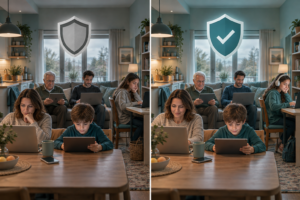
The free vs paid antivirus comparison is easier when you look at individual features rather than treating all security software as equivalent.
Free tools already cover many important needs.
Paid services may add convenience, wider monitoring, or additional features that the household would otherwise manage separately.
The following table describes typical capabilities. Actual features depend on the operating system, provider, and subscription.
Free vs Paid Antivirus Comparison Table
| Feature | Free Built-in Security | Complete Family Security Plans |
|---|---|---|
| Malware detection | Included on major platforms, with different capabilities | May provide additional scanning or detection |
| Windows antivirus | Microsoft Defender Antivirus included | May replace or supplement the active antivirus setup |
| Mac malware protection | Gatekeeper, XProtect, and other Apple protections | May add scanning and monitoring features |
| iPhone and iPad security | App isolation, permissions, and system protections | May add permitted web, network, and account checks |
| Android app scanning | Google Play Protect on supported devices | May include additional app and security checks |
| Phishing protection | Browser and operating system warnings | May provide additional web and link protection |
| Data breach alerts | Available through some free and account-based services | Included in certain plans |
| Identity theft monitoring | Usually handled through separate services | Offered in some plans, not all |
| Parental controls | Available through supported operating system tools | May provide additional or more centralized controls |
| VPN | Not included as a universal antivirus feature | Available in some paid plans |
| Home network checks | Basic router and system tools | Some plans include additional WiFi assessments |
| Family security management | Usually split across platforms | May combine supported functions |
| Cost | Usually included with supported devices | Subscription or paid license |
A paid plan should be evaluated by the specific problems it helps solve.
If you mainly want protection against common Windows malware, the built-in antivirus may already meet your needs.
If you want the same household to manage link protection, breach alerts, and network checks, a broader service may be more convenient.
Free Built-in Security: Best for Simple Households
Best for: Families with a manageable number of devices and someone comfortable checking security settings.
Free security has several advantages.
It is already integrated into the operating system.
Many updates arrive through normal system processes.
There is no separate antivirus bill.
And you avoid running overlapping software that may not add meaningful protection.
Strengths
- No mandatory antivirus subscription.
- Built-in malware and app protections.
- Security updates through supported systems.
- Browser warnings for known dangerous websites.
- Existing privacy and parental control settings.
- Less software to install and maintain.
Limitations
- Settings differ between operating systems.
- Not all devices provide the same monitoring features.
- Family oversight may involve several accounts and apps.
- Breach monitoring is not necessarily included in one place.
- Scam protection still depends on what family members do.
If your household already uses unique passwords, keeps devices updated, and checks unexpected links carefully, free protection can remain a sensible long-term choice.
There is no need to replace effective built-in security simply to have a paid antivirus label.
Paid Family Security: Best for Broader Household Needs
Best for: Families using several device types who want additional protection against online threats and simpler monitoring.
A paid family security plan may help when the main concern is no longer just malware.
Parents may want to check suspicious links, monitor email addresses for known breaches, and review network safety without opening several unrelated tools.
Strengths
- Additional web and phishing protections where supported.
- Breach alerts on monitored information.
- Potentially simpler multi-device management.
- Network security and VPN options.
- Additional parental features in some plans.
- A more consistent approach to supported security tasks.
Limitations
- Recurring cost.
- Different features on different platforms.
- Some overlap with existing free protections.
- Family management varies between providers.
- Certain functions require network or device permissions.
- No service can identify every scam or prevent all security incidents.
AVO Security offers family-focused features such as link checking, web protection, email breach scanning, WiFi security checks, and VPN capabilities across supported devices.
Its comprehensive device security features illustrate why platform-specific details matter.
A Windows antivirus feature and an iPhone security feature may serve different purposes, even when both are included in the same plan.
When comparing paid services, look for clear explanations of those differences.
What to Check Before Paying for a Family Plan
Before purchasing, make a list of the devices and accounts you want to protect.
Then ask these questions.
How many devices does the plan cover?
Count phones, tablets, laptops, and desktop computers.
Check whether the subscription covers the entire household.
Does every device receive the same features?
Compare Windows, Mac, Android, iOS, and iPadOS support separately.
Do not assume the word “multi-device” means identical scanning capabilities everywhere.
Are phishing protections included?
Check whether suspicious-link warnings work automatically or require manual checks.
Find out which browsers and applications are supported.
How does breach monitoring work?
Look at the number of email addresses that can be monitored.
Check whether alerts identify the affected service and suggest useful follow-up steps.
Are parental controls included?
Some family plans include content filtering or device schedules.
Others focus on security rather than parental management.
Make sure you are buying the functions you actually need.
What does the VPN provide?
Review supported platforms, privacy practices, and connection settings.
A VPN is useful for particular privacy needs, not every security problem.
What happens when the plan expires?
Identify which additional features stop functioning.
If you are using a third-party antivirus on Windows, check the active security provider after uninstalling or letting a subscription lapse.
Windows Security should report an appropriate active antivirus configuration.
Avoid installing several competing real-time antivirus products without verifying compatibility.
How to Decide What Level of Protection Your Family Needs

The easiest way to decide is to look at the family member or device that needs the most attention.
For some households, that is a teenager who frequently downloads games.
For others, it is a grandparent receiving suspicious messages or a parent working from hotel WiFi.
Different situations call for different protections.
If Your Family Mostly Uses Windows Computers
Start with Microsoft Defender Antivirus.
It already provides useful real-time protection against common malware.
Make sure Windows Security reports an active antivirus provider and no unresolved threats.
Then check the other protections around it.
Windows family security checklist:
- Open Windows Security and review Virus & threat protection.
- Confirm that the operating system receives updates.
- Check browser phishing and download protections.
- Review ransomware-related settings.
- Enable multi-factor authentication on important accounts.
- Keep copies of important files.
- Review unfamiliar application installations.
This is a reasonable foundation for many Windows households.
A paid plan is more relevant when you want features such as additional web filtering, breach alerts, or coordinated coverage for other family devices.
If Everyone Uses Apple Devices
Apple’s built-in protections provide a useful starting point for Macs, iPhones, and iPads.
On Mac, keep macOS updated and leave the relevant application security protections enabled.
On iPhone and iPad, use strong passcodes, current system software, and appropriate app permissions.
Apple household checklist:
- Install operating system updates.
- Use strong device passcodes.
- Enable two-factor authentication for Apple accounts.
- Review app access to photographs, location, microphone, and camera.
- Check Screen Time settings for children’s devices.
- Keep recovery information current.
- Maintain backups of important data.
Additional security may be worthwhile if your family wants suspicious-link checking or breach alerts.
But remember that third-party iPhone security apps cannot scan other applications with the same level of access as desktop antivirus software.
Pay for supported features you will use, not claims of unrestricted scanning that the platform does not allow.
If Your Household Uses Both Android and iPhone
Mixed mobile households need a slightly different routine.
Android users should check Google Play Protect and application permissions.
iPhone users should review Apple’s privacy settings, app permissions, and software updates.
Both should use strong account security.
Shared mobile checklist:
- Install apps from trusted sources.
- Keep the operating system updated.
- Review new application permissions.
- Use unique account passwords.
- Enable multi-factor authentication.
- Avoid unfamiliar download links.
- Check account recovery settings.
A cross-platform plan may be convenient if you want consistent link checking or account monitoring.
Before paying, confirm what the application does on Android and what it does on iPhone.
If You Have Young Children Using Tablets
For younger children, parental settings are often more important than installing another antivirus scanner.
A child’s tablet may be used for school assignments, videos, games, and messaging.
The main concerns may involve unsuitable content, unwanted communication, excessive permissions, or accidental purchases.
Start with the operating system’s family features.
Practical setup steps:
- Create an appropriate child account.
- Set content and application restrictions.
- Require approval for purchases where supported.
- Configure suitable screen time limits.
- Review microphone, location, and camera permissions.
- Keep the tablet updated.
- Discuss what the child should do when a message or website feels suspicious.
Paid parental controls may provide additional filtering or management across supported devices.
They are most useful when the built-in controls do not meet your family’s needs.
If Your Teenager Downloads Games and Software
Teenagers often install applications more frequently than younger children.
That may include game launchers, browser extensions, school tools, and software recommended by friends.
Most of those downloads are legitimate.
The risk increases when software comes from unofficial websites or asks users to bypass security warnings.
Useful rules for teenagers:
- Download games and applications from official sources.
- Avoid cracked software and unfamiliar installers.
- Do not disable antivirus to run a questionable program.
- Review permission requests.
- Ask before granting remote computer access.
- Keep applications updated.
- Check unexpected account warnings through official websites.
A paid security service may provide another layer of web filtering or suspicious-link protection.
It cannot make every unofficial download safe.
If Parents and Grandparents Share the Same Family Plan
A family plan may be convenient when several relatives need help checking their devices.
For example, an older relative may use a Windows laptop and Android phone but rarely review security settings.
Another family member may travel frequently and use public networks.
Additional security tools can help establish a more consistent routine.
However, centralized management varies by product.
A shared subscription does not automatically provide one dashboard showing the security status of every device.
Check whether the plan includes that functionality.
Also make sure each person understands what the application monitors and which account information is shared.
Family security should improve protection without unnecessarily compromising privacy.
If You Frequently Use Public WiFi
A VPN may be useful when family members regularly connect through unfamiliar networks.
For example, a parent working from a hotel may want an additional encrypted connection while using the hotel’s WiFi.
Some security plans offer automatic VPN connection options.
AVO Security includes secure VPN encryption and supported options for protecting connections on unfamiliar networks.
These features can be convenient for someone who would otherwise forget to activate a VPN.
But do not confuse encryption with website legitimacy.
A VPN cannot stop someone from entering credentials on a fake login page.
Continue using browser warnings, link verification, and multi-factor authentication.
If You Have Already Received a Data Breach Alert
A breach alert does not necessarily mean your computer has malware.
It means some account information may have been exposed through another service.
Start by identifying which account was affected.
If the password may have been compromised, change it.
Then review other accounts for password reuse.
Enable multi-factor authentication and check recent account activity.
Also verify the recovery email address and phone number.
If sensitive identity or financial information was exposed, follow the appropriate guidance from your financial institution or official identity theft resources.
Paid breach monitoring can make it easier to learn about known exposures.
The alert itself does not secure the account. The actions you take afterward matter.
How to Improve Family Security Without Buying Anything
Before spending money on a family security plan, review the protections already available.
A household can make meaningful improvements without installing another antivirus application.
1. Update Every Family Device
Check Windows, macOS, Android, iOS, and iPadOS for updates.
Enable automatic security updates where appropriate.
Also update browsers and frequently used applications.
If a device no longer receives security support, consider the additional risk of continuing to use it for sensitive activities.
An unsupported operating system cannot necessarily be made fully secure by adding antivirus software.
2. Use Unique Passwords and Multi-Factor Authentication
Every important online account should have its own password.
A password manager can help create and store unique credentials.
Enable multi-factor authentication for email, banking, shopping, and cloud storage accounts.
Use passkeys, authenticator apps, or security keys where supported.
Email security is particularly important because an email account is often used to reset passwords for other services.
3. Secure the Home Router
Open your router’s administration interface.
Check the wireless encryption settings, administrator password, and firmware version.
Use a strong WiFi password.
Remove unnecessary remote administration access.
Review connected devices periodically.
Where supported, a guest or separate smart-device network may help limit access between different devices.
Make sure important equipment still works after changing network settings.
4. Review Children’s App Permissions
Open the privacy and permission settings on children’s devices.
Check which applications can access:
- Camera.
- Microphone.
- Location.
- Contacts.
- Photographs.
- Files.
Remove permissions that are unnecessary for the application’s purpose.
For example, a simple offline game may not need ongoing access to precise location data.
Also review purchase approvals and app installation restrictions.
5. Back Up Important Files
Family photographs, school assignments, tax documents, and other important files should not exist in only one place.
Use suitable cloud backup, external storage, or a combination.
Confirm that backups are actually completing.
Occasionally restore a sample file to make sure the backup is usable.
A backup that has never been checked may fail when it is needed most.
6. Agree on One Rule for Suspicious Messages
Create a simple household rule:
If a message asks for a password, payment, verification code, or urgent account action, verify it independently before responding.
This applies to texts, emails, social media messages, and messaging applications.
Encourage children and older relatives to ask for help when something looks unusual.
Do not make asking for help feel embarrassing.
A family member who feels comfortable checking with someone is less likely to respond impulsively to a convincing scam.
Common Mistakes When Comparing Free and Paid Antivirus
Assuming free antivirus provides no meaningful protection
Microsoft Defender, Apple’s built-in protections, and Google Play Protect provide legitimate security capabilities.
They should not be dismissed simply because they are free.
Assuming paid antivirus stops every online scam
A paid service may detect dangerous websites and suspicious links, but no tool can identify every fraudulent message.
Verification habits are still necessary.
Installing multiple real-time antivirus products unnecessarily
Overlapping security software can create compatibility problems or confusing alerts.
Check which product is active and follow supported installation guidance.
Paying for protections already included elsewhere
Review built-in parental controls, browser security settings, and account breach notifications before buying similar features.
Confusing a VPN with malware protection
VPN encryption protects data traveling between the device and VPN service.
It does not perform the same role as antivirus scanning or phishing detection.
Expecting unrestricted antivirus scanning on iPhones
iOS limits third-party application access.
Evaluate iPhone security apps according to the web, network, and account protection they can actually provide.
Ignoring device limits
A family subscription may cover fewer devices than the household owns.
Count the phones, computers, and tablets before purchasing.
Assuming breach monitoring prevents breaches
Monitoring can tell you when selected information appears in known exposed data.
It cannot prevent another company from experiencing a security incident.
Leaving important accounts without multi-factor authentication
A paid antivirus application cannot compensate for reused passwords and weak account security.
Using parental controls without talking to children
Technical limits can help manage access.
Children still need to understand suspicious messages, privacy, online contact, and why they should ask before sharing personal information.
Frequently Asked Questions
Is Windows Defender good enough on its own?
Yes. Microsoft Defender Antivirus provides useful real-time malware protection for many Windows home users, especially when Windows, browsers, and applications are updated. Combined with strong passwords, multi-factor authentication, backups, and safe browsing habits, it can form a solid free security setup. Paid security becomes more useful when you need additional phishing protection, breach alerts, or family management features.
Can free antivirus software protect mobile phones and tablets?
Yes, but mobile protection works differently from traditional Windows antivirus. Android devices with Google Play Protect can check apps for harmful behavior, while iPhones and iPads rely on application sandboxing, code signing, permissions, and operating system safeguards. Additional mobile security services may provide phishing protection, network checks, or account monitoring, depending on the platform.
What are the biggest risks of relying solely on free antivirus?
The main gaps often involve risks beyond traditional malware detection, including phishing, password reuse, exposed account credentials, and inconsistent settings across family devices. Many of these concerns can be reduced using free browser protections, account tools, parental controls, and better security habits. Paid family security may provide useful additional monitoring and convenience, but it cannot replace those basic precautions.
Why do families need centralized device security management?
Centralized management can make it easier to review supported device settings, monitor security alerts, and manage family protections without opening several unrelated applications. This becomes useful when a household uses Windows, Mac, Android, and iOS devices together. However, family plans differ in their management capabilities, so check which features are actually centralized before subscribing.
Start by making the most of the security already included with your devices. Keep them updated, protect important accounts, review app permissions, and maintain reliable backups.
If you still need help managing suspicious links, breach alerts, public WiFi, or several different devices, a paid family security plan may be a reasonable next step.
The aim is not to replace free antivirus simply because it is free. It is to add protection where your household genuinely needs it.