How to Set Up Antivirus for All Devices in Your Home

A common mistake when protecting a family’s devices is installing antivirus on the main computer and assuming everything else is covered. The Windows laptop has protection, but the teenager’s Android phone, the family iPad, and the Mac used for online banking have never been checked.
Setting up antivirus for all devices requires a separate look at every phone, tablet, and computer. Start with the security already built into each operating system, install compatible protection where needed, turn on phishing warnings, and organize updates and alerts so important problems do not get overlooked.
You do not need to be a computer expert. You need to know which devices are protected, what the security software can actually detect, and which settings to check when something stops working. The steps below cover Windows, macOS, iPhone, iPad, and Android, including what you should see after each part of the setup.
Why Centralized Multi Device Protection Matters

The family computer is rarely the only device holding sensitive information.
A parent’s phone may contain banking apps and saved payment details. A teenager’s laptop may have school accounts and cloud storage. A shared tablet might stay signed in to email, shopping websites, and streaming services.
Each device also has its own update schedule, security settings, and installed applications.
If nobody checks them together, problems are easy to miss. One laptop may stop receiving security updates. An Android phone may have a suspicious application installed. A family member may continue using a password exposed in a data breach.
Centralized security management helps you keep track of these issues without checking every setting on every device each day.
Why One Antivirus Installation Is Not Enough
Traditional antivirus software protects the computer or device where it is installed.
Installing a malware scanner on your Windows laptop does not automatically scan the applications on your child’s Android phone.
Likewise, a security application installed on an iPhone cannot inspect every file stored on a MacBook.
Even when a family subscription covers several devices, each supported device usually needs its own installation or activation.
Different operating systems also require different types of protection.
A practical family security setup should account for:
- Malware protection: Detecting harmful software on operating systems that support malware scanning.
- Phishing defense: Warning about websites designed to steal passwords, payment information, or account details.
- Software updates: Fixing known security weaknesses in operating systems and applications.
- Account protection: Using strong passwords, multi-factor authentication, and recovery settings.
- Data breach alerts: Identifying when monitored account information appears in known breaches.
- Home network security: Protecting the router and the WiFi connection used by household devices.
- Family controls: Applying suitable restrictions to children’s accounts and devices.
A single security application may provide several of these features, but it will not replace every built-in safeguard.
What Centralized Security Management Actually Means
Centralized security management means having one organized place to review the devices and security services connected to your household.
Some antivirus providers offer a dashboard showing enrolled devices, subscription status, recent scans, and security warnings.
Others allow several installations under one subscription but require you to review each device individually.
Before choosing a plan, check what its dashboard actually displays.
Useful information includes:
- The name of each protected device
- The operating system running on that device
- Whether the security application is active
- The date of the latest completed scan, where scanning is supported
- Security alerts requiring attention
- Available subscription slots
- Account breach notifications
The most useful dashboard is one that tells you which device needs attention.
A warning labeled Family Laptop is easier to act on than an unfamiliar device identifier.
A shared antivirus subscription does not automatically mean every security setting can be controlled remotely.
You may still need to open Windows Security, macOS settings, or the security application on a phone to make changes.
What Multi-Device Threat Detection Can and Cannot Do
Multi-device threat detection helps identify security problems across supported devices.
For example, a Windows malware scanner may detect a harmful downloaded file. An Android security app may identify a suspicious installed application. A web protection feature may warn about a fake login page on a phone.
Some security providers allow you to review these warnings through one account.
However, the type of detection depends on the operating system.
On iPhone, applications are restricted from freely inspecting other apps and system files. Third-party security products therefore focus on supported functions such as phishing protection, unsafe website detection, network checks, and account monitoring.
On Windows, antivirus software can inspect many more types of files and running processes.
This distinction matters when comparing features.
A product advertising protection for four operating systems may provide four different sets of capabilities.
Antivirus for All Devices: What to Prepare Before Starting
Before installing software, identify the devices your family actually uses.
Do not limit the list to new phones and laptops. Include older devices that are still used for email, shopping, schoolwork, or accessing personal accounts.
Make a List of Every Device
Walk through the household and identify:
- Windows desktops and laptops
- MacBooks and desktop Macs
- iPhones
- iPads
- Android phones
- Android tablets
- Shared computers
- Older devices that remain connected to the internet
For each device, record the owner, operating system, and current security software.
You can use a simple checklist.
For example, a household might have two Windows laptops, one MacBook, two Android phones, an iPhone, and a shared iPad.
That means seven devices need reviewing, even if some already have suitable built-in protection.
Check the operating system version as well.
An older device that no longer receives security updates may need upgrading or replacing.
Installing antivirus does not fully compensate for an unsupported operating system.
Gather What You Need
Before beginning, make sure you have:
- A reliable internet connection
- Access to each device
- Permission to install applications
- The login details for your chosen security provider
- Access to the appropriate app store
- Enough available storage for updates
- A secure place to store account credentials
If a computer uses a separate administrator account, you may need that account to install software.
For a child’s phone, certain changes may require approval through the parent’s Apple or Google family account.
Avoid collecting everyone’s passwords in a shared document.
Use a reputable password manager where practical, and let family members maintain their own private account credentials.
Understand the Protection Available on Each Platform
| Operating system | Existing protection | Additional protection to consider |
|---|---|---|
| Windows | Microsoft Defender Antivirus, firewall, Windows Security | Compatible antivirus, phishing defense, breach alerts |
| macOS | XProtect, Gatekeeper, system security features | Malware scanning, web protection, account monitoring |
| iPhone and iPad | App isolation, system security, software updates | Phishing warnings, web filtering, breach monitoring |
| Android | Google Play Protect, app permissions, system security | Malware scanning, phishing protection, breach alerts |
You do not need to install every available security application.
First establish what is already working.
Then decide what additional protection is useful for each device.
Step 1: Choose a Cross-Platform Security Plan
A cross-platform security plan allows you to protect compatible devices running different operating systems under one subscription.
This can reduce the number of renewals and accounts you need to manage.
However, device compatibility matters more than a long feature list.
Check Which Operating Systems Are Actually Supported
Open the provider’s official website and find its downloads or compatibility section.
Check the following:
- Is there a Windows application?
- Is there a macOS application?
- Is the iPhone or iPad application available in the App Store?
- Is the Android application available through Google Play?
- Does the software support the operating system versions your family uses?
- Are the features you need available on each platform?
Pay attention to products described as coming soon or in development.
An announced application is not the same as one you can install today.
For example, AVO Security offers mobile security features for iPhone and Android, while its Windows and Mac applications have been listed as in development. Check the official download page for current availability before relying on the service to protect desktop computers.
Until a compatible desktop application is available, keep the computer’s existing antivirus protection active.
Look for the Features Your Family Will Use
Start with the risks your household actually faces.
If family members frequently receive delivery messages, shopping links, and unexpected account notifications, phishing protection deserves attention.
If children regularly install Android apps, malware scanning and app safety checks matter.
If several family members reuse email addresses across online services, breach monitoring can help identify exposed accounts.
Useful features include:
Malware scanner: Checks supported files, applications, and processes for malicious software.
Phishing defense: Helps identify suspicious websites that imitate legitimate services.
Web protection: Warns about or blocks certain unsafe destinations.
Data breach alerts: Notifies users when monitored account information appears in known breaches.
Automatic updates: Keeps the security application and its detection information current.
Family management: Helps organize supported devices, profiles, and security notifications.
Look at the platform-specific feature list rather than assuming one subscription includes identical protection everywhere.
If you are comparing different coverage options, the guide to the best antivirus for multiple devices explains what to consider across operating systems.
Check Device Limits Before Installing
Count the devices that need coverage.
A family with two laptops, three phones, and two tablets has seven devices.
A subscription limited to five installations will not cover all seven.
Check whether the provider counts devices or individual users.
Also confirm whether a device can be removed from the subscription when it is replaced.
This matters when someone upgrades their phone and the old device remains registered.
A useful plan should make it reasonably easy to identify and remove inactive devices.
Check Privacy and Permissions
Security software may need access to files, network activity, or device information.
The permissions depend on the feature.
For example, a malware scanner needs access to supported files. A web filtering feature may need to inspect or filter network requests. Breach monitoring needs the email addresses you choose to check.
Before installing, review:
- What information the application collects
- Whether browsing activity is stored
- Which permissions are required
- What a family administrator can see
- Whether account and device information can be deleted
- How security notifications are delivered
Be particularly careful with applications requesting accessibility access, broad storage access, or VPN configuration permissions.
Some legitimate security tools need these capabilities. Others do not.
Read the explanation before approving.
Step 2: Install Protection on Desktop Computers
Windows and Mac computers often store documents, downloaded attachments, saved passwords, and financial information.
Start with their built-in security settings.
After confirming those protections are working, decide whether a compatible third-party security application is needed.
Setting Up Windows Security
Windows includes Microsoft Defender Antivirus through the Windows Security application.
It provides malware scanning and real-time protection.
The first task is to confirm that an antivirus provider is active.
Check Whether Protection Is Active
On Windows 11:
- Open the Start menu.
- Type Windows Security.
- Open the application.
- Select Virus & threat protection.
- Review the displayed protection status.
If Microsoft Defender Antivirus is your active provider, select Manage settings under Virus & threat protection settings.
Check that Real-time protection is enabled.
Real-time protection examines files and software activity for potential threats.
If another antivirus application is installed, Windows may show that provider instead.
That can be normal.
To check, open Virus & threat protection and look for Manage providers.
Keep one primary active antivirus solution rather than deliberately running competing antivirus scanners.
Two products trying to control the same real-time scanning functions can cause errors and unnecessary performance problems.
Run the First Malware Scan
Once you have confirmed that protection is active:
- Open Windows Security.
- Select Virus & threat protection.
- Click Quick scan.
- Allow the scan to finish.
- Review the results.
A normal result may report that no current threats were found.
If a threat appears, read the recommended action.
Windows may quarantine a suspicious file, preventing normal access to it.
Do not restore a quarantined file just because its name looks familiar.
If you suspect a problem that the quick scan did not identify, open Scan options and review the additional scan types.
A full scan checks more files and can take considerably longer.
Run it when the computer is not needed for urgent work.
Check Windows Updates and Firewall Settings
Open Settings, then Windows Update.
Click Check for updates.
Install available security updates and restart if required.
Next, return to Windows Security.
Select Firewall & network protection.
Check that the firewall is active for the network profile you are using.
If a printer or application stops connecting, investigate its firewall permissions rather than turning off the entire firewall.
Also check whether your Windows version still receives security support.
Windows 10 reached the end of its standard support period in October 2025. Computers that have not moved to a supported system or enrolled in an applicable extended security update arrangement require particular attention.
Antivirus software cannot fix every vulnerability in an outdated operating system.
Installing a Third-Party Windows Antivirus
If you decide to use a compatible antivirus product:
- Download the installer from the provider’s official website.
- Confirm that it supports your Windows version.
- Open the installer.
- Review the installation options.
- Approve only the permissions required.
- Restart if instructed.
- Open the installed security application.
- Sign in and activate the subscription.
- Run the initial scan.
After installation, check that the application reports active protection.
Then open Windows Security and verify which antivirus provider is registered.
If the new product is active, Microsoft Defender may adjust its real-time scanning behavior automatically.
Do not try to run multiple competing real-time scanners to increase protection.
Setting Up Mac Protection
macOS includes several security defenses.
XProtect detects known malware, while Gatekeeper checks applications before they run under supported conditions.
These protections work largely in the background.
A Mac still needs updates, sensible application permissions, and protection against phishing.
Update macOS First
On your Mac:
- Open the Apple menu.
- Select System Settings.
- Click General.
- Open Software Update.
- Install available updates.
Review the Automatic Updates settings.
Enable appropriate automatic security updates so the Mac receives new protections without depending on someone remembering to check manually.
If the Mac cannot install a supported version of macOS, check whether Apple continues providing security updates for its current version.
An unsupported Mac should not be used indefinitely for sensitive activities simply because antivirus software is installed.
Check Existing Security Settings
Open System Settings and select Privacy & Security.
Review the permissions granted to installed applications.
Look particularly at access to:
- Camera
- Microphone
- Files and folders
- Full Disk Access
- Screen Recording or Screen & System Audio Recording
- Accessibility
The exact menu names depend on your macOS version.
An application may legitimately need certain permissions.
However, a simple utility that unexpectedly requests access to sensitive files or screen contents deserves closer inspection.
Next, open General and select Login Items & Extensions.
Check which applications are allowed to launch automatically or operate in the background.
If you find an unfamiliar item, identify it before removing it.
Some background processes belong to installed software or macOS itself.
Install Additional Mac Security Software When Needed
If your chosen antivirus provider offers a compatible Mac application, download it from the official source.
Follow the installation instructions.
Some malware scanners require Full Disk Access to inspect protected file locations.
Approve that permission only when you trust the application and understand why it is needed.
After installation:
- Open the security application.
- Complete account activation.
- Review its protection status.
- Enable supported background protection.
- Run the initial malware scan.
- Check the results.
If the application requires approval for a system extension, follow the provider’s instructions for your macOS version.
Do not disable Gatekeeper or other built-in security controls simply to install an incompatible application.
Step 3: Install Security on Mobile Devices
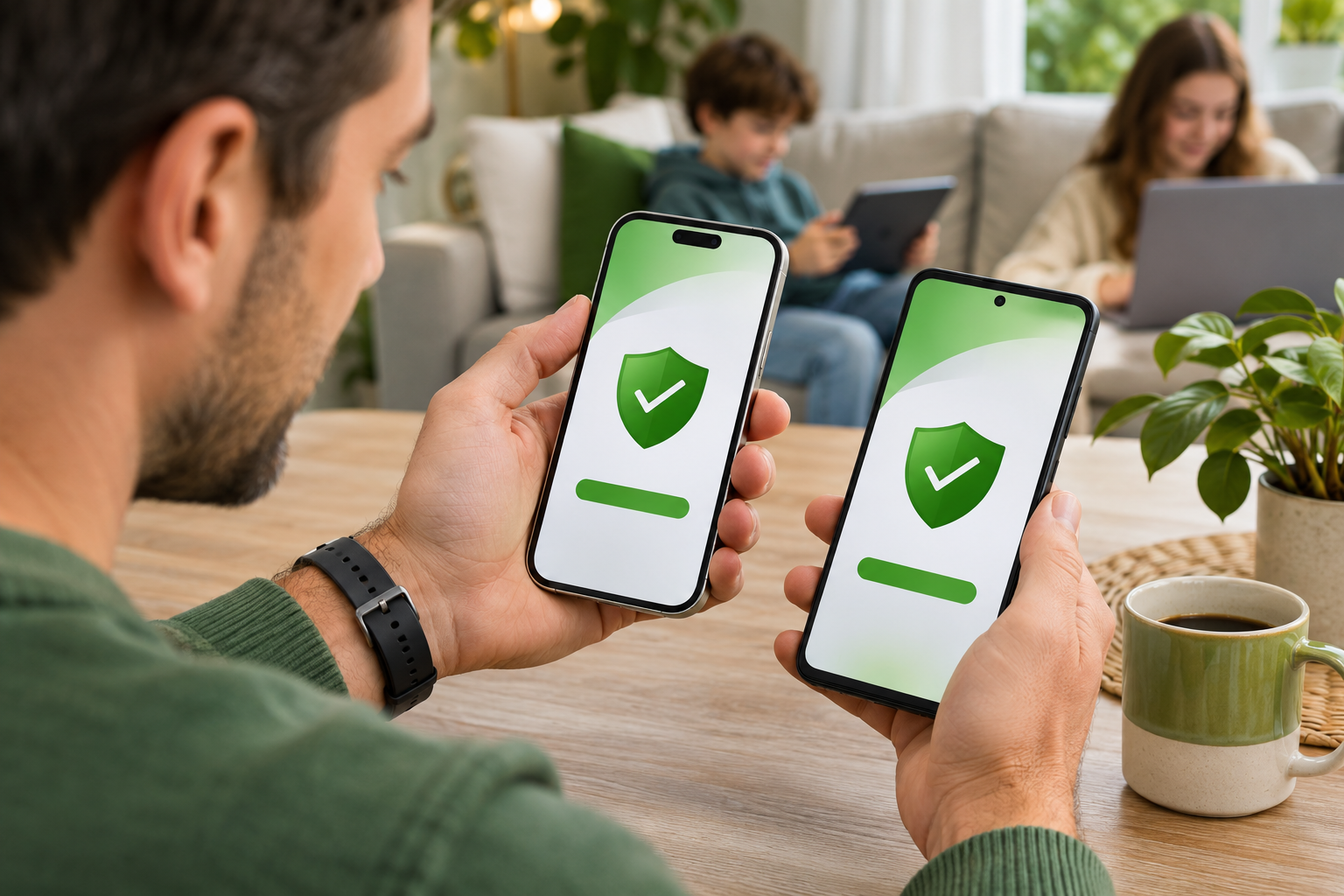
Phones and tablets need security protection, but they work differently from desktop computers.
Android supports malware scanning within the operating system’s permission limits.
iPhones and iPads have stricter application isolation, so third-party security tools cannot perform the same unrestricted system-wide malware scans available on Windows.
The right setup depends on the platform.
Securing iPhone and iOS Hardware
For an iPhone or iPad, start with iOS or iPadOS updates, account security, browser protection, and application permissions.
Additional security applications can provide useful services, but they cannot inspect every installed app.
Update iOS Before Installing Security Apps
On an iPhone:
- Open Settings.
- Tap General.
- Select Software Update.
- Install any available update.
- Open Automatic Updates.
- Review the available automatic update options.
Install security updates promptly.
They can fix operating system vulnerabilities that third-party security applications cannot directly repair.
Also make sure the device has a strong passcode.
Face ID and Touch ID make signing in easier, but a passcode remains an important part of device security.
Avoid sharing it unnecessarily.
Check Safari’s Security Features
On recent iOS versions, open Settings, select Apps, and tap Safari.
Find the Privacy & Security section.
Check that Fraudulent Website Warning is enabled, where available.
This feature helps warn about suspected phishing websites.
It can be useful when someone opens an unfamiliar shopping link or a delivery notification.
However, a warning may not appear for every fraudulent website.
Teach family members to check the actual website address before entering passwords or payment details.
A page that looks like a bank login is not necessarily the bank’s real website.
Install a Compatible iPhone Security App
If your chosen provider has an iPhone application:
- Open the App Store.
- Find the official application.
- Verify the developer name.
- Install the application.
- Open it and sign in.
- Review the available protections.
- Enable the features your family needs.
Depending on the product, these may include phishing warnings, web filtering, unsafe link checking, or account breach monitoring.
Some network protection features request permission to create a VPN configuration.
This can be necessary for certain filtering methods, but it does not automatically mean the application provides a conventional privacy VPN.
Read what the configuration does before approving it.
If you already use a VPN, check whether both services can operate together.
After setup, open the security app again.
Confirm that the features you enabled show an active or configured status.
Do not treat the presence of an app icon as proof that its web protection is running.
Protect the Apple Account
Open Settings and select your Apple Account.
Review the sign-in and security options.
Check that two-factor authentication is enabled and trusted account recovery information is correct.
If you receive an unexpected sign-in approval request, do not approve it.
Someone may be attempting to access your account using a compromised password.
Also review the devices associated with your Apple Account.
Remove unfamiliar devices after verifying that they do not belong to you.
Securing Android Phones and Tablets
Android devices can benefit from malware scanning, careful app permissions, and phishing protection.
Start with Google Play Protect before adding another security application.
Check Google Play Protect
On a typical Android phone:
- Open Google Play.
- Tap your profile picture.
- Select Play Protect.
- Tap the settings icon.
- Confirm that Scan apps with Play Protect is enabled.
- Return to the main Play Protect screen.
- Run a scan if the option is available.
Google Play Protect checks applications for potentially harmful behavior.
If it identifies a harmful application, review the warning and follow the recommended action.
Do not dismiss a detection just because the app looks familiar.
A malicious application can imitate an ordinary utility, game, or document viewer.
Update Android and Installed Apps
Open Settings.
Find System, Software Update, or the equivalent menu used by your phone manufacturer.
Install available Android and security updates.
Next, open Google Play.
Tap your profile picture and select Manage apps & device.
Review available updates.
Pay particular attention to browsers, messaging applications, financial apps, and other software used regularly.
If the device no longer receives manufacturer security updates, consider the risks of continuing to use it for banking or other sensitive accounts.
Install Additional Android Protection
A compatible Android security application may provide malware scanning, phishing protection, and unsafe link warnings.
Install the official version from a trusted source.
After installation:
- Open the security application.
- Sign in to the correct account.
- Review its permissions.
- Enable the protection features you want.
- Run the initial malware scan.
- Review the scan results.
Some applications request accessibility access, notification access, or broad file permissions.
These permissions can be powerful.
For example, accessibility access may allow an application to observe or interact with content displayed on the screen.
Approve such permissions only when they are necessary for a feature you understand and trust.
If a security application cannot explain why it needs access, investigate before proceeding.
Check for Suspicious Installed Applications
Open Settings and select Apps.
Review the installed application list.
Look for software you do not recognize, especially applications installed from outside Google Play.
Pay attention to apps claiming to clean memory, speed up the phone, or provide free security fixes while requesting extensive permissions.
Do not immediately delete every unfamiliar item.
Some legitimate system components have technical names.
Check the app’s details and source first.
If you identify an unwanted application, uninstall it through the normal Android settings.
Then run another malware scan.
Step 4: Centralize Security Management for the Household
Once the devices are protected individually, organize the account and alert settings.
This is the part that prevents a forgotten laptop or expired subscription from going unnoticed.
Add Supported Devices to the Family Account
If your provider offers a family dashboard:
- Sign in to the main account.
- Open the Devices or Subscriptions section.
- Review the available device slots.
- Follow the enrollment instructions for each compatible device.
- Confirm that the new device appears in the account.
- Review its activation or protection status.
Some providers send an email invitation.
Others require signing in directly on the device.
Use only the provider’s official enrollment process.
If an installation does not appear, check whether it was activated under a different account.
Do not assume that purchasing a family subscription automatically enrolls every household device.
Assign Each Device to the Right Person
Use recognizable device names wherever supported.
Examples include:
- Family Windows Laptop
- Parent MacBook
- Teen Android Phone
- Shared iPad
Clear names help you identify which device needs attention.
If a dashboard reports that the family laptop has stopped checking in, you know which computer to inspect.
If the provider supports family profiles, assign them carefully.
Do not apply child restrictions to a shared adult device without checking how those controls affect other users.
For shared computers, separate operating system user accounts may provide a cleaner arrangement.
Configure Alerts Without Creating Notification Overload
A security application may generate several kinds of notifications.
Some require immediate action.
Others simply confirm that a scheduled scan finished.
Prioritize warnings such as:
- Confirmed malware detections
- Disabled real-time protection
- Failed security updates
- Known account breaches
- Blocked malicious websites
- Devices that have stopped reporting for an extended period
Review informational notifications separately.
If every routine event generates a phone alert, family members may start ignoring the warnings that actually matter.
Make sure important notifications are enabled in both the security application and the operating system.
Set Up Data Breach Alerts
Data breach monitoring checks whether monitored information appears in known breaches.
Email addresses are commonly used for this purpose.
Add each family member’s address with their knowledge and permission.
When a relevant alert appears:
- Identify the affected service.
- Open its official website or application.
- Review whether the account is still active.
- Change the password if it may have been exposed.
- Replace that password anywhere else it was reused.
- Enable multi-factor authentication.
- Review recent account activity.
Do not use password reset links from unexpected emails.
Open the service independently.
Also remember that a breach alert does not prove someone has accessed your account.
It indicates that associated information may have been exposed and needs attention.
Set Clear Family Security Responsibilities
A dashboard cannot respond to warnings by itself.
Decide who will manage the subscription and who will handle problems on individual devices.
A practical arrangement might be:
- One adult manages the family subscription.
- Each person installs updates on their own devices.
- Children report suspicious messages before opening links or entering passwords.
- The account administrator reviews important security alerts.
- Family members discuss suspected account compromises promptly.
Keep the rules manageable.
For younger children, a clear instruction such as asking an adult before installing an unfamiliar app is more useful than a long explanation of malware categories.
For teenagers, explain why unexpected verification codes, fake giveaway messages, and account recovery requests deserve caution.
If you need help evaluating family plans and parental features, read the best antivirus for family guide.
Verify That Every Device Is Actually Protected
Before considering the setup complete, check each device individually.
Confirm that:
- The operating system is supported and updated.
- Appropriate built-in security features are active.
- Any additional security application opens correctly.
- The subscription is activated where required.
- Malware scanning works on supported platforms.
- Web or phishing protection is enabled where available.
- Important security notifications are permitted.
- The device appears in the family dashboard if supported.
On Windows, check the active antivirus provider.
On Mac, review the security application’s status and permissions.
On Android, check Play Protect and any additional scanner.
On iPhone, confirm the supported web and account protection features rather than looking for a traditional antivirus scan.
If everything is configured correctly, record the date of your review.
Best Practices for Maintaining Home Network Security
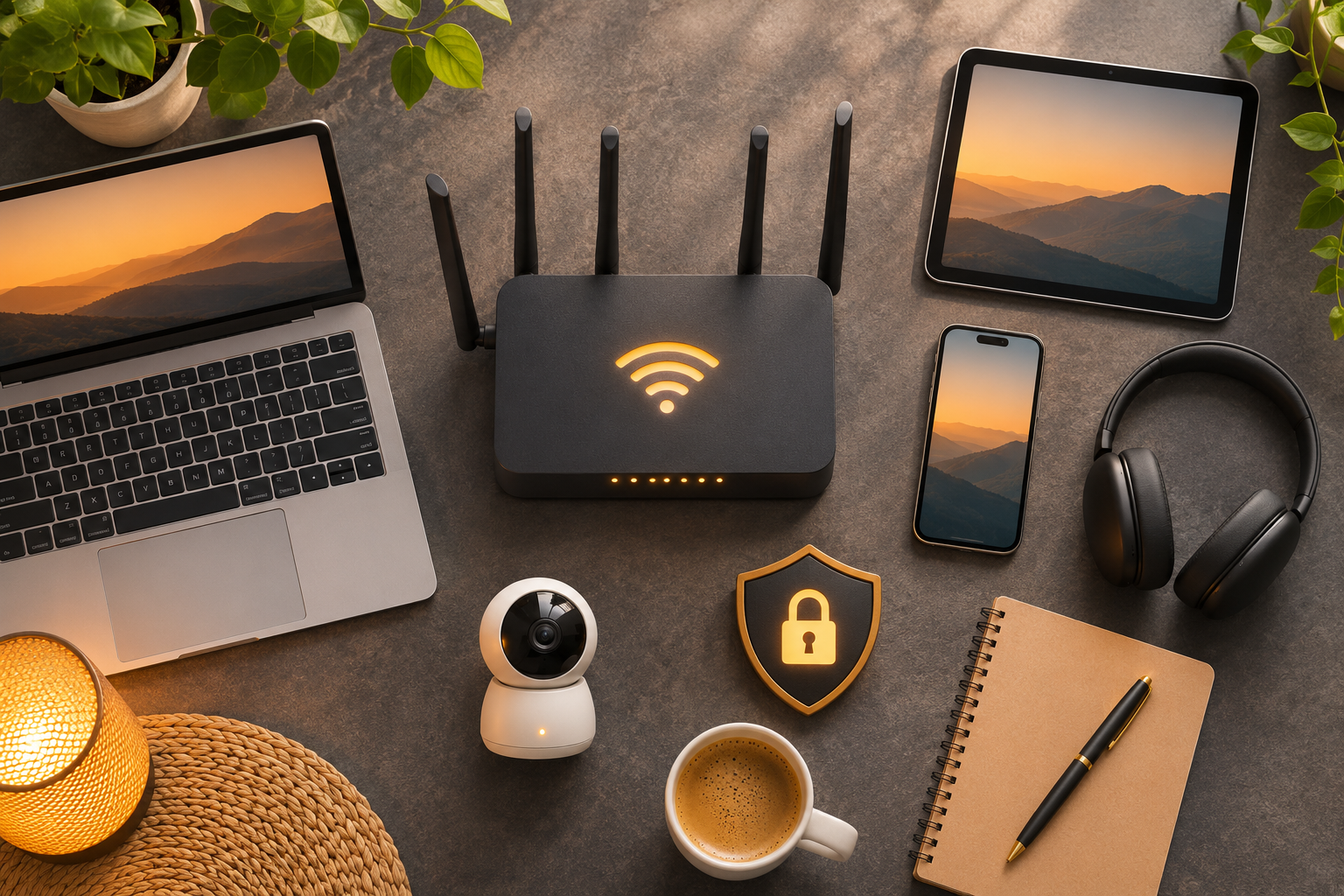
Your router connects the household to the internet.
Antivirus software on a laptop does not automatically secure the router or every smart device connected to it.
A few basic network checks help protect the phones, computers, and tablets that depend on that connection.
Keep Router Firmware Updated
Your router runs software called firmware.
Manufacturers may release updates to fix security problems and improve reliability.
Open the router’s official administration interface or management app.
Look for Firmware Update, Software Update, or System Update.
If an update is available, follow the manufacturer’s instructions.
Do not unplug the router while an update is being installed.
Some routers support automatic firmware updates.
Consider enabling them if the feature is available and reliable.
If the router no longer receives security updates from its manufacturer, investigate whether replacement is appropriate.
Change Default Router Credentials
The router’s administrator password is different from the password used to join WiFi.
The administrator password controls access to network settings.
If your router still uses an unchanged default administrator password, replace it with a strong, unique password.
Use a password manager to store it.
Also check whether remote administration is enabled.
Most households do not need direct internet access to their router’s administration interface.
Disable unnecessary remote management features unless you have a specific reason to use them.
Use Secure WiFi Encryption
Open your router’s wireless security settings.
Use WPA3 when supported by your devices and router.
WPA2-AES remains a suitable compatibility option for equipment that does not support WPA3.
Avoid WEP and other obsolete security methods.
Choose a strong WiFi password that is not reused for important online accounts.
If guests regularly visit, consider a separate guest network.
This allows visitors to connect without necessarily giving them access to devices on your main home network.
Keep in mind that guest isolation may prevent access to local printers, speakers, or cameras.
Keep Software and Browsers Updated
Antivirus software cannot fix every security weakness in an outdated application.
Enable automatic updates where appropriate.
Pay particular attention to:
- Web browsers
- Email applications
- Messaging applications
- Banking applications
- Password managers
- Video conferencing software
- Security applications
If a computer reports that updates require a restart, schedule one.
A laptop that stays running for weeks may have downloaded important updates without finishing installation.
Also remove applications that are no longer used, especially if they have stopped receiving updates.
Teach Family Members to Recognize Phishing
Many household security incidents begin with a message rather than a malicious file.
A fake delivery notification may claim that a parcel requires an additional payment.
A fraudulent bank alert may request immediate account verification.
A scammer pretending to be technical support may ask someone to install remote control software.
Teach family members to check:
- Whether the message was expected
- Who actually sent it
- The website address behind the link
- Whether the request creates unnecessary urgency
- Whether passwords or verification codes are requested
- Whether the message asks for unusual payment methods
For example, if an unexpected delivery message asks for payment, open the delivery company’s official website independently.
Do not assume the link is safe because the message includes a familiar company name.
Phishing defense tools can block or warn about some fraudulent websites, but no filter catches every scam.
Back Up Important Files
Antivirus cannot recover every file lost through ransomware, accidental deletion, hardware failure, or device theft.
Back up important documents and photos.
A practical household backup arrangement may include a trusted cloud backup service and an external drive.
Keep at least one backup copy separate from the computer so it is less exposed if the computer becomes infected.
Check that backups are completing successfully.
Occasionally restore a non-sensitive test file to confirm that the backup process works.
Do not discover that a backup has failed only after a laptop stops working.
Common Antivirus Setup Mistakes to Avoid
Some setup mistakes leave devices with less protection than the family expects.
Others create unnecessary conflicts.
Installing Multiple Active Antivirus Programs
Installing two competing active antivirus products does not automatically provide better security.
They may both attempt to inspect the same files or control similar protection functions.
This can cause slowdowns, false warnings, or software conflicts.
On Windows, confirm which antivirus provider is active.
Use one primary real-time antivirus solution.
Compatible additional protections, such as a firewall, password manager, or phishing filter, can still be useful.
The aim is complementary protection, not duplicate scanners competing for control.
Assuming Every Platform Has Identical Protection
A family antivirus plan may support Windows, macOS, iOS, and Android, but its features can differ substantially.
Windows supports traditional real-time malware scanning.
Android provides app scanning through Play Protect and other supported security tools.
iPhone applications cannot freely scan other installed apps.
When comparing providers, check the feature list for each platform rather than relying on one general description.
Ignoring Installation Permissions
Security applications sometimes require permissions to work correctly.
A web filter may need a network configuration.
A Mac malware scanner may request Full Disk Access.
An Android security tool may need file access for certain scanning functions.
Denying an essential permission can leave a feature inactive.
Approving unnecessary permissions can create privacy risks.
Read each request and confirm that it relates to a feature you intend to use.
Forgetting Shared and Older Devices
An old laptop used only for printing or occasional online shopping may still have saved passwords.
A shared tablet may remain signed in to several family accounts.
These devices deserve the same review as newer equipment.
If an older device no longer receives security updates, consider retiring it from sensitive tasks.
Before selling or recycling it, sign out of important accounts and follow the manufacturer’s instructions for securely erasing personal data.
Ignoring Security Warnings After Installation
A security application is not a set-and-forget guarantee.
A confirmed malware detection needs review.
A breach notification may require changing a password.
A disabled protection warning means the expected safeguard may not be operating.
Check what the alert actually says.
Do not automatically delete files, restore quarantined applications, or approve security exceptions without understanding the finding.
What to Do if Antivirus Protection Still Does Not Work
Installation problems usually have a specific cause.
The device may be incompatible, the account may not be activated, or a required permission may be missing.
Start with the simplest checks.
The Security App Will Not Install
Check that the application supports your operating system and version.
Next, confirm that the device has enough storage.
Restart the device and try again using the official download source.
On Windows or Mac, verify that you have permission to install applications.
On a child’s phone, check whether parental controls require approval.
If the provider does not offer an application for your platform, do not download an unofficial installer claiming to provide the missing version.
Use an appropriate supported security solution instead.
The Subscription Does Not Recognize a Device
Open the provider’s official account dashboard.
Check:
- Whether the subscription is active
- Whether you signed in with the correct account
- Whether the plan has available device slots
- Whether the application supports the device
- Whether activation completed successfully
If someone recently replaced a phone, the old installation may still occupy a slot.
Remove unused devices through the provider’s official device management process when supported.
Then activate the replacement.
Malware Protection Shows as Disabled
On Windows, open Windows Security and review Virus & threat protection.
Check which antivirus provider is active.
If a third-party product is installed, open its application and review the error.
Do not force several active antivirus scanners to run at the same time.
On Android, check Google Play Protect and your additional security application’s status.
On Mac, review software updates, permissions, and the installed security product.
On iPhone, check the specific features you enabled, such as web protection or breach monitoring.
An iPhone will not display the same traditional antivirus scanning status as Windows.
A Scan Finds a Threat
If a malware scanner detects a suspicious file or application:
- Stop opening or running the affected item.
- Read the detection details.
- Follow the recommended quarantine or removal action.
- Update the security software.
- Run another scan if appropriate.
- Review recently installed applications or downloads.
If you entered a password on a suspected phishing website, change it through the service’s official website or app.
If you reused that password elsewhere, replace those passwords too.
If financial details may have been exposed, contact the financial institution through its official support channel.
For a serious infection that repeatedly returns, qualified technical support may be necessary.
Avoid downloading random cleanup utilities from search advertisements.
Web Protection or VPN Features Stop Working
Some security applications use VPN configurations or DNS filtering to protect web traffic.
These features can sometimes conflict with existing VPN services or custom network settings.
If websites stop loading immediately after enabling a protection feature:
- Open the security application.
- Check its connection or protection status.
- Review whether another VPN is active.
- Check the provider’s compatibility instructions.
- Resolve the conflicting configuration.
- Confirm that the intended protection is active again.
Do not leave phishing protection permanently disabled without understanding why it caused a problem.
If a feature is incompatible with your existing setup, ask the provider about supported alternatives.
Family Alerts Are Not Appearing
First, confirm that the device is enrolled in the correct account.
Check the security application’s notification settings.
Then review notification permissions in Windows, macOS, iOS, or Android.
On mobile devices, background activity restrictions may affect how some applications deliver alerts.
Also check whether the device has recently connected to the internet.
A dashboard may not update immediately when a phone or laptop has been offline.
If the dashboard is unclear, open the security application directly on the device to verify its local protection status.
A Simple Monthly Family Security Checklist
Once the household setup is complete, a short monthly review helps catch problems that automatic protection may miss.
Choose a regular day and review the devices together.
Check Device Coverage
Open your device inventory and compare it with the security account.
Confirm that recently purchased phones and laptops are included.
Remove unused devices from the subscription where appropriate.
Check whether any enrolled device is reporting that protection is inactive.
Review Updates
Check for pending operating system and application updates.
Restart computers waiting to complete installation.
Pay particular attention to shared tablets and older laptops, which may be used less often.
If a device is no longer supported, decide whether it needs replacing.
Review Important Alerts
Look for confirmed malware detections, disabled protection warnings, and significant account breach notifications.
Resolve outstanding alerts.
If an application repeatedly reports the same problem, investigate the cause instead of dismissing it every month.
Check Backups and Account Security
Confirm that important backups are current.
Review unexpected sign-in alerts from email and cloud accounts.
Check that account recovery information remains correct.
If someone has received a suspicious message or approved an unfamiliar login request, address the account security issue rather than relying only on antivirus scanning.
Confirm Protection on New Devices
When someone upgrades a phone, verify the security settings on the replacement.
Transferring applications does not guarantee that all permissions, web filtering settings, and background protections remain enabled.
Open the security application and check its status.
Review operating system updates and account security.
Before giving away or selling the old device, remove personal data and disconnect it from the appropriate family accounts.
FAQ
Can I use one antivirus subscription on Windows, Mac, iPhone, and Android?
Yes, some security providers offer family subscriptions covering Windows, macOS, iOS, and Android. Confirm that applications are currently available for all four platforms, that the subscription includes enough devices, and that the required features work on each operating system. A single subscription does not guarantee identical malware scanning or remote management capabilities on every device.
How do I install antivirus protection on my mobile phone?
On Android, start by checking Google Play Protect, then install a compatible security application from a trusted source if you need additional scanning or phishing protection. On iPhone, use the App Store to install a reputable security application offering supported features such as unsafe website warnings or breach monitoring. Keep the phone updated and check that the features you enabled are actually running.
How do I manage security settings for family members from one dashboard?
Choose a provider with supported family device enrollment and centralized management, then add each compatible device to the account. Give devices recognizable names, configure important alerts, and check their reported protection status. Some operating system settings and permissions will still need to be managed directly on individual phones, tablets, or computers.
Protecting every device at home starts with knowing what the family owns and which protections are already active. Check Windows Security on the PCs, confirm macOS updates and security settings, review Play Protect on Android, and enable appropriate phishing and account safeguards on iPhones and iPads.
Once the devices are enrolled and configured, keep a simple monthly review. A current device list, working updates, and alerts someone actually checks will do more for your household than installing security software and never opening it again.